
There are currently two ways to create teams in Loop.
-
Import teams from Jira
-
Manually create teams in Loop
Importing Teams from Jira
Importing Teams During an Integration
When you import work from Jira, you can select whether Tempo teams or Jira teams are used within the space.
Based on your answer, Loop identifies the teams associated with items being imported, and automatically imports those teams and their members into Loop as well.
Importing Teams Separately
You can also import Tempo Teams or Jira Teams separately.
-
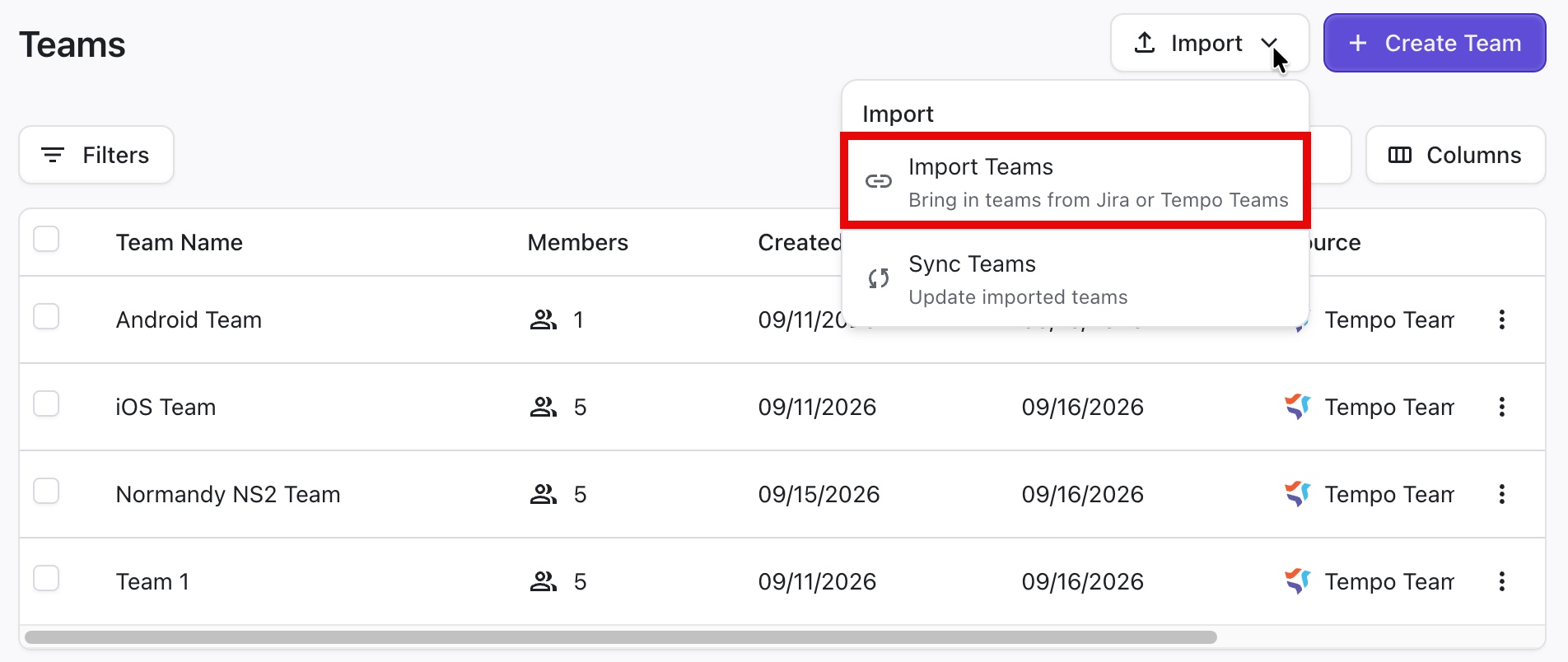
Go to Settings | All Teams.
-
Click Import.
-
In the dropdown menu, select Import Teams.
-
Follow the Import Wizard to select the Jira instance, type of teams (Tempo teams or Jira teams), and the specific teams you want to import.
Importing Tempo Teams
In order for Tempo Teams to be visible in Loop, the user who imports the team must have view permissions for the team in Jira. Before importing a Tempo Team, make sure:
-
The Tempo Team visibility is set to everyone, or
-
The user importing the team has View Team access for that team
For best results, anyone who will be importing items, syncing integrations, publishing scenarios, or managing teams in Loop should have View Team permission for any imported Tempo Teams.
Manually Creating Teams in Loop
To manually create teams in Loop:
-
Go to Settings | All Teams.
-
Select + Create Team.
-
Enter the Team information: Team name with members listed below it (one name per line).
-
Select the Loop portfolio that the team should be included in.
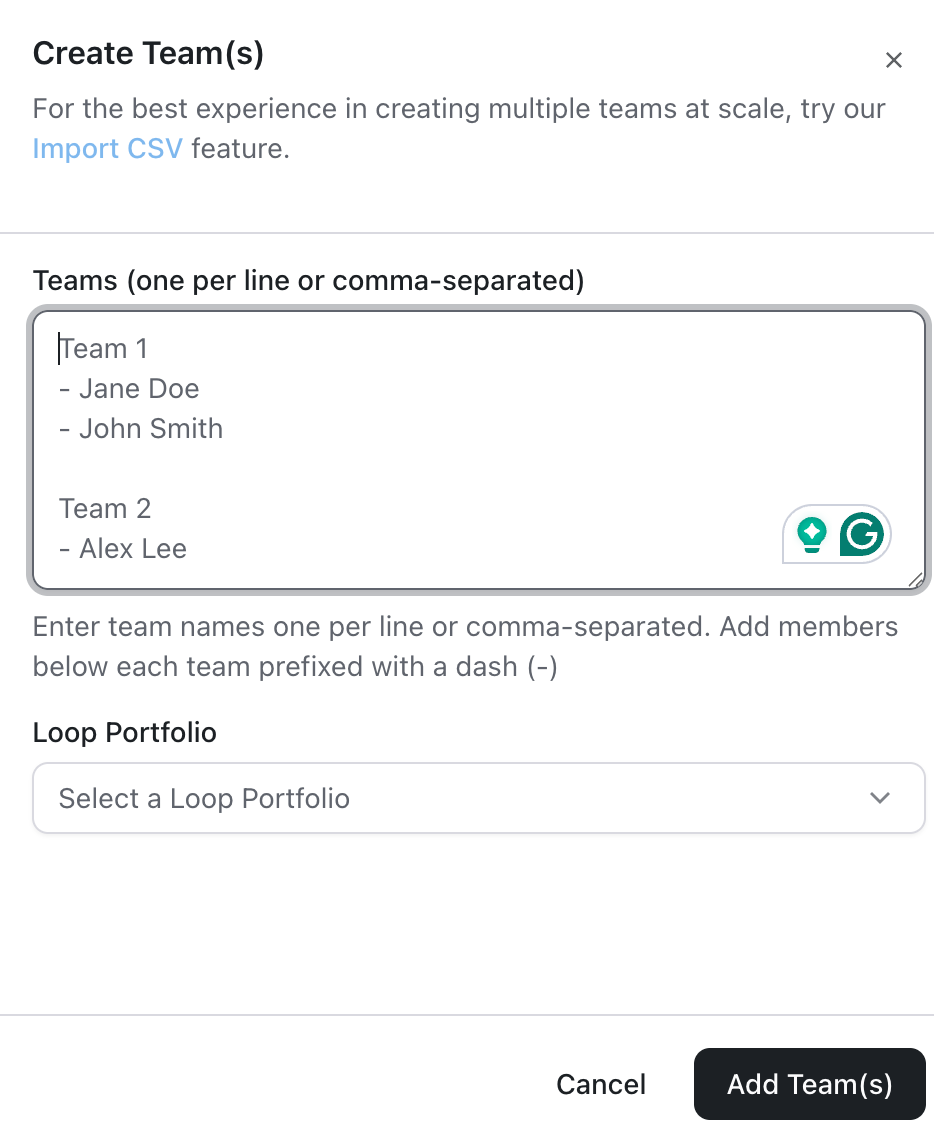
You can create multiple teams at a time - just follow the format in the Create Team dialogue.