
To make changes to an existing Jira integration, the roadmap owner can modify the setup at any time. To do so, open the Integrations panel again and click the Jira Software Settings icon.
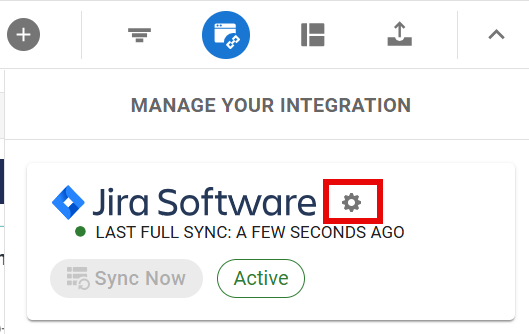
This will open the integration menu, where you can make changes to your sync settings.
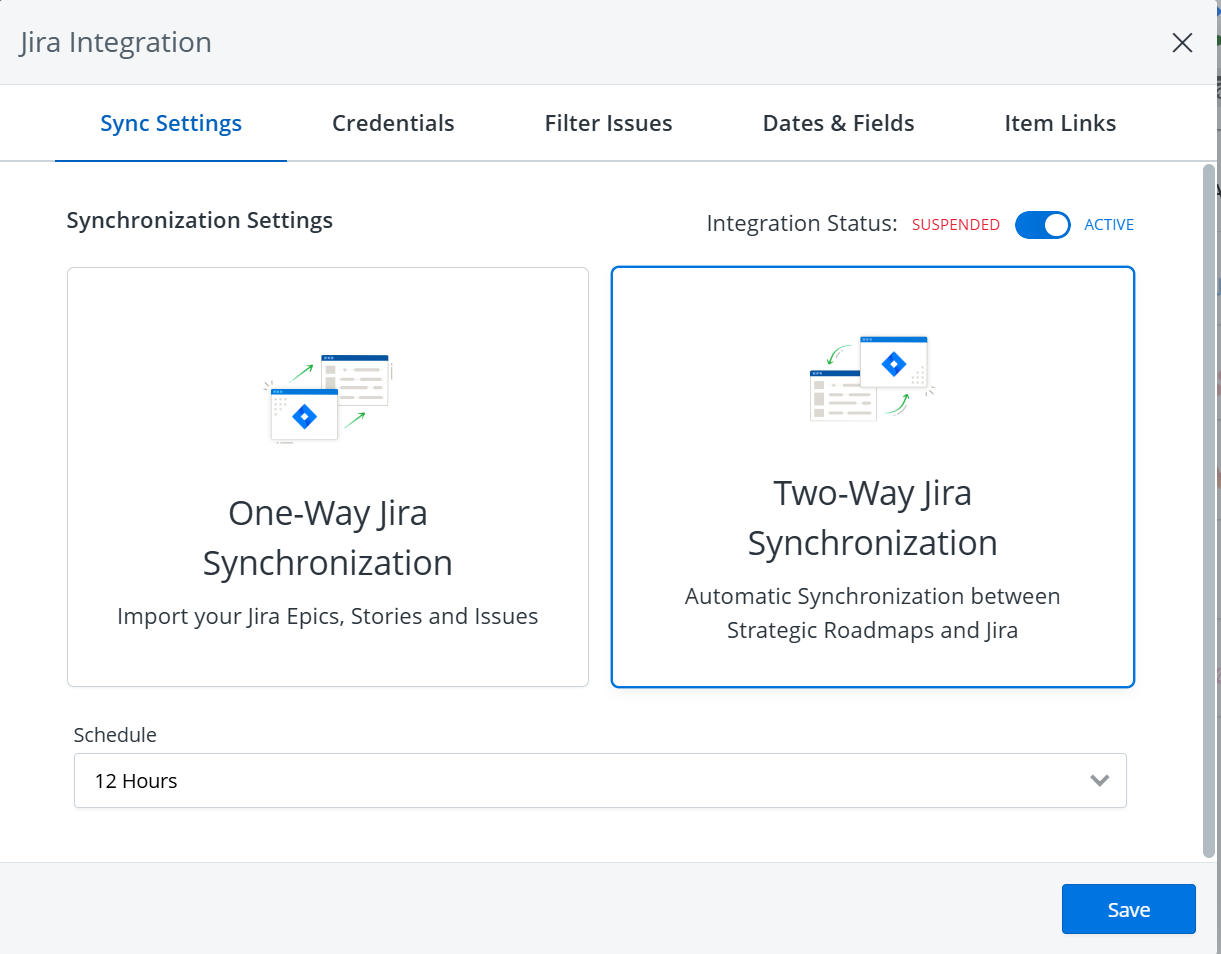
You can adjust:
-
Sync Settings - Enable/disable automatic synchronization, change the sync direction, or adjust the sync schedule.
-
Credentials - Change the login credentials used for the integration.
-
Filter Issues - Change the Jira project / Jira space or adjust the work items imported from the project/space.
-
Dates & Fields - Change the date mapping rules and synced fields.
-
Item Links - Include or exclude item links.
Changing the Jira Project / Jira Space
To sync the roadmap with an entirely different Jira project / Jira space, go to the Jira Integration settings, select the Filter Issues tab, and click Change Active Jira Project.
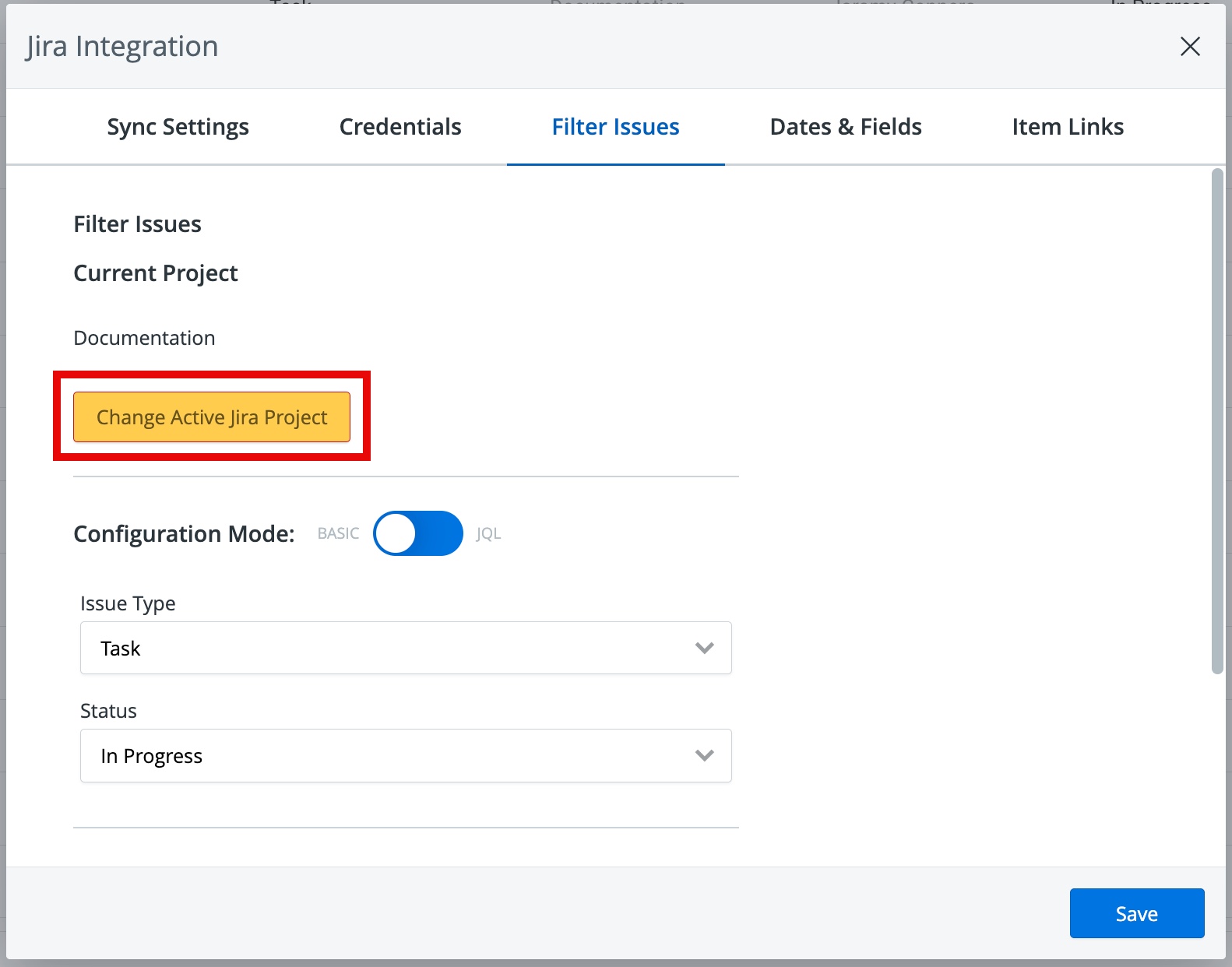
Changing the active Jira project / Jira space may affect the available fields, field values, work items, and other roadmap content. It could also impact views, filters, and other customization settings that rely on these values.
A roadmap can only be synced with one Jira project / Jira space. To include items from more than one project/space in a roadmap, try our integration with Structure PPM.