Creating a new goal
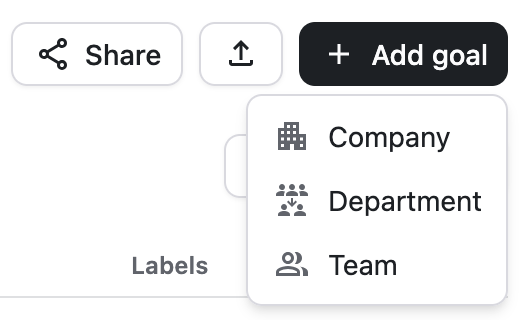
Select +Add Goal then either Company, Department, or Team. You can change the OKR scope during creation by selecting a new option from the menu in the upper left of the creation window.
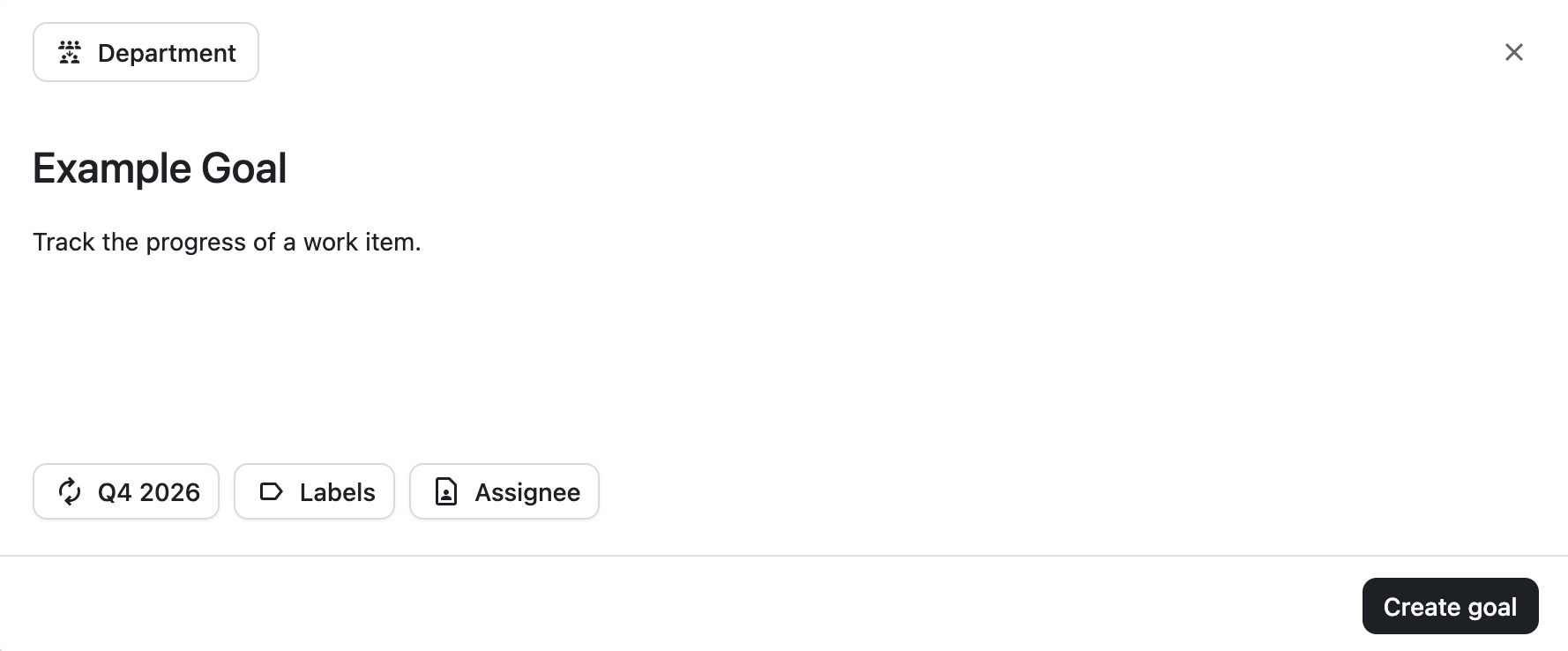
Enter a Title and an optional Description for your OKR, then assign it to a cycle. You can assign optional labels and assign the OKR to a user at this point as well. You can add these to your OKR at any point after creation. Select Create goal to finish creating the item.
Nesting goals and key results
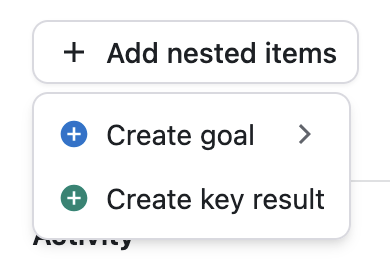
You can nest goals based on your needs and organization methods. To do so, select the goal’s Summary from the list to view it, then select +Add nested items. If you want to add a goal, you need to select Company, Department, or Team as before.
You cannot move nested goals to another primary goal.
Nested goals have the same options as primary goals, except in place of labels, you can select a Weight for the goal.
Adding key results to a goal
While viewing a goal, select +Add nested items > Create key result to create a new key result.
Enter a Title and optional Description for your key result, then select how you want to track its progress.
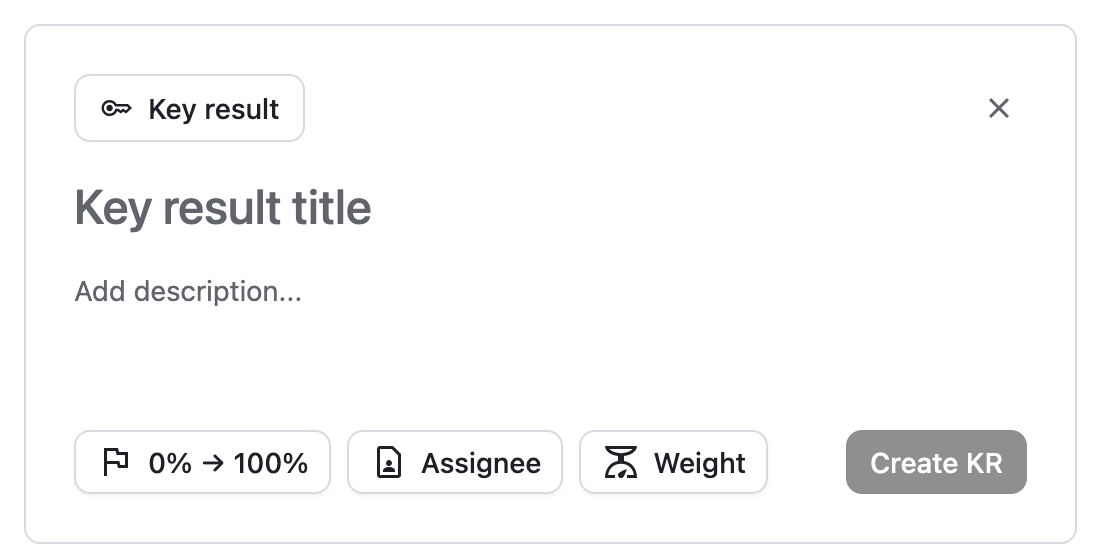
Key results are set to the same cycle as their related goal. You cannot change the cycle for a key result.
Linking work items or structures to a key result
Select any key result to view it, then select +Add > Link Work Item or +Add > Link Structure. There is a cap of 50 work items or up to 10 structures, and you can only link to one option at a time.
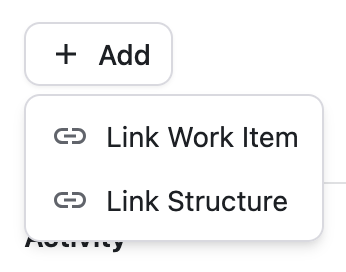
For work items you can search for an item to add using its key or by searching for text in its summary. Linking structures uses the same interface as the main Structure search, included a list of recently opened structures.
After adding a work item or structure, select Weight in the sidebar or the inline Scale icon to adjust the weighting for that link from 1 to 9999. Assigning a higher number to a work item or structure means that link will contribute more to the progress of the key result.
Track key result progress
During the creation of a key result, or when editing one later, you can select from the following options:
-
Auto: Only available when there’s a work item or structure linked to the key result. This option uses the linked items to calculate its progress.
-
Manual: This provides three options for manual tracking:
-
Percentage: Set a starting and target percentage, then add a current percentage as you make progress.
-
Numbers: Similar to percentage, except you can provide a custom unit name for the numbers you use for tracking progress.
-
Binary: A two-step tracking method consisting of Not done and Done.
-
Setting statuses
The current status of a goal or key result is always visible in the Status field. Select Status while viewing the details of an item, or while on the main OKR view, then select one of the following options:
-
Not Started
-
On Track
-
At Risk
-
Off Track
-
Completed
Editing items
You can edit any item while viewing its details, or directly from the main OKR view. Select any property within a column to edit its value. Changes are saved automatically after making a selection.
Removing items
Select :moreOptionsHori: > Delete, to remove a goal or key result. Deleting a goal with nested items will also remove those nested items. A confirmation dialog displays warning you of this. Select Delete to continue with the removal.
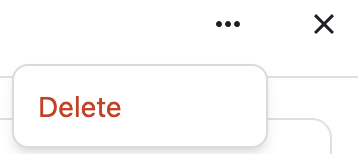
Deleting a goal or key result will never remove work items or structures, even when linked.
Exporting OKRs
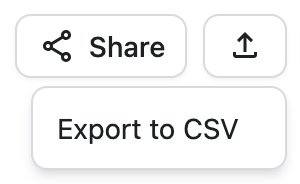
Select the Export icon to export your list of OKRs as a .csv file.