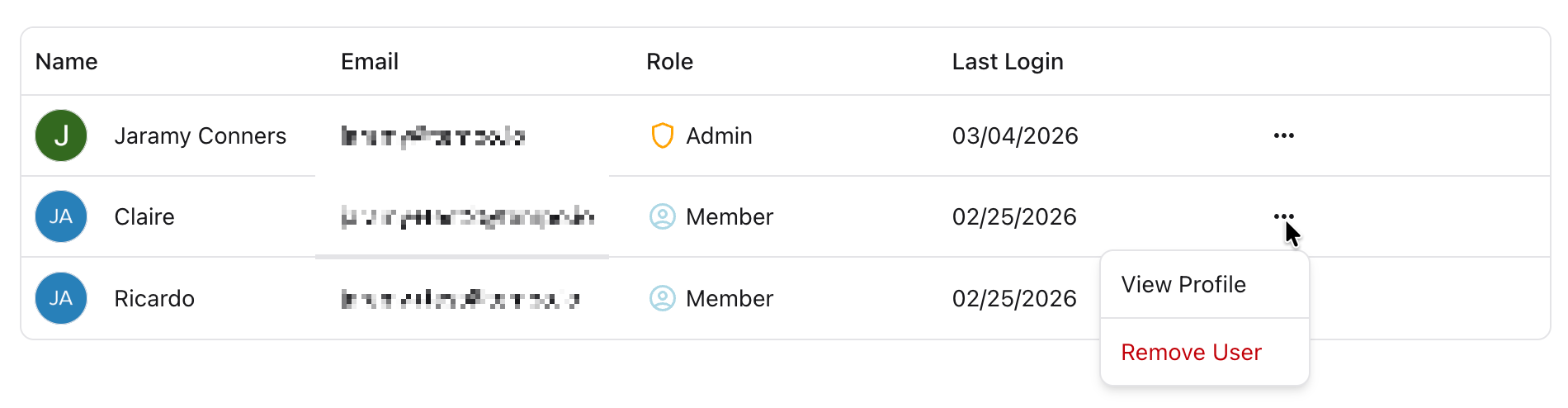
On the User Management page, administrators can:
-
Add new users
-
Change an existing user’s role (member or admin)
-
Remove a user
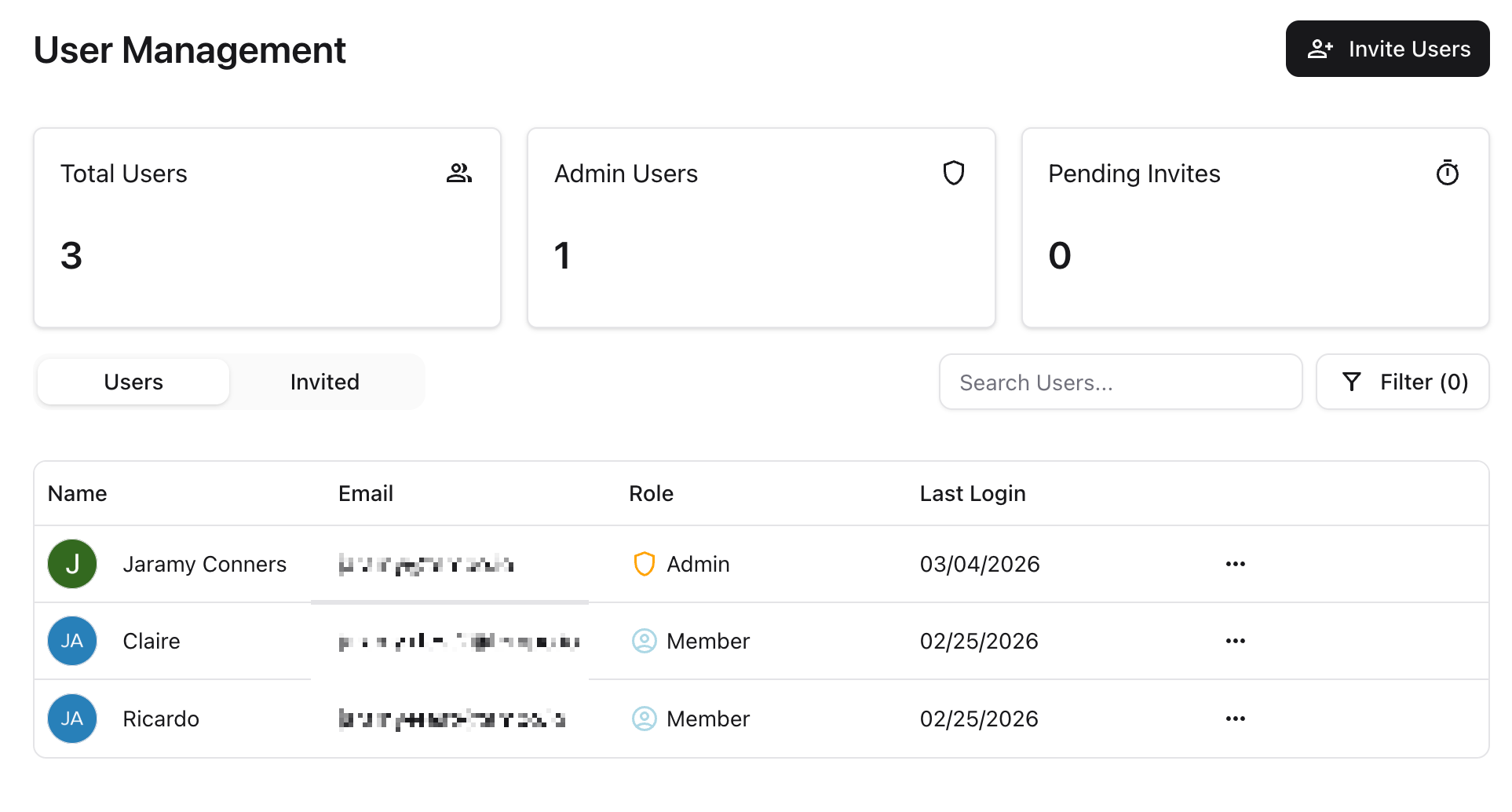
Invite New Users
To invite new users:
-
Click the Invite Users button
-
Enter each user’s email address
-
Select a role for each user (member or admin)
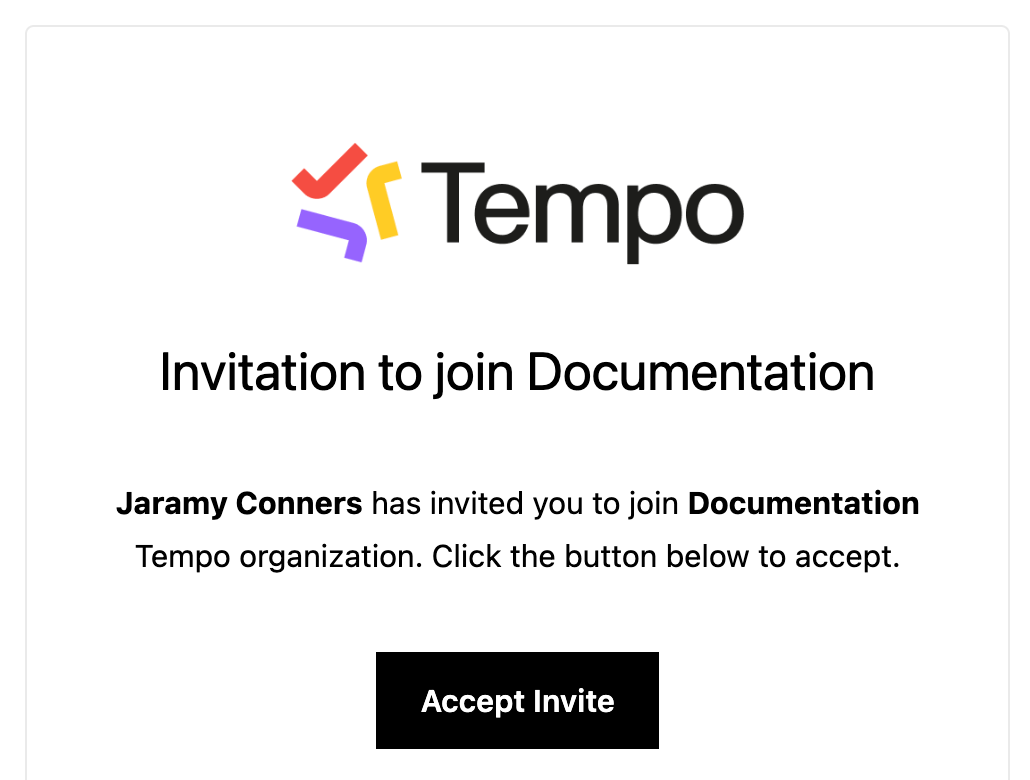
Once the invites are sent, each invited user will receive an invitation with instructions for setting up their account.
Manage Invitations
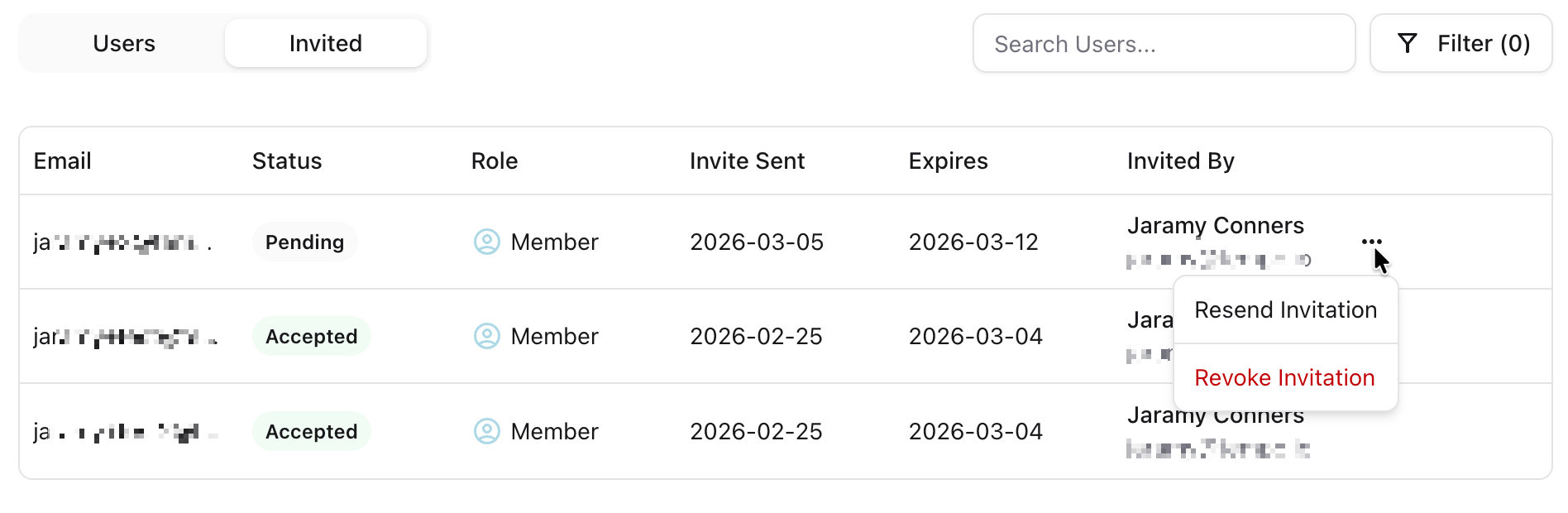
On the Invited tab, you can view the status of invited users. For pending users (haven’t accepted the invitation yet), you can:
-
Resend the invitation
-
Revoke the invitation
Manage User Roles
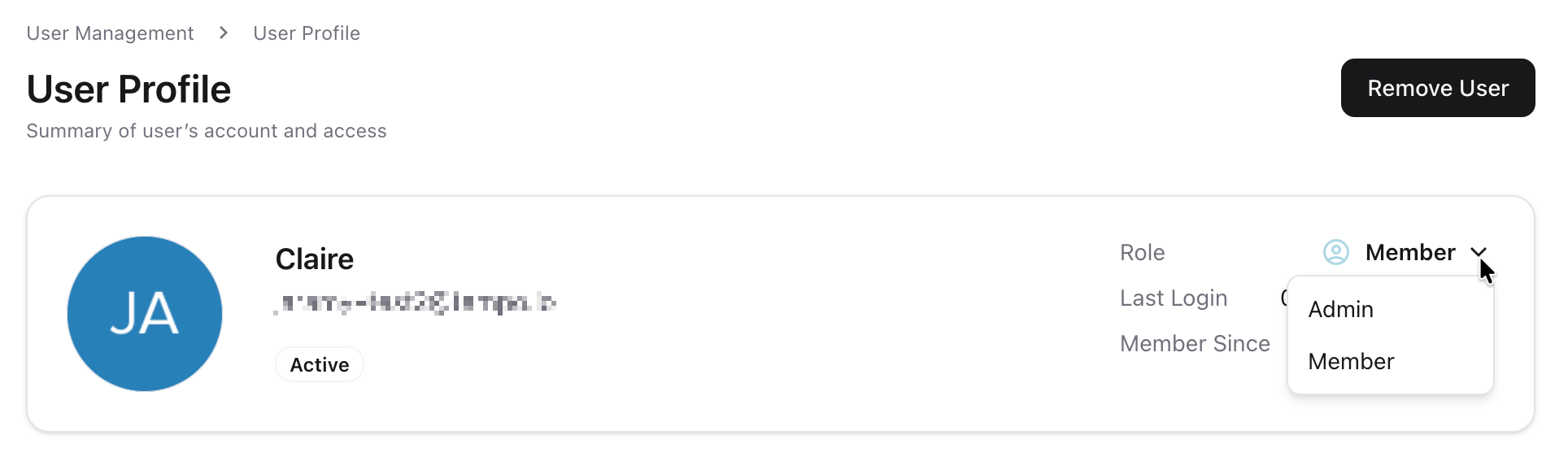
To manage a user’s role:
-
Locate the user on the User Management screen
-
Click the three dots at the far right of their row
-
Select View Profile
-
On the user’s profile page, click the Role dropdown menu and select a new role
User Roles
There are 4 user roles available in Loop:
-
Org admin - Has full access to view, edit, and manage Loop.
-
Orchestrator - Can do all actions, set up new Loops, and create Objectives.
-
Contributor - Can create items, view insights.
-
Visualizer - Can view Objective progress, visualizations screens, and trigger exports for reporting, but they cannot create items, move recommendations, or approve actions.
Remove Users
To remove a user:
-
Locate the user on the User Management screen
-
Click the three dots at the far right of their row
-
Select Remove User