
Many actions in Structure have keyboard shortcuts associated with them. This article shows you how to add or edit new shortcuts, remove existing shortcuts, and restore the default shortcuts.
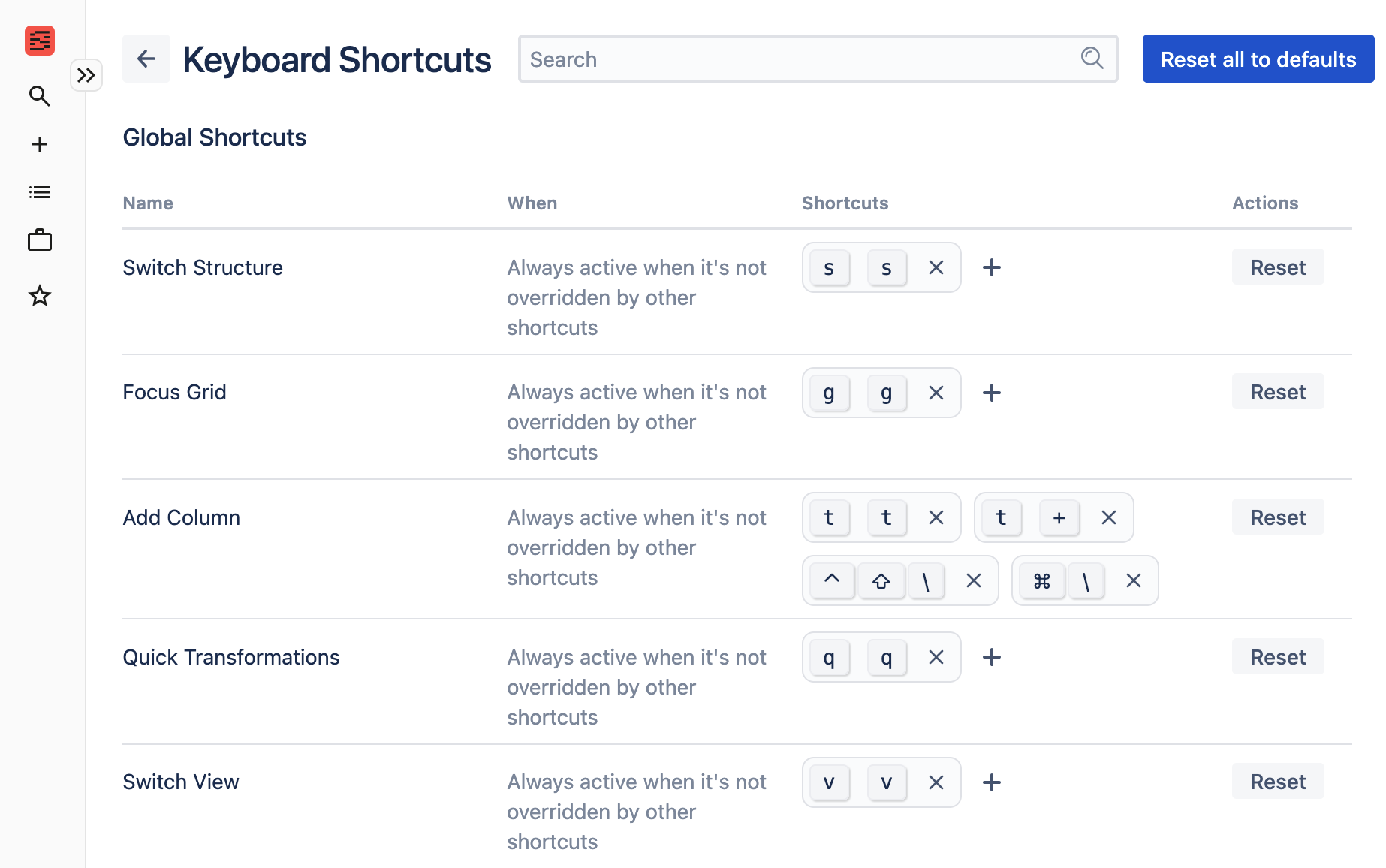
Shortcut editor
Structure’s shortcut editor lists all of the available shortcuts and their actions. Use this editor to customize these shortcuts. If you need to find a specific action, use the search bar at the top of the page.
To open the editor:
-
Select :help: Help & support > Keyboard Shortcuts to open the main shortcuts window.
-
Select Edit shortcuts.
Adding a new shortcut
Select ➕ in the row of an action to create a new shortcut for that action. On the window that displays, select the text field to give it focus then enter the key combination for your shortcut. Select Save when you’re finished.
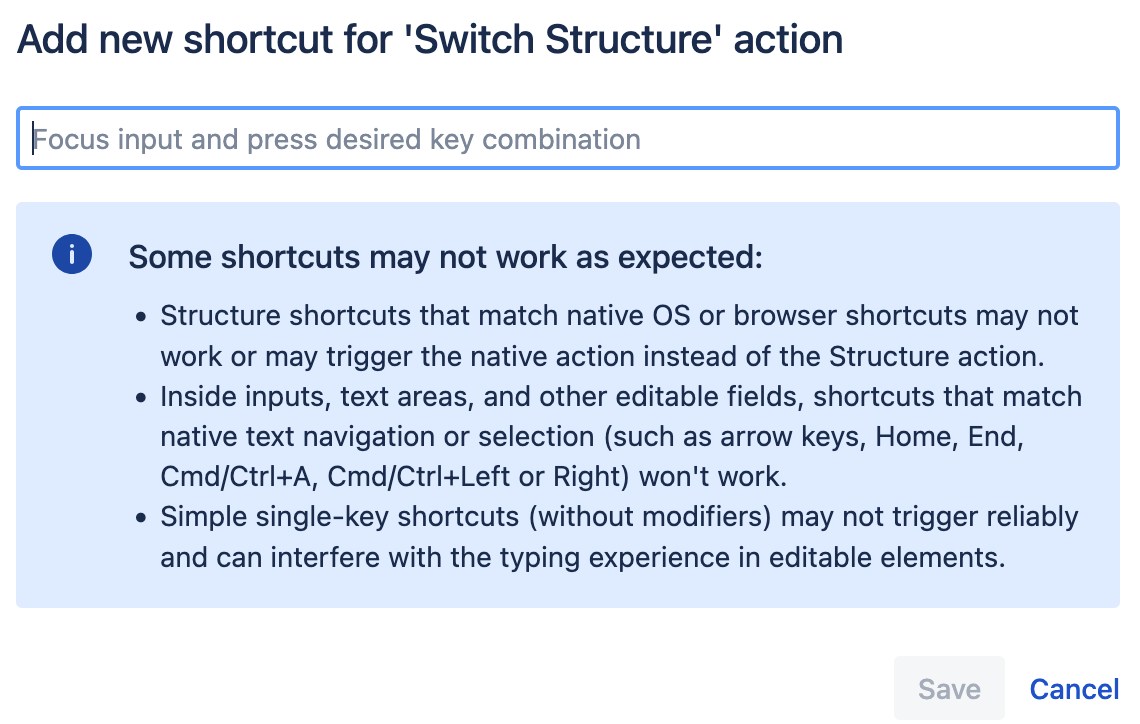
While creating a shortcut you can use:
-
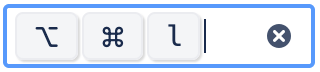
Combinations with modifier keys: When doing so, hold down the modifier keys you want to use, then press the alphanumeric key you want to use.
-
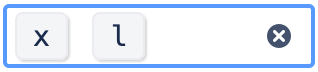
A combination of two keys: If you use two keys, make sure you press them in quick succession. If you wait too long, the next keypress will overwrite the keys currently in the field.
-
A single key:
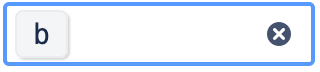
If you need to reset the key combination, select :delete: to clear the text field.
After you save a custom shortcut, it’s shown in the shortcut editor next to existing shortcuts. The Keyboard Shortcuts help window also reflects the custom shortcut.

Shortcut warnings
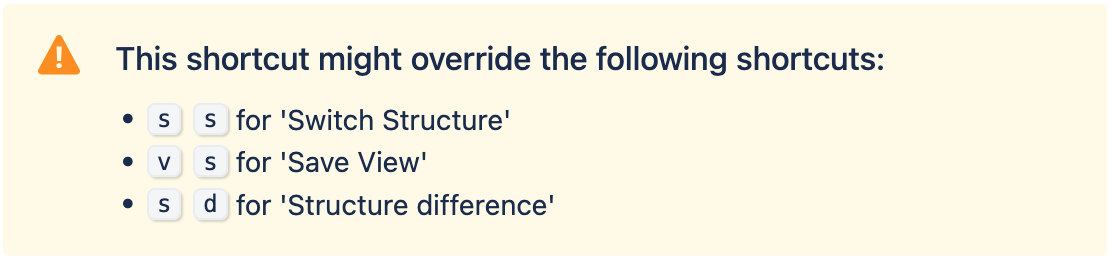
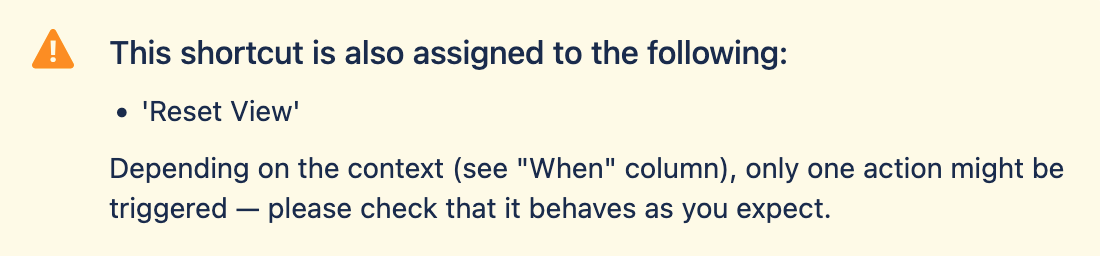
When your custom shortcut interferes with an existing or default shortcut, you will see one of the following error messages:
-
This shortcut might override the following shortcuts: Your custom shortcut will take priority over the displayed shortcuts which could cause them to not work as expected.
-
This shortcut is also assigned to the following: Your custom shortcut is the same as another shortcut and may not work depending on when you use it.
-
This shortcut might be overridden by the following shortcuts: An existing shortcut has higher priority than the custom shortcut, and the existing shortcut may trigger first.

Removing a shortcut
While in the shortcut editor, select :deleteShortcut: next to a shortcut to delete it. If you remove a custom shortcut, you cannot restore it; recreate the shortcut if you deleted it by mistake. If you remove a default shortcut, you can restore it.
Restoring shortcuts
Select Reset in a row to restore the default shortcut for that action. Select Reset all to defaults at the top of the editor to restore every shortcut to their defaults.
Resetting shortcuts will remove any custom shortcuts you have added.