
Enable and customize sharing options for dashboards. Internal sharing is enabled by default. Use the admin settings to further modify this feature.
Jira admins can:
-
Modify the access levels.
-
View a list of all shared dashboards.
-
Set access code requirements for public dashboards.
Enabling shared dashboards
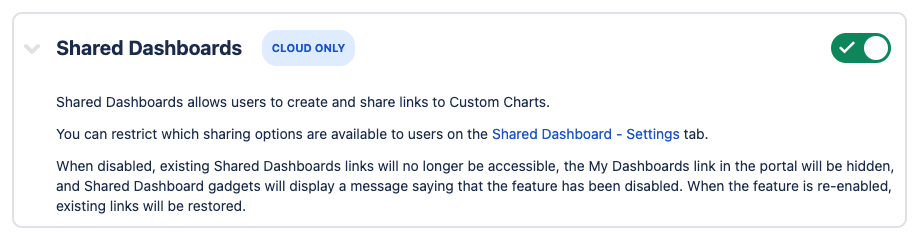
Before you can customize the options for shared dashboards, you need to enable the feature at a global level.
To do so:
-
Go to the admin settings for Custom Charts.
-
Select Features.
-
Turn on the toggle for Shared Dashboards.
Setting access levels
While on the Custom Charts admin settings page, select Custom Charts - Shared Dashboards from the sidebar. The default access level lets Jira users view shared dashboards if they access to the source dashboard.
Share with Jira Service Management portal
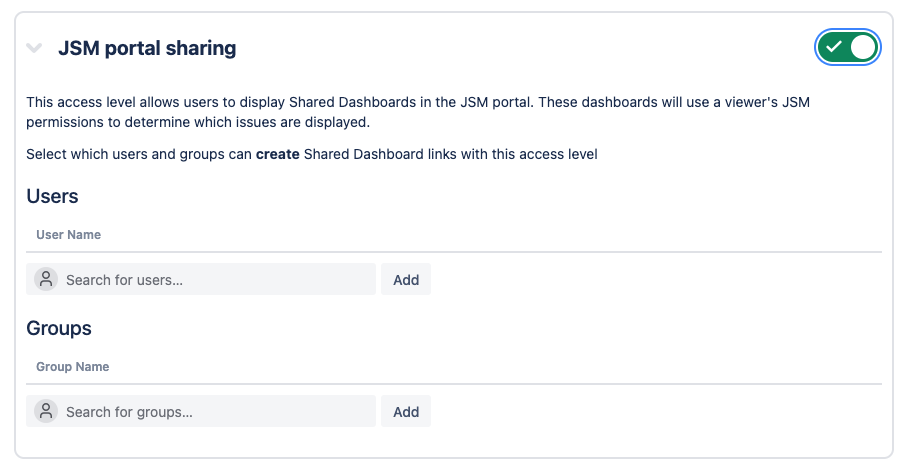
Enable this option to share dashboards in a Jira Service Management (JSM) customer portal. JSM users can view dashboards, but with the following restrictions:
-
Charts only show work items where the portal user is the reporter or request participant.
-
If you select an organization, only dashboards and work items relevant to that organization are available.
-
If select a portal user, only dashboards and work items relevant to that user are available.
Share with public users
Enable Anyone (Public) to let any user with a link view that dashboard. When viewed this way, the dashboard displays data as the dashboard’s owner.
You can add a level of security to public dashboards by enabling Anyone with an access code. Users must enter an access code, that you set, before they can view the dashboard.
Public dashboards use user impersonation to display the dashboard based on the permissions of its owner. The owner of a shared dashboard is the last person to edit and save changes to the gadget.
Setting an access code
Go to the Access Code tab to set access code requirements for public shared dashboards.
|
Setting |
Description |
|---|---|
|
Minimum characters |
The minimum length, in characters, for a created access code |
|
Maximum characters |
The maximum length, in characters, for a created access code |
|
Require letters |
When enabled, users must include at least one letter in their access code |
|
Require capital letters |
When enabled, users must include at least one capital letter in their access code |
|
Require numbers |
When enabled, users must include at least one numerical character in their access code |
|
Require special characters |
When enabled, users must include at least one special character in their access code |
Viewing all shared dashboards
Go to the Link List tab to view a list of every shared dashboard in your instance. This list shows:
-
The name of the dashboard and its owner.
-
The name of the shared dashboard.
-
The user whose permissions are used to load data on the shared dashboard.
-
The link access level.
-
The dashboard’s current status.