
Issue Lists allow users to display their Jira data as a list, with each column representing a Jira field.
Use Issue Lists to display your Jira work items and other data in a configurable list. Each column in an issue list represents a Jira field.
To add this gadget to a Jira dashboard:
-
Open the dashboard and select Edit.
-
Select Add gadget.
-
Scroll to the gadget and select Add.
You can also enter the name of the gadget in the search field to find it.
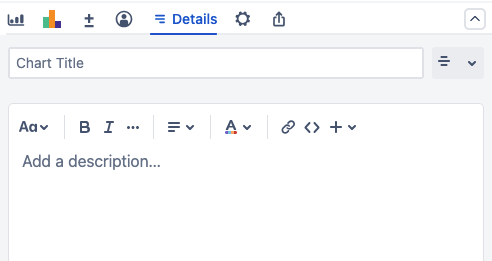
After you add a gadget, close the introductory pop-up window then go to the Details tab to give it a Title and an optional Description.
Select Don’t show this again to disable the pop-up window from displaying for future gadgets.
Configuring an issue list
Data source
Select a source to pull data from to use in your charts.
-
Projects: Pulls data from one or more selected Jira spaces.
-
Saved filters: Uses the selected custom filter to pull data.
-
Custom JQL: Pulls data using the provided JQL query.
The following options are also available depending on your configuration:
-
Simple Search Gadget: If you add a Simple Search to your dashboard, select this option to use that search. If a Simple Search exists before you add a chart, it will be selected by default.
-
Structure: If Structure is installed on your Jira instance, you can select one or more structures to use as the data source.
Column fields
Issue lists include the following Jira fields by default.
-
Issue Type
-
Key
-
Status
-
Summary
-
Assignee
Select + Add another field to add more Jira fields to your issue list. Select the pencil icon to rename existing fields, select the trashcan icon to remove a field, and drag the handle to reorder fields.
You can also add Smart Labels by selecting + Add a Smart Label.
Quick filters
Select the Quick filters tab to manage the filters available on an issue list. You can add saved filters or create a new filter with a custom JQL query.
Live Preview
The live preview for an issue list shows any changes you make to the list’s sources, fields, columns, and filters.