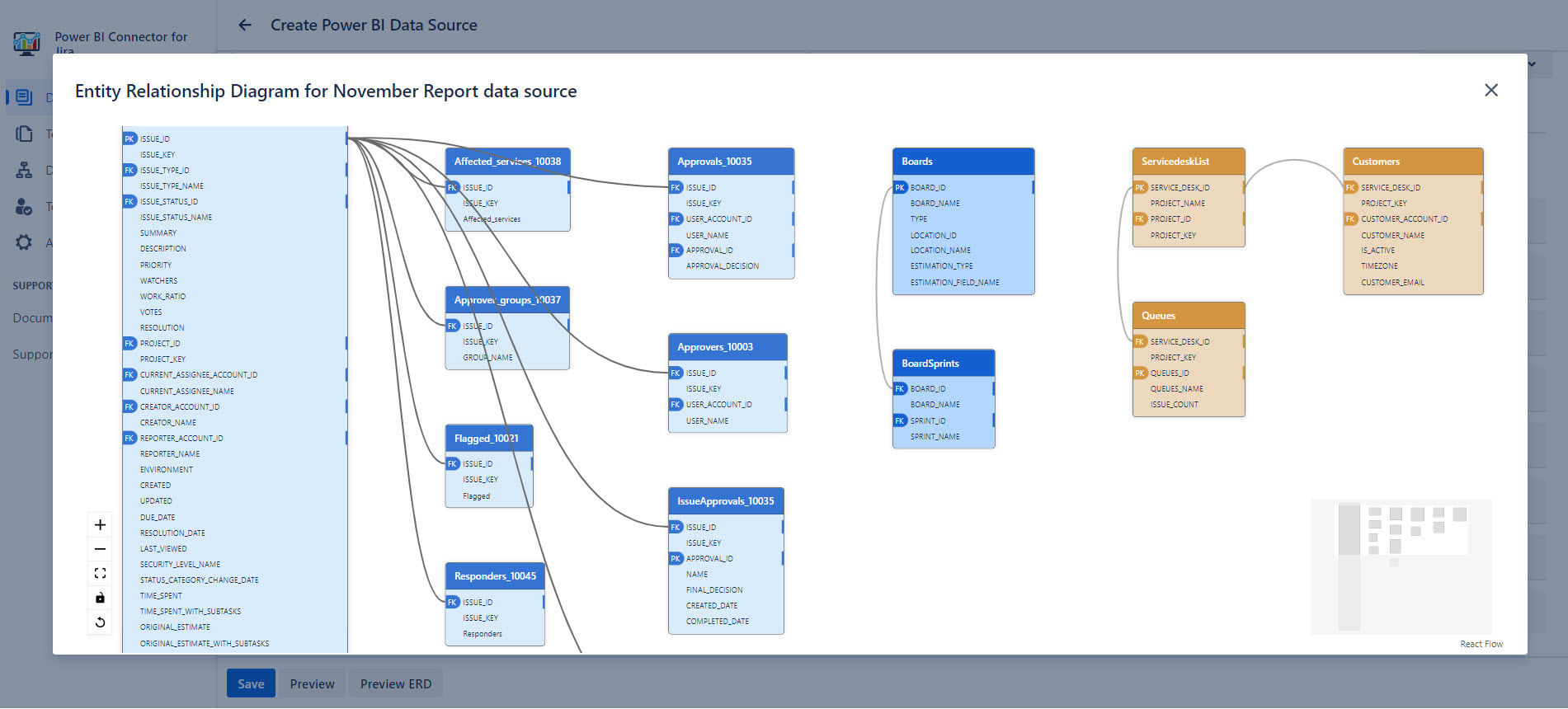
This page provides an overview of table selection options, data preview capabilities, and actions available to save and review the data source, including the entity relationship diagram.
Select Tables Section
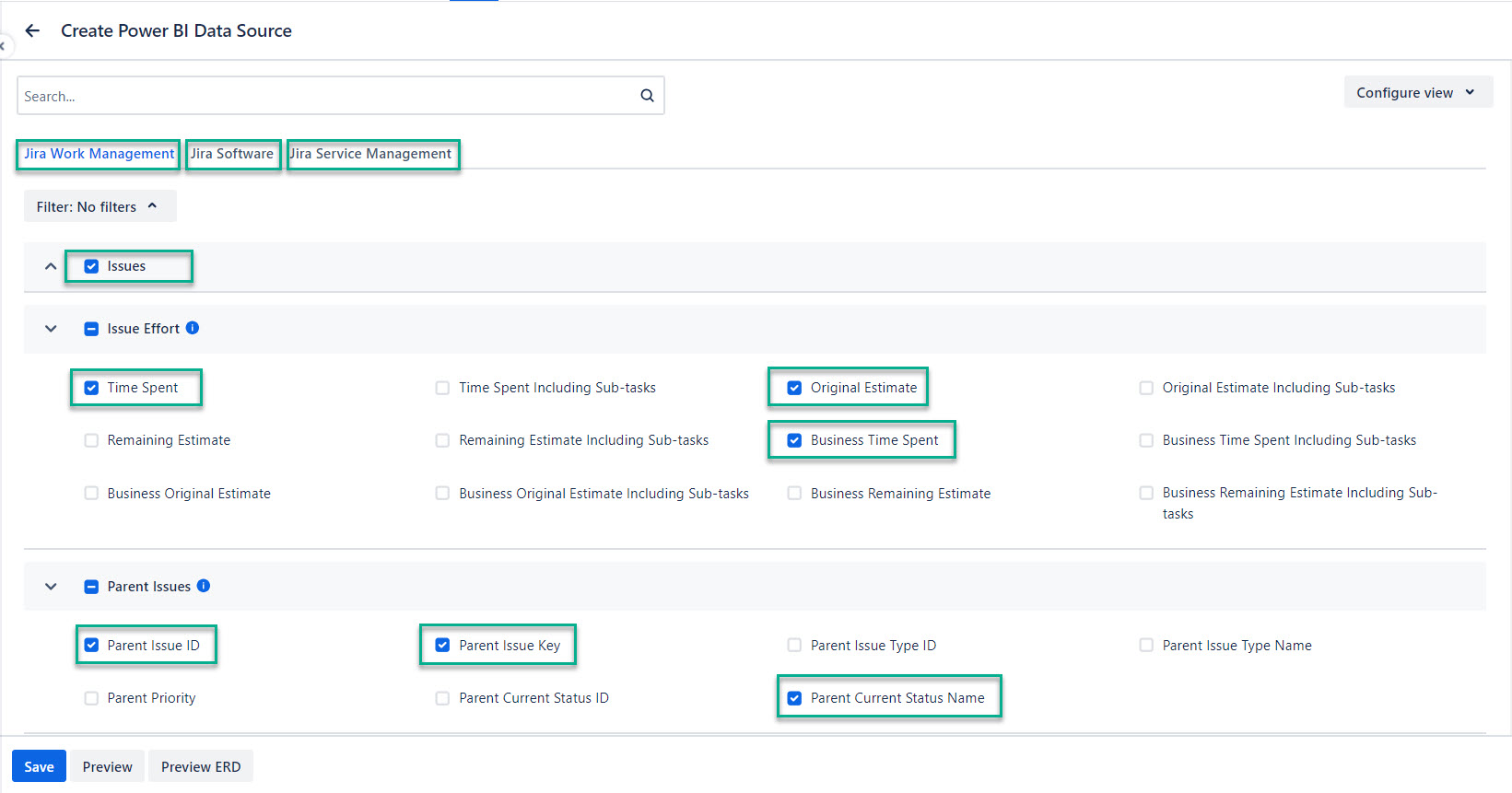
These settings define which tables and fields are included in the export. This includes standard Jira tables (Jira Work Management, Jira Software, Jira Service Management) as well as tables and fields from installed apps (for example, Tempo, Xray, Projectrak, and others).
Save and Preview Section
Export Data Preview
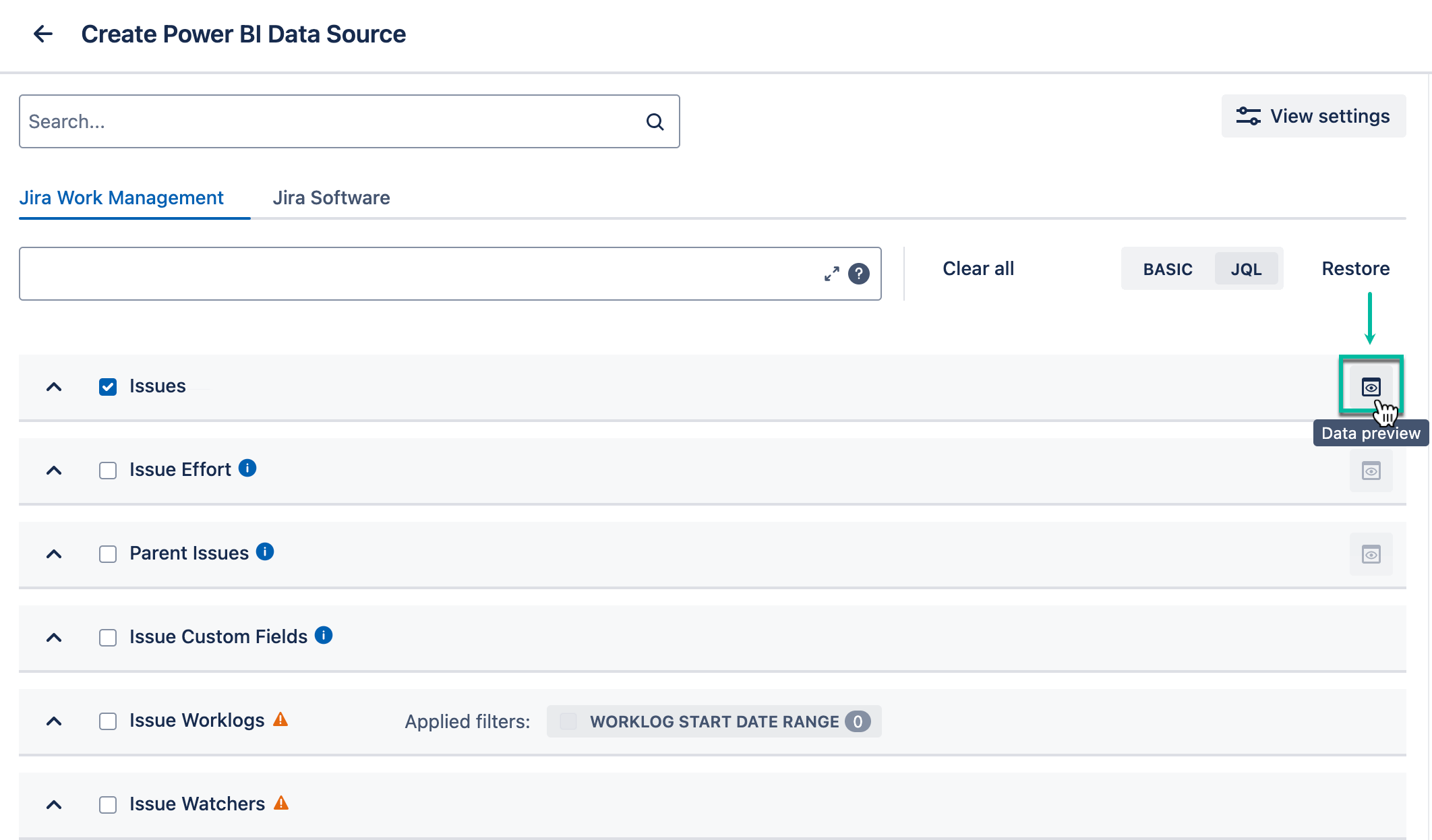
The Data preview option lets you see a small sample of data before running a full export.
-
When Data preview is available
-
Data preview is available only for selected tables.
-
Some large tables are excluded to avoid performance issues.
-
The preview shows only the fields (columns) you select.
-
The preview includes up to 10 results.
-
The preview is executed per table.
-
Custom fields are not included.
-
-
When Data Preview is empty or disabled
-
If a table requires a Jira API token and the user doesn’t have it, the preview shows an empty table with the selected fields and a notification.
-
If the JQL query is not valid, the preview options are disabled.
-
If the a complex filter is applied, the preview may be empty.
-
Filters and ERD Preview
After creating and editing your data source, you can select one of the following options what to do with it.
-
Save - This option creates your new data source or updates if you edit an existing data source.
-
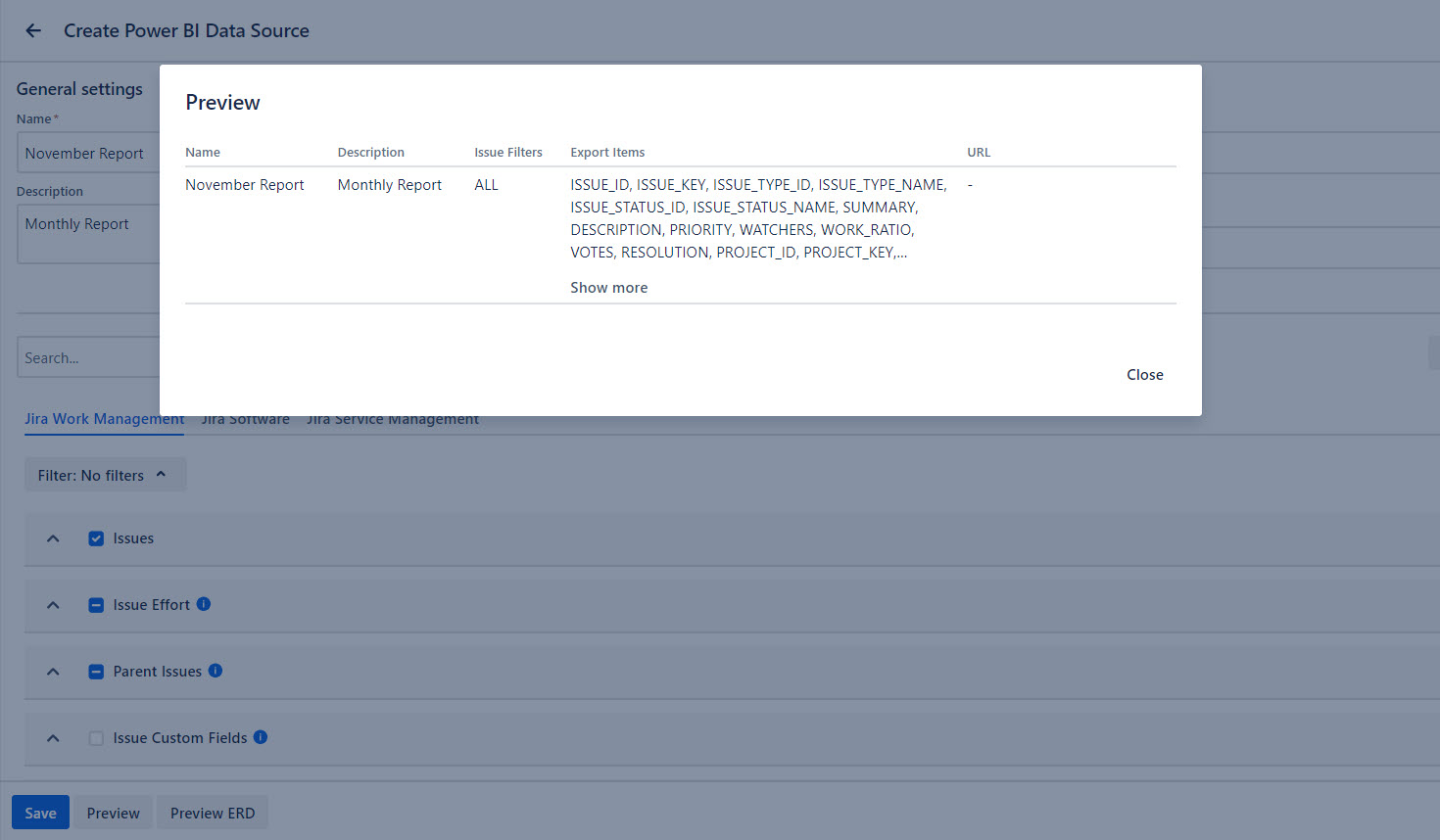
Preview -This option allows you to check the source name, source description, issue filters, and export items.
-
Preview ERD - This option allows you to view the Entity Relationship Diagram for your Connector support data source, which is generated based on the checkboxes you have selected before.
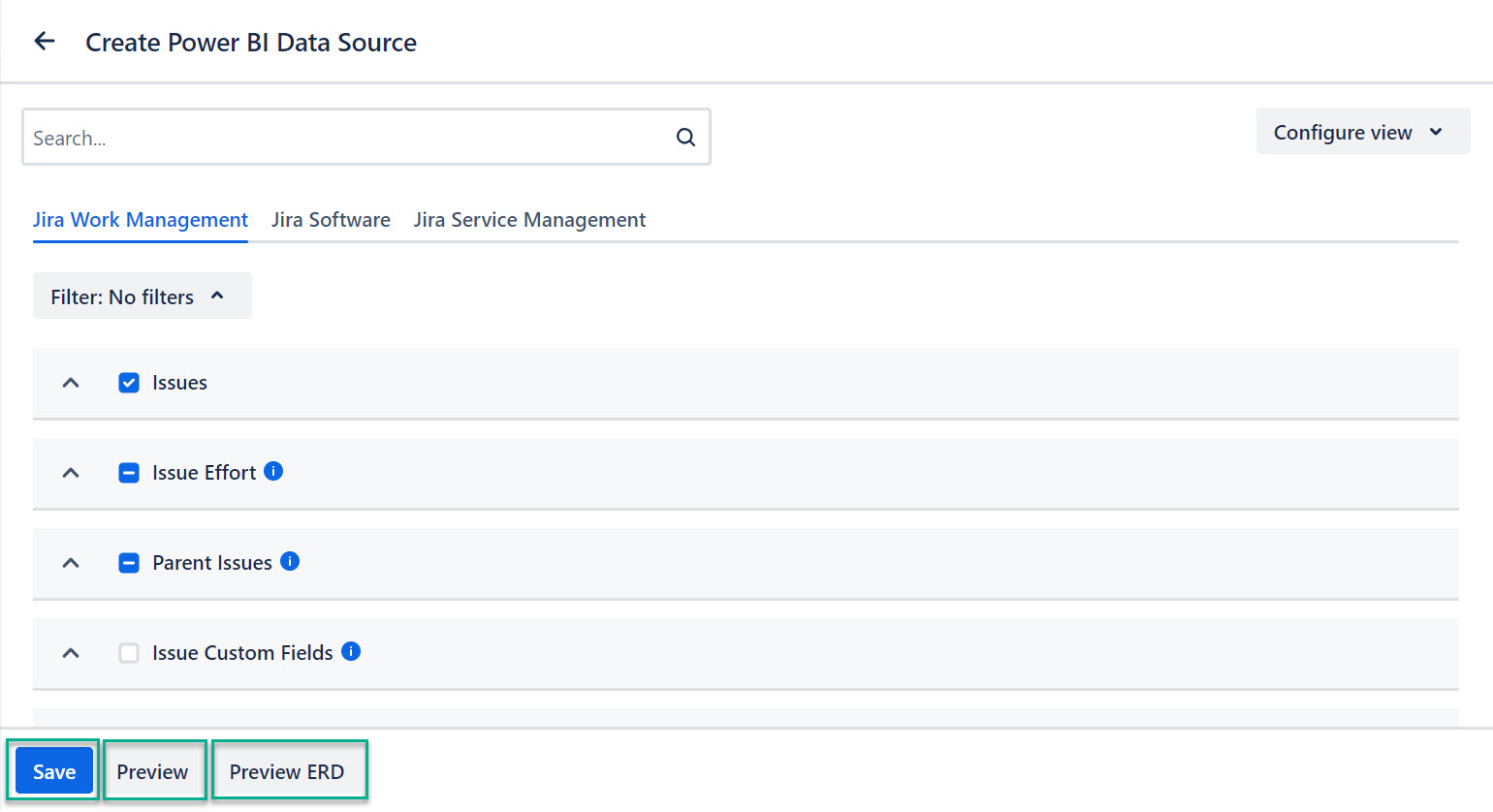
This screenshot displays how the Preview button works. Once you select it, the pop-up window will appear with the view of your data source, so you can check if all changes are correct.
This screenshot displays how the Preview ERD button works. Once you select it, the pop-up window will appear with the view of an Entity Relationship Diagram for tables and fields selected in the data source.