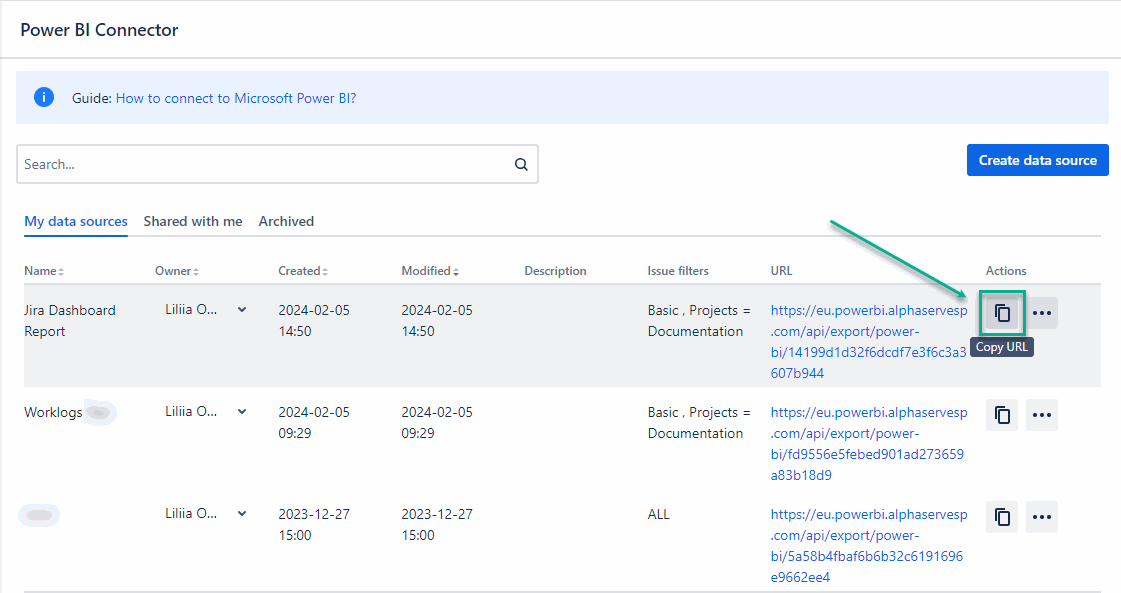
This section describes the available actions for managing existing data sources, including copying the URL and performing common actions such as editing, sharing, or archiving.
-
Copy URL - This button copies the data source URL to the clipboard.
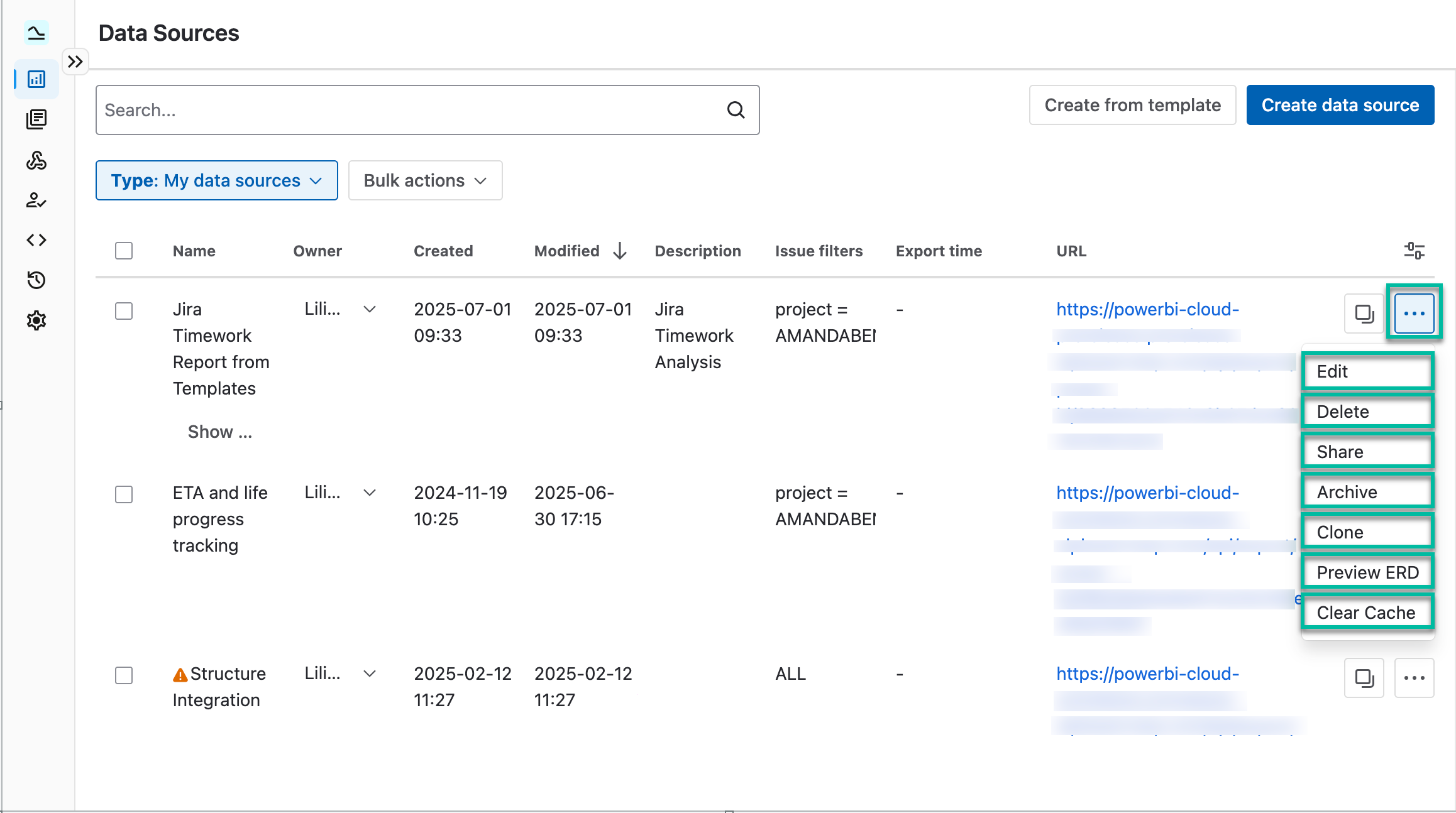
The Actions (three dots) panel introduces you different actions:
-
Edit - This action allows you to make changes to the data source.
-
Delete - This action allows you to remove the data source.
-
Share - This action allows you to distribute the data source to users who have permission to use this app.
-
Archive - This action allows you to mark the data source as archived, data source will be moved to the Archived tab.
-
Clone - This action allows you to create a copy of a data source. You can clone both your own data sources and those shared with you.
-
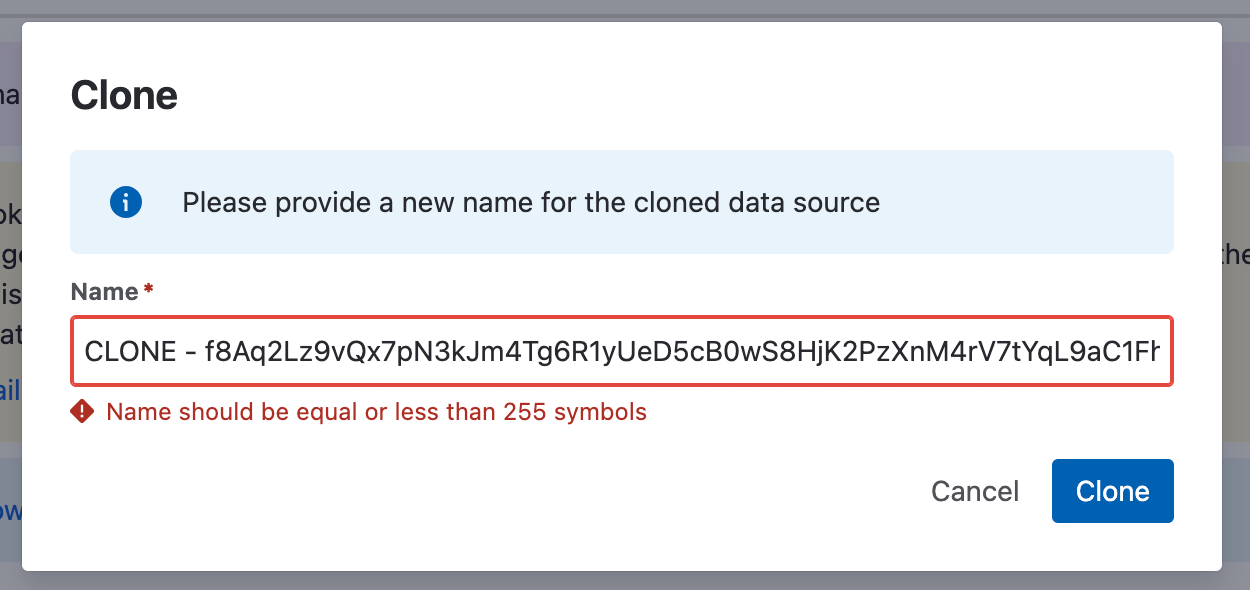
If the name of the data source being cloned is longer than 255 characters, you’re prompted to provide a new name for the cloned data source.
If you don’t provide a new name, the cloned data source is created using the following naming pattern: CLONE - <current_name>. The name is automatically trimmed to ensure the total length doesn’t exceed 255 characters.
-
-
Preview ERD - This action allows you to view the Entity Relationship Diagram for a data source
-
Clear Cache - This action allows you to bypass cached data and retrieve the most up-to-date data from Jira.