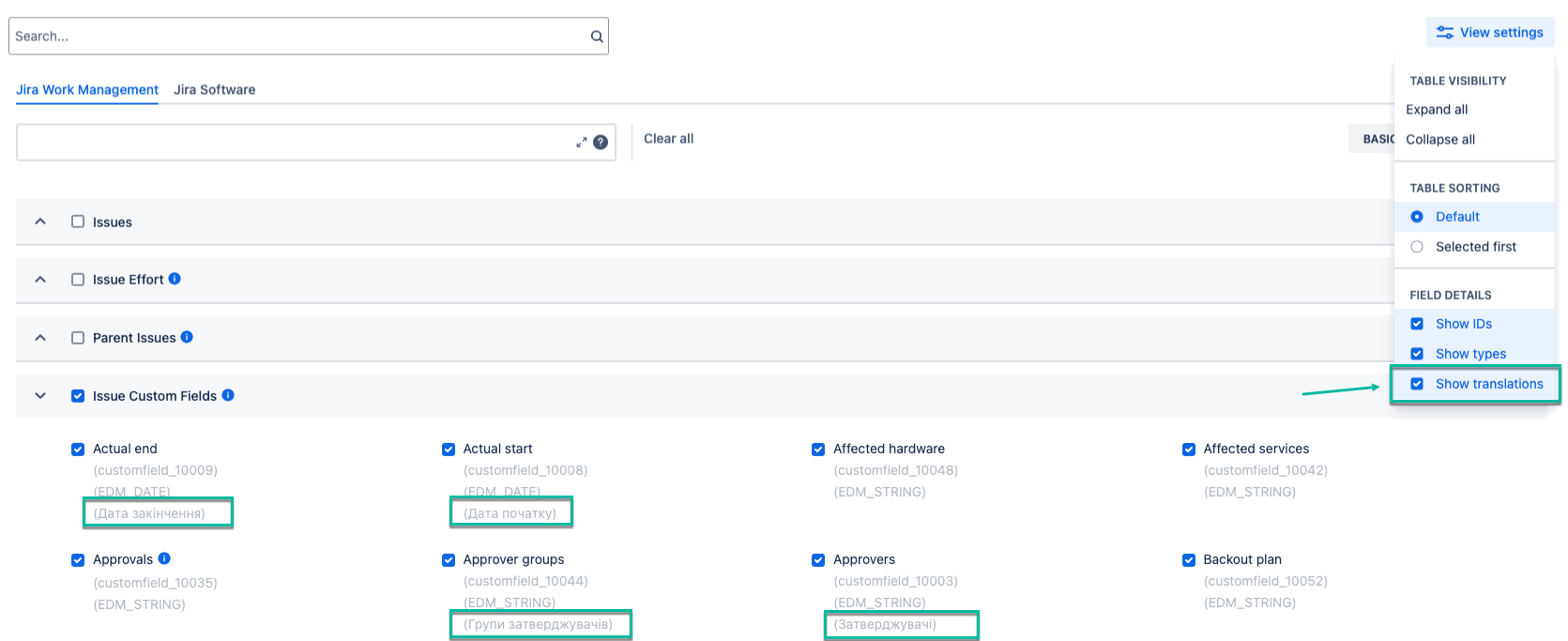
This page provides an overview of the search functionality for finding fields and the view settings that define how tables and field details are presented.
Search Section
The Search box - A field used to quickly find available fields and add them to the export. The number of matching results is displayed on each tab.
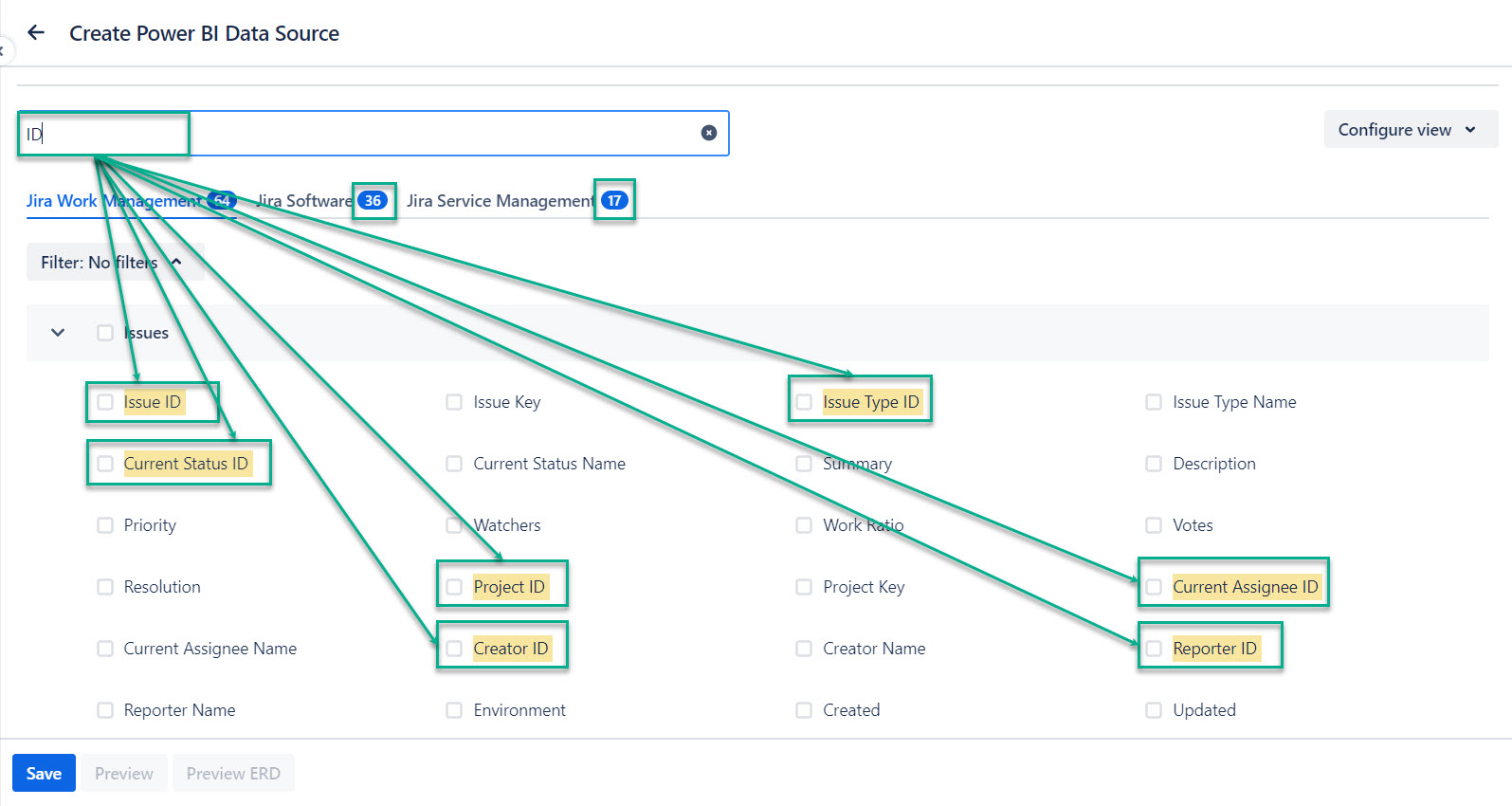
View Settings
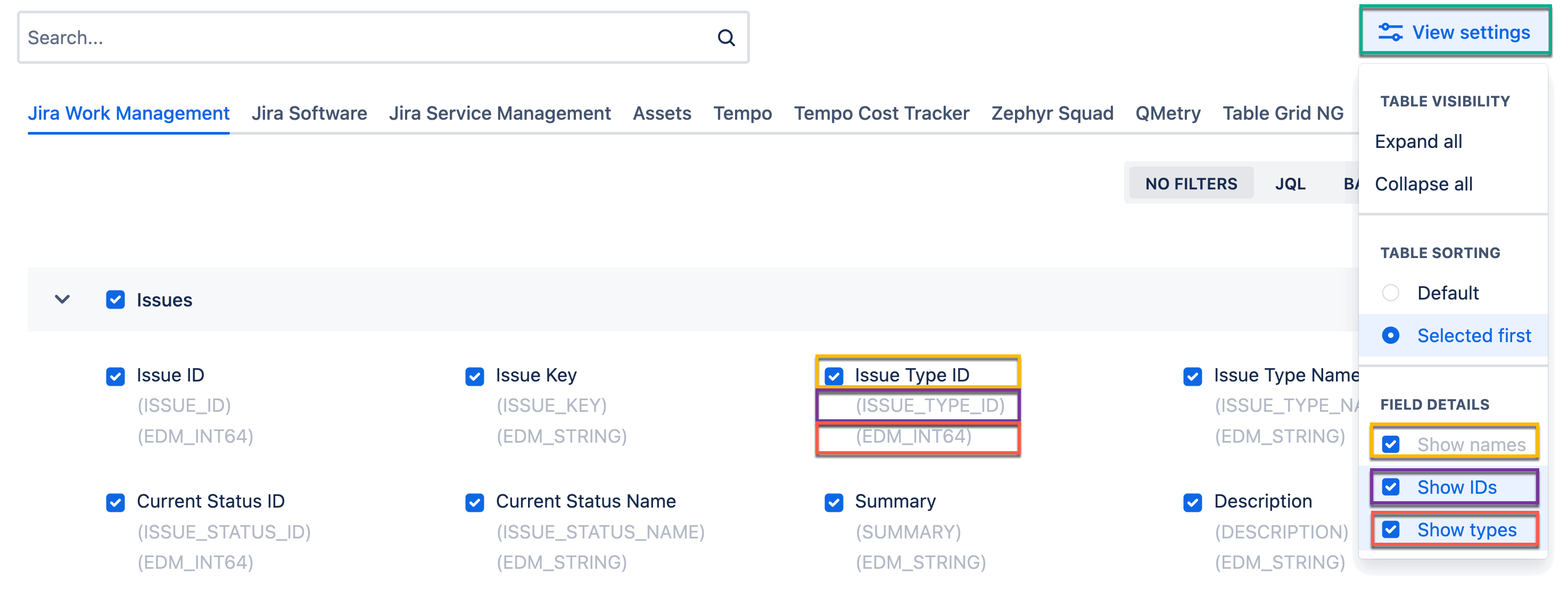
View Settings - A set of options that control how tables and fields are displayed, including table visibility, table sorting, and field details.
-
Table visibility - Controls whether all tables are expanded or collapsed. Includes options to expand all or collapse all tables at once.
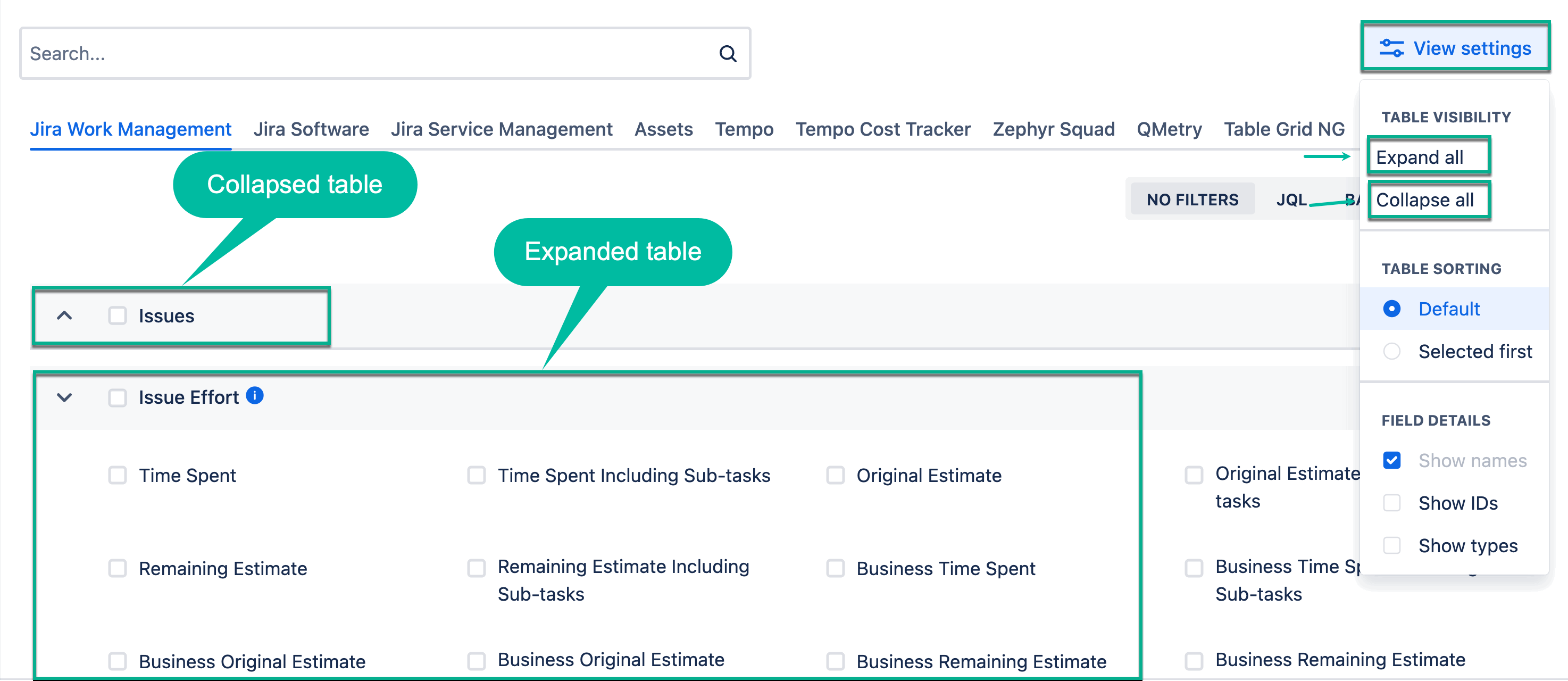
-
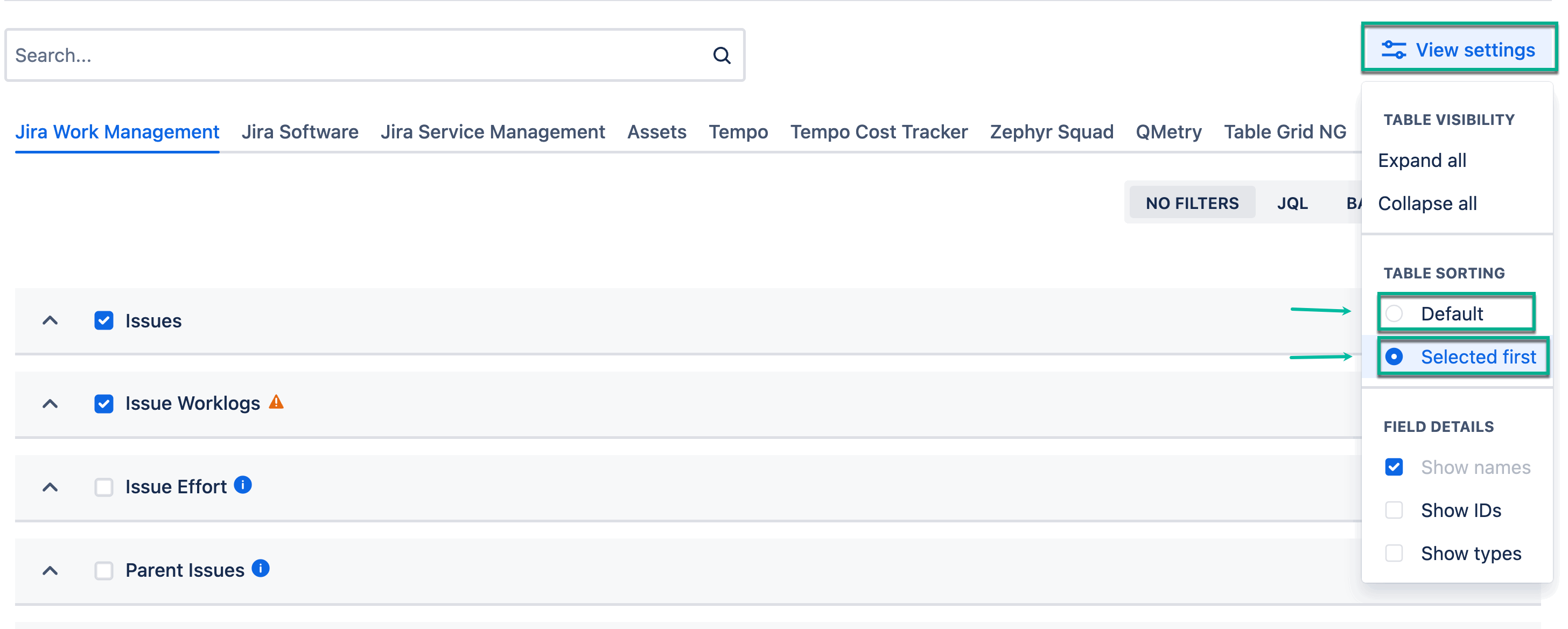
Table sorting - Defines the order in which tables are displayed.
-
Default - The tables are arranged in a default way.
-
Selected first - Tables with selected items are displayed first.
-
-
Field details - Controls how fields are presented. Available display options include showing IDs, and types. Multiple options can be enabled at the same time.
-
Show IDs - This is how your fields will appear in Microsoft Power BI.
-
The screenshot presents how the options are displayed in the UI, using matching colors.
-
Show translations - An option that displays translated field names for easier identification. By default, untranslated field names are used during export. Field IDs remain unchanged and are used in Microsoft Power BI.