
Use an Issue List to view work items while maintaining connectivity with your other Custom Charts gadgets.
Adding the Issue List gadget
To add this gadget to a Jira dashboard:
-
Open the dashboard and select Edit.
-
Select Add gadget.
-
Scroll to the gadget and select Add.
You can also enter the name of the gadget in the search field to find it.
After you add a gadget, close the introductory pop-up window then go to the Details tab to give it a Title and an optional Description.
Select Don’t show this again to disable the pop-up window from displaying for future gadgets.
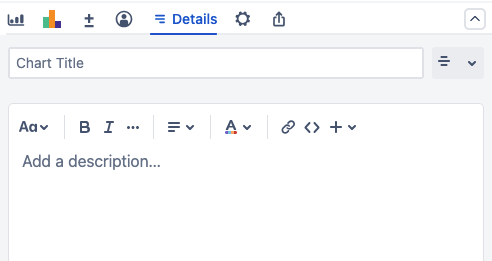
Setting up the Issue List
Like the chart on your dashboard, the default source for your issue list is the Simple Search you created previously.

Issue lists have the following columns when they’re added:
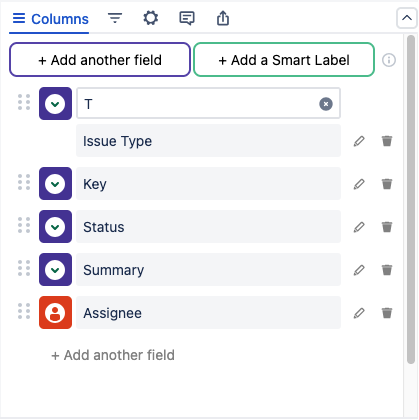
-
Issue Type
-
Key
-
Status
-
Summary
-
Assignee
For this tutorial we’ll use the default set of columns. When making issue lists of your own, select Add another field to create a new column based on that field.
Next steps
Go to the Issue List user guide to explore more details about this gadget.
With all three Custom Charts for Jira gadgets added, you can continue to use your new dashboard as-is if you want. Otherwise, feel free to explore the rest of our documentation to learn how to build dashboard to best serve your needs.