We are gradually rolling this feature out to users; it may not be available to use on your instance. Atlassian’s Rovo agent is required to access the Creation Assistant.
Alongside speed mode, power mode, and Structure templates, you can also build structures with the Structure Creation Assistant. The Structure Creation Assistant is only available on spaces where Rovo is enabled on your instance.
Structures made with the Structure Creation Assistant behave like those made in power mode.
Using the Structure Creation Assistant
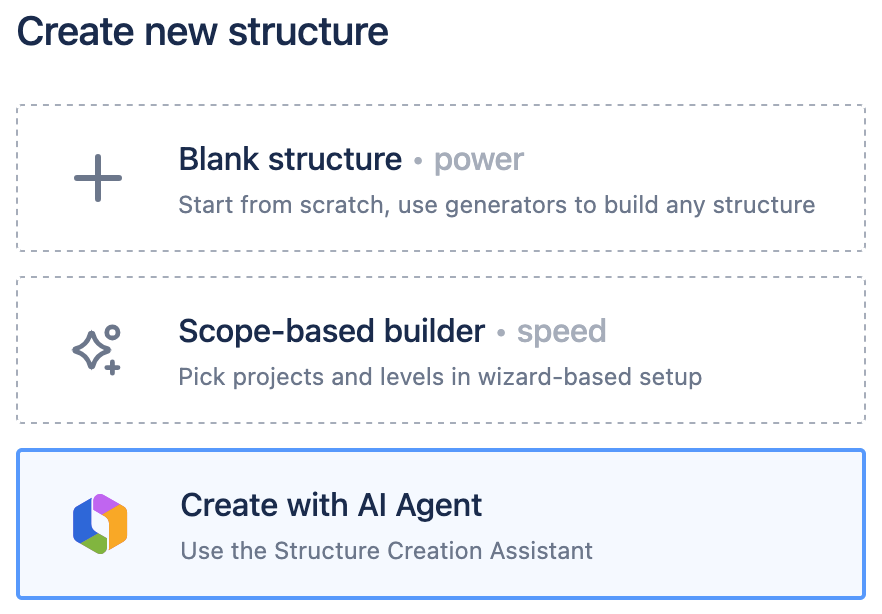
Select Create structure to open the Create new structure page, then select Create with AI Agent.
When the Rovo agent panel opens, you will see an initial message from the assistant asking you for the following:
Name: What would you like to call your new structure?
Description (optional): A brief summary of what this structure is for.
Contents: Would you like to start with an empty structure, or should I add some folders and work items (e.g., from a specific space or board)?
Label (optional): You can also add a label to help organize your structures. Some available options are: Planning, Tracking, Report, or Template.
Enter your response with as much detail as you can in simple, plain language. The assistant will then assemble Structure components—generators, filters, groups, and JQL queries—based on your request. If you want to make any modifications, or change the scope of the structure, just tell the assistant.
Features that require additional configuration—for example, formula columns, grouping by formula, and fields from Tempo products—can not be included in structures the assistant creates. You need to add these, and similar items, after the creation of the structure.
If you need help with any formula-based columns, groups, or fields, you can use the Structure Formula Assistant.
The Structure Creation Assistant can’t modify a new structure once it’s finished, and it can’t modify existing structures.
When you’re ready to continue, tell the assistant they can create the structure. It will do one final pass and then show a panel to review the structure’s final setup.
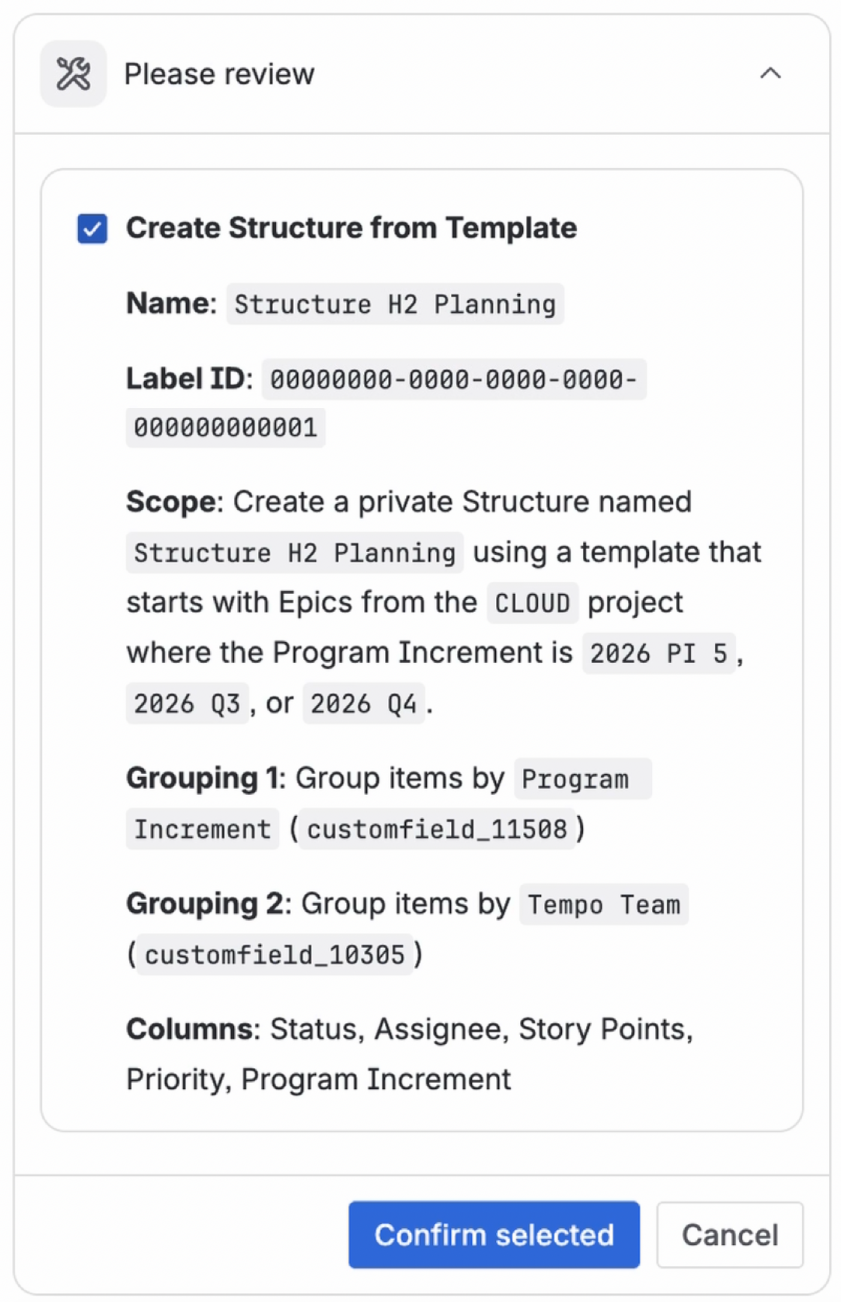
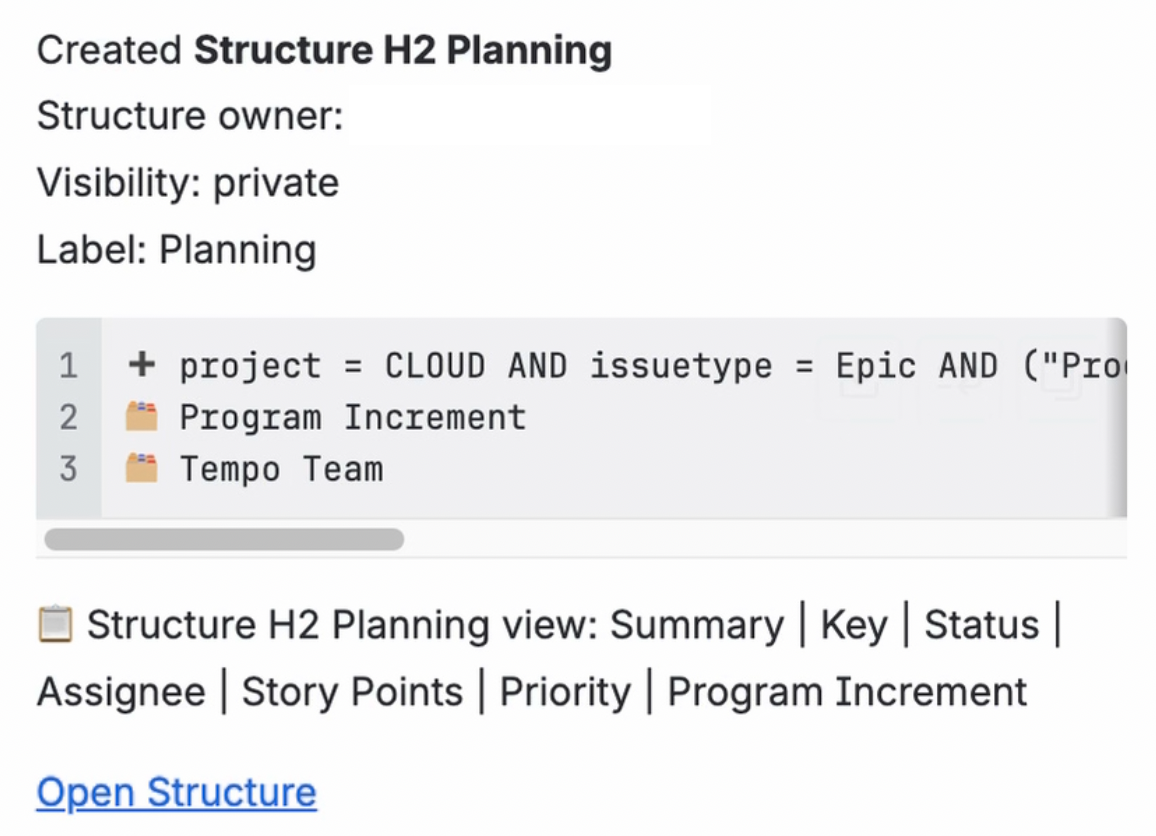
If everything looks right, select Confirm selected and the assistant will generate the structure. When it’s finished, you will see a summary of the final structure. Select Open structure to view your new board.