
The Tempo Timesheet Approvals table doesn't include the list of worklogs that belong to each approved timesheet. As a result, you can't directly determine which worklogs were approved or which issues users worked on during an approved period.
To identify the approved worklogs, create a calculated table in Microsoft Power BI that combines data from the Tempo Timesheet Approvals and Tempo Worklogs tables.
The calculated table should match records by using the following conditions:
-
Tempo Timesheet Approvals → User ID = Tempo Worklogs → Author ID
-
Tempo Worklogs → Start Date falls between Tempo Timesheet Approvals → Period From and Period To
The resulting table contains each timesheet approval together with the corresponding worklog records for that approval period.
-
User ID identifies the user whose timesheet is being approved.
-
Reviewer ID identifies the user who approved or reviewed the timesheet.
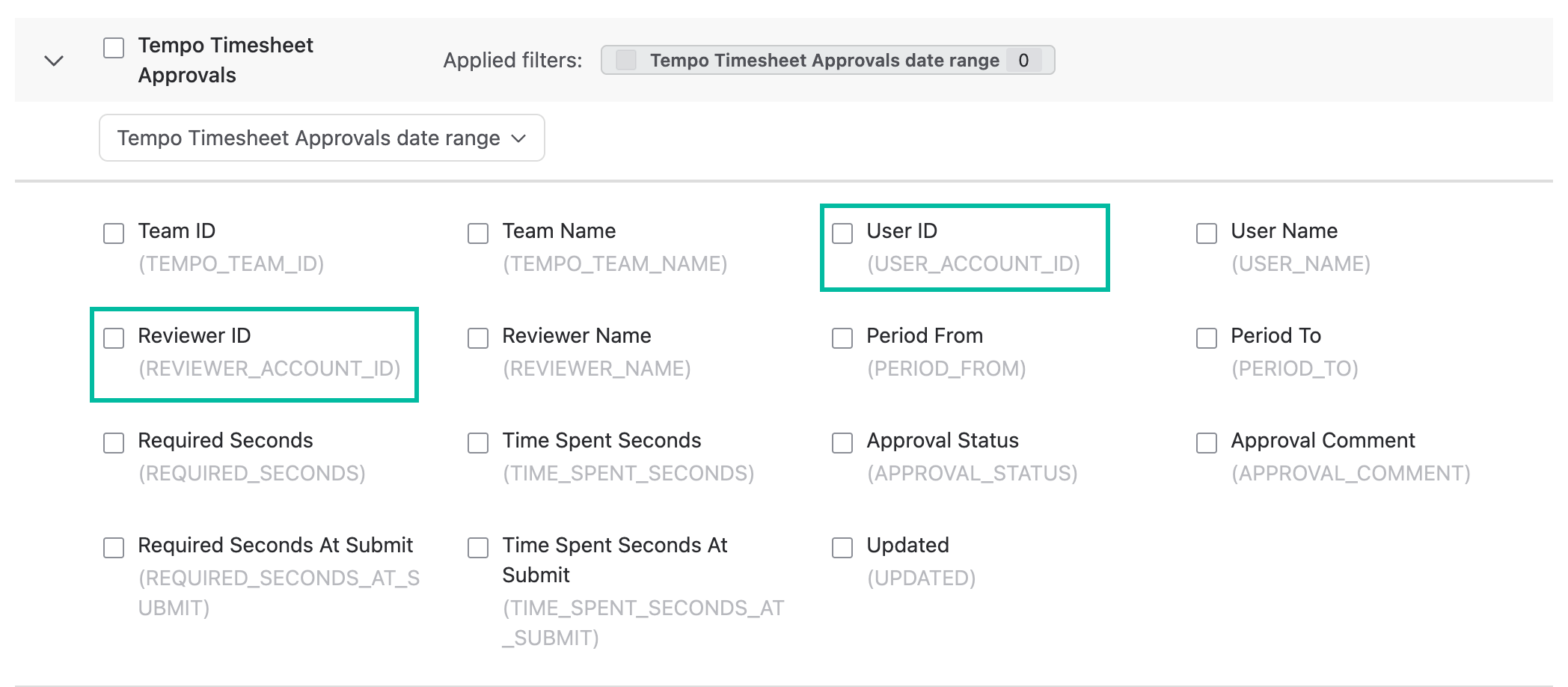
This approach creates an intermediate table in Power BI that lets you analyze approved worklogs together with the corresponding timesheet approval information.
The following example demonstrates one way to associate the Tempo Timesheet Approvals and Tempo Worklogs tables. You can modify the fields and the DAX expression to fit your reporting requirements.
-
Export the required tables to Microsoft Power BI.
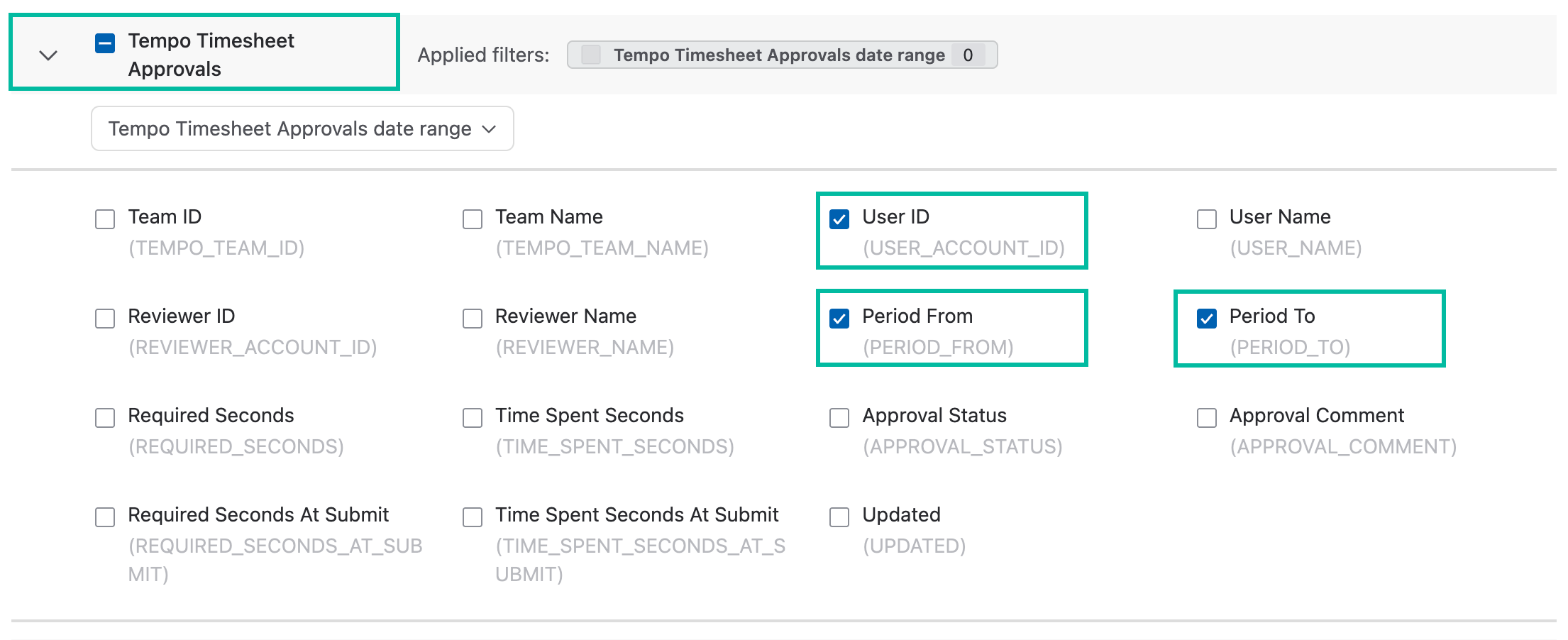
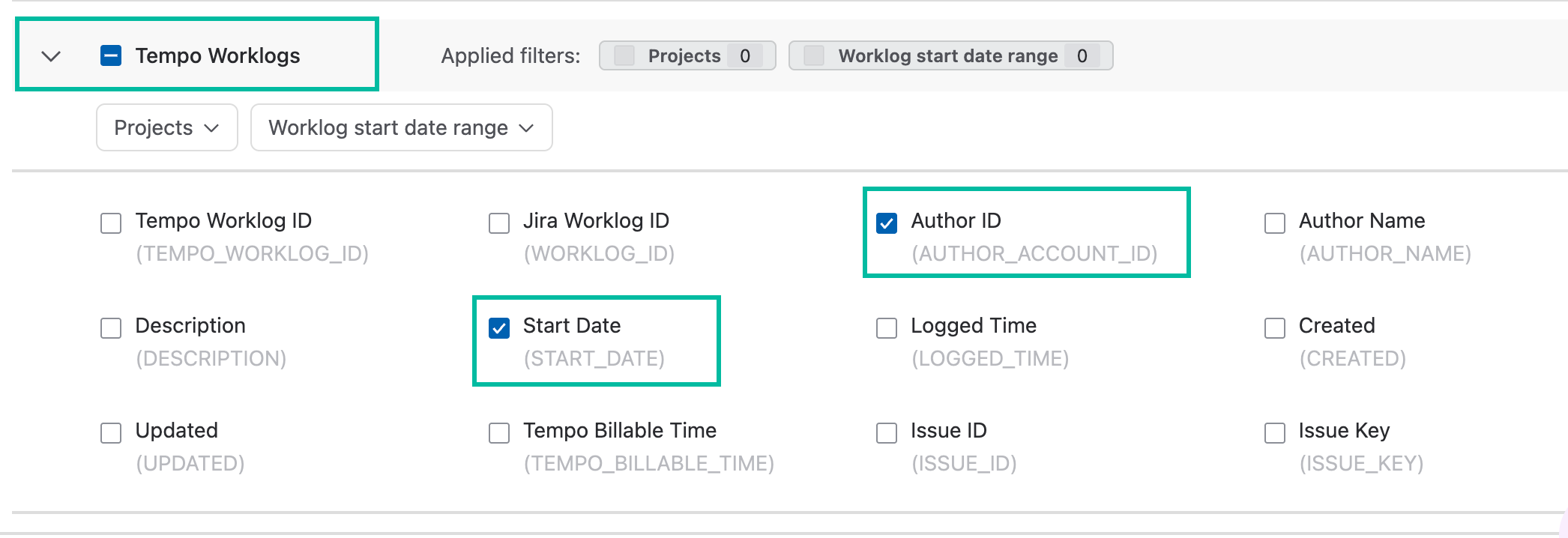
For example, export the following fields:-
Tempo Timesheet Approvals
-
User ID
-
Period From
-
Period To
-
-
Tempo Worklogs
-
Author ID
-
Start Date
-
-
-
Create a calculated table in Power BI.
For example, you can use the following DAX expression:
Result =
GENERATE(
    TempoTimesheetApprovals,
    FILTER(
        TempoWorklogs,
        TempoWorklogs[AUTHOR_ACCOUNT_ID] = TempoTimesheetApprovals[USER_ACCOUNT_ID] &&
        TempoWorklogs[START_DATE] >= TempoTimesheetApprovals[PERIOD_FROM] &&
        TempoWorklogs[START_DATE] <= TempoTimesheetApprovals[PERIOD_TO]
    )
)
.png?cb=1e21399ed66ea8342f3375c953cf0812)
This example matches worklogs to timesheet approvals by comparing Author ID with User ID and filtering worklogs whose Start Date falls between Period From and Period To. You can extend the calculated table with additional fields or modify the DAX expression to meet your reporting needs.
After a timesheet is approved, you can't add, edit, or delete worklogs within the approved period. Therefore, all worklogs in the Tempo Worklogs table whose Start Date falls within the approved period can be considered approved. The only exception is described in this article - Modifying Worklogs in Closed Periods or Approved Timesheets.