
-
Being signed in to your Jira instance, select SQL Connector, and then select Data Sources.

-
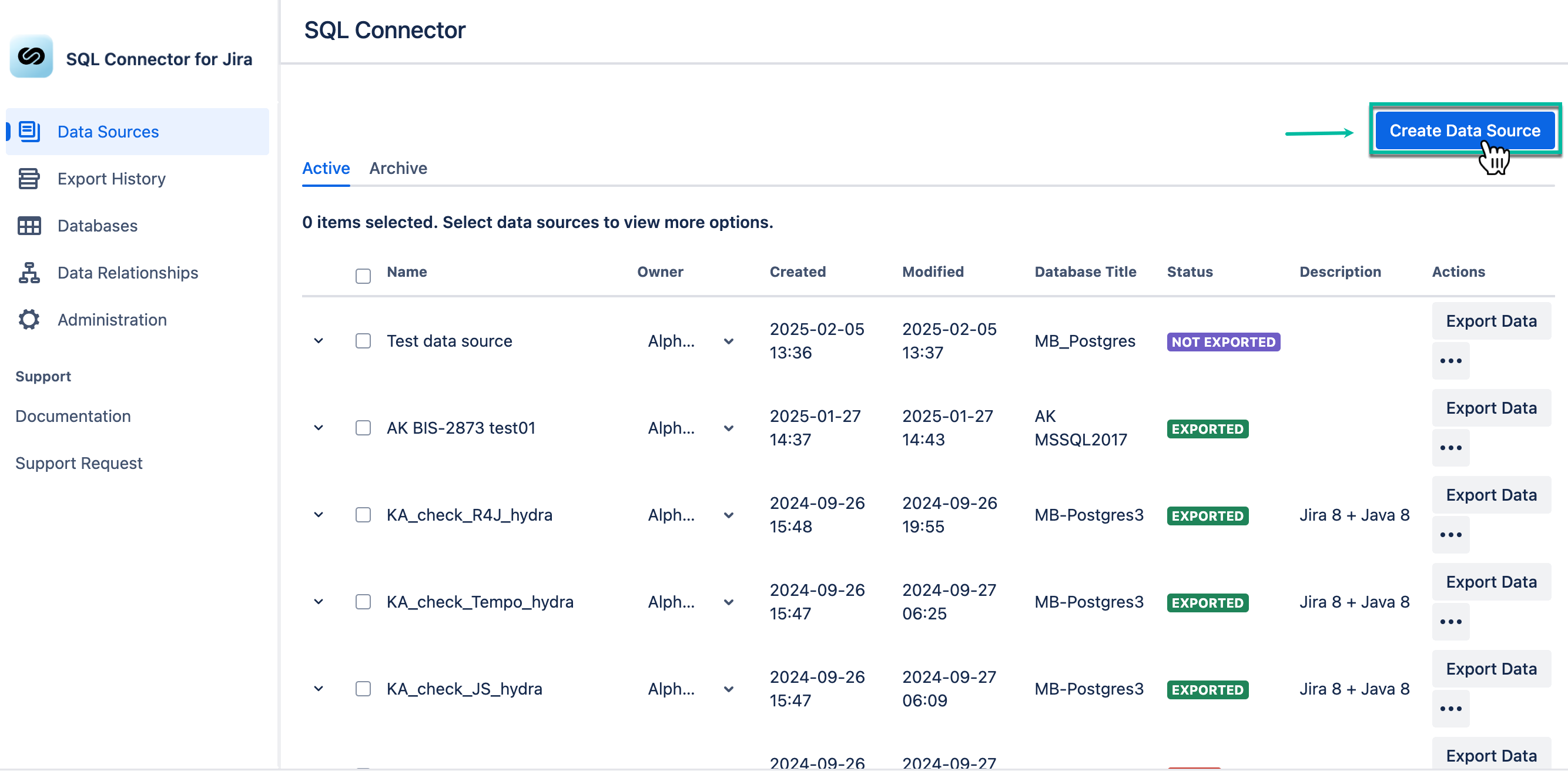
Select Create Data Source.
-
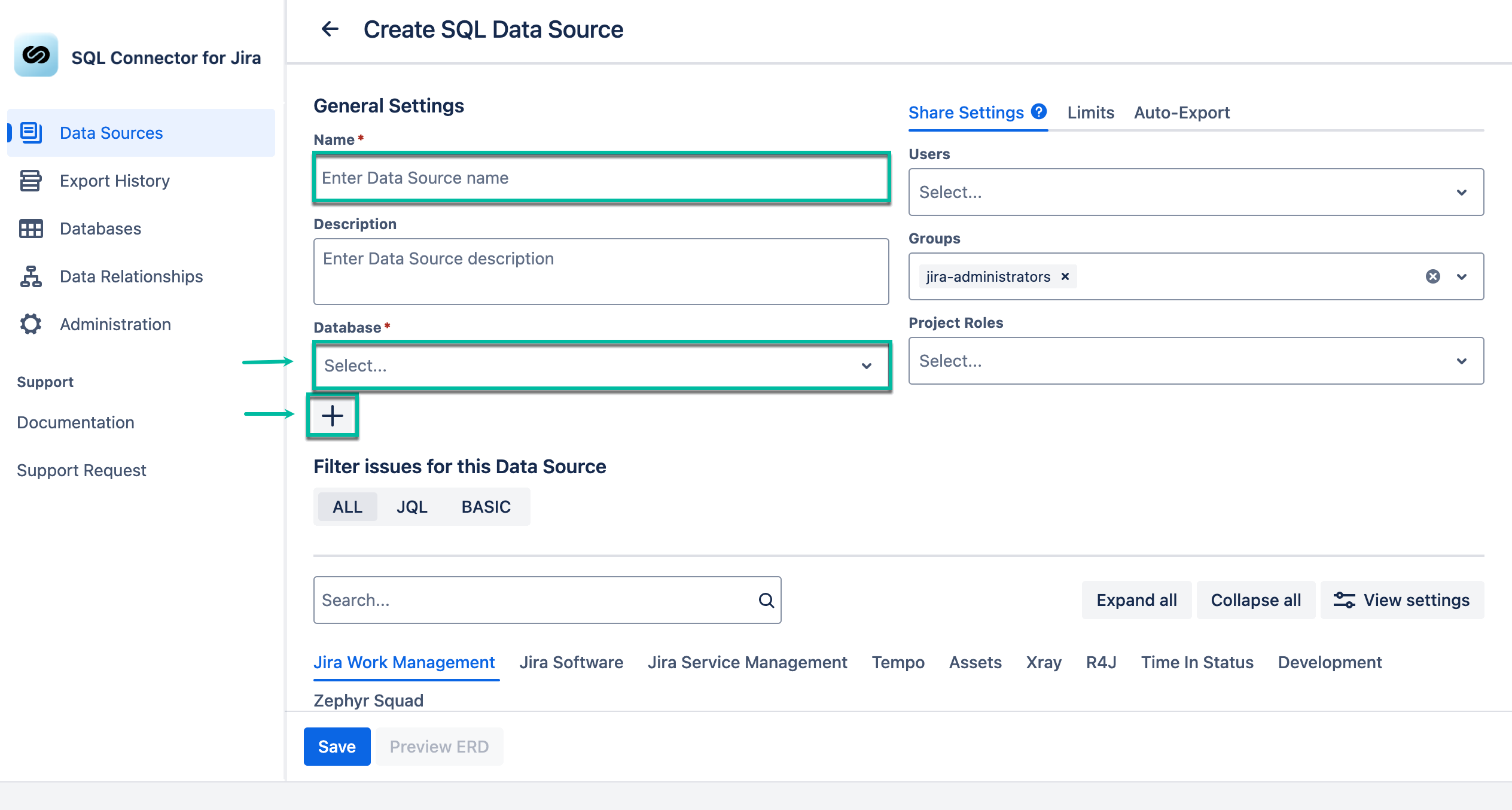
In the Name* field, enter your data source name.
-
Select + to add database.
If you have already created the database where you’d like to export your Jira data, simply select it from the drop-down list.
-
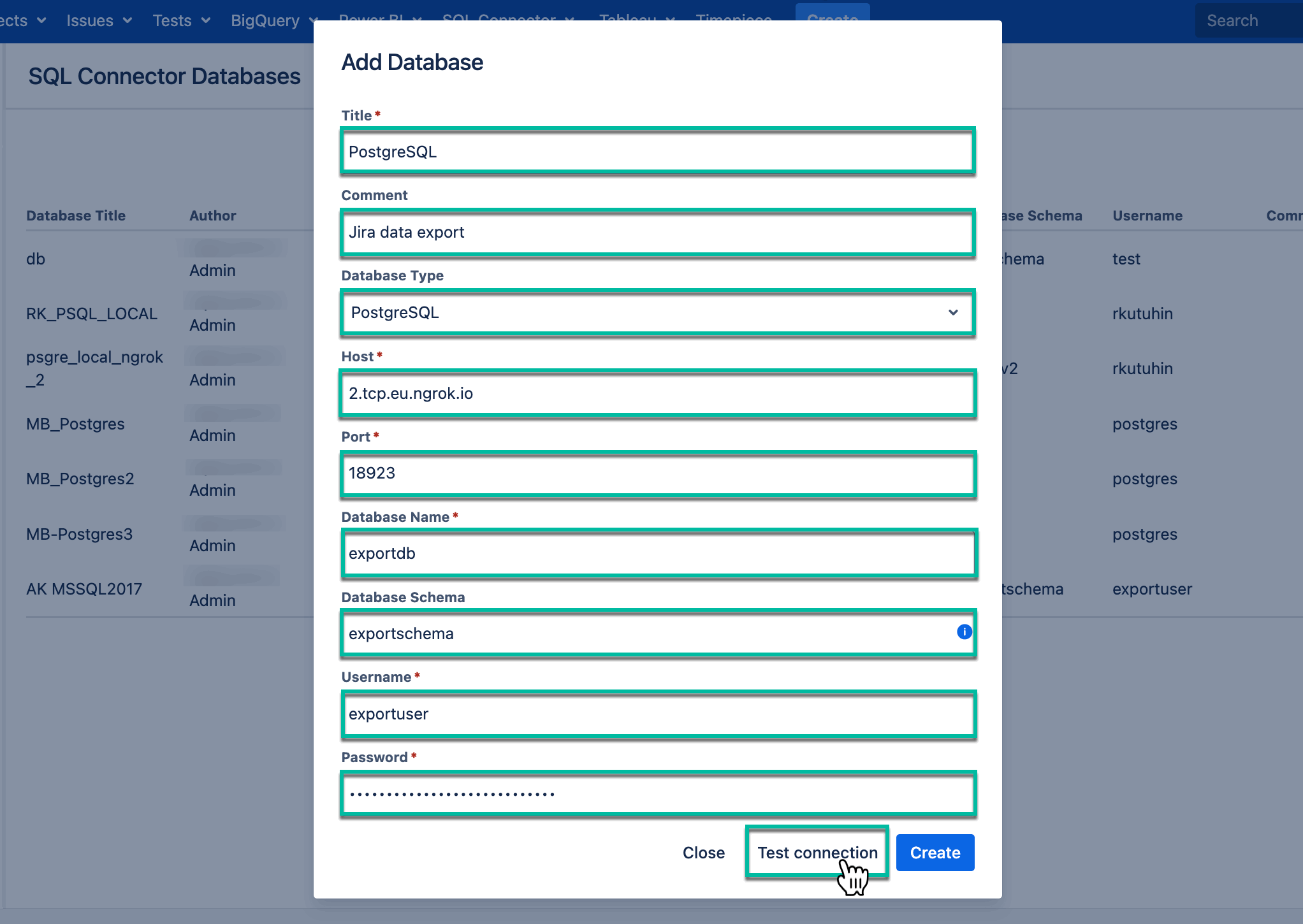
In the Title* section, enter the title for your database.
-
[Optional] In the Comment field, enter any useful information.
-
In the Database Type* field, select the type of your database.
-
In the Host* field, enter the host of your database.
-
In the Port* field, enter the host of your database.
-
In the Database Name*, enter the name of your database.
-
[Optional] In the Database Schema*, enter the data schema.
By leaving the Database Schema* field empty, the default data schema will be applied.
-
In the Username* field, enter your username.
-
In the Password* field, enter your password.
-
Select Test connection to check if everything is correct.
If everything is correct, you will get the corresponding message.
Test connection success.
-
Select Create.

-
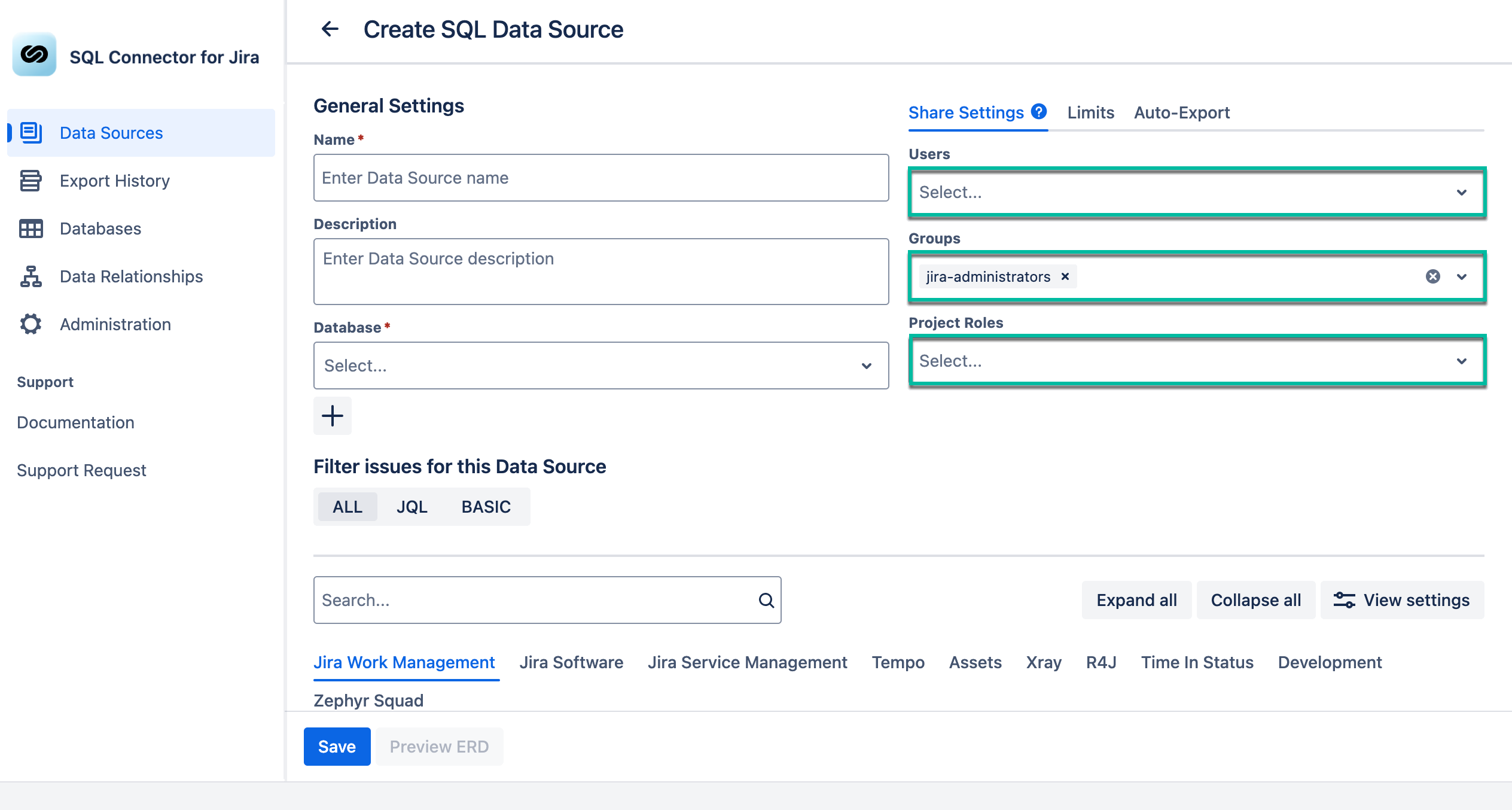
[Optional] In the Users field, enter the username you want to share the data source with.
-
[Optional] In the Groups field, select the group you need.
-
[Optional] In the Project Roles field, select the roles you need.
-
You may share this data source with users who have permissions to work with SQL Connector for Jira.
-
Users a data source is shared with cannot edit it.
-
-
Users with administrator permissions have access to all data sources by default.
Other users who have access to SQL Connector might not get all the data from this data source due to different Jira permissions.
Enable auto-export to have your data source exported at the set time interval.
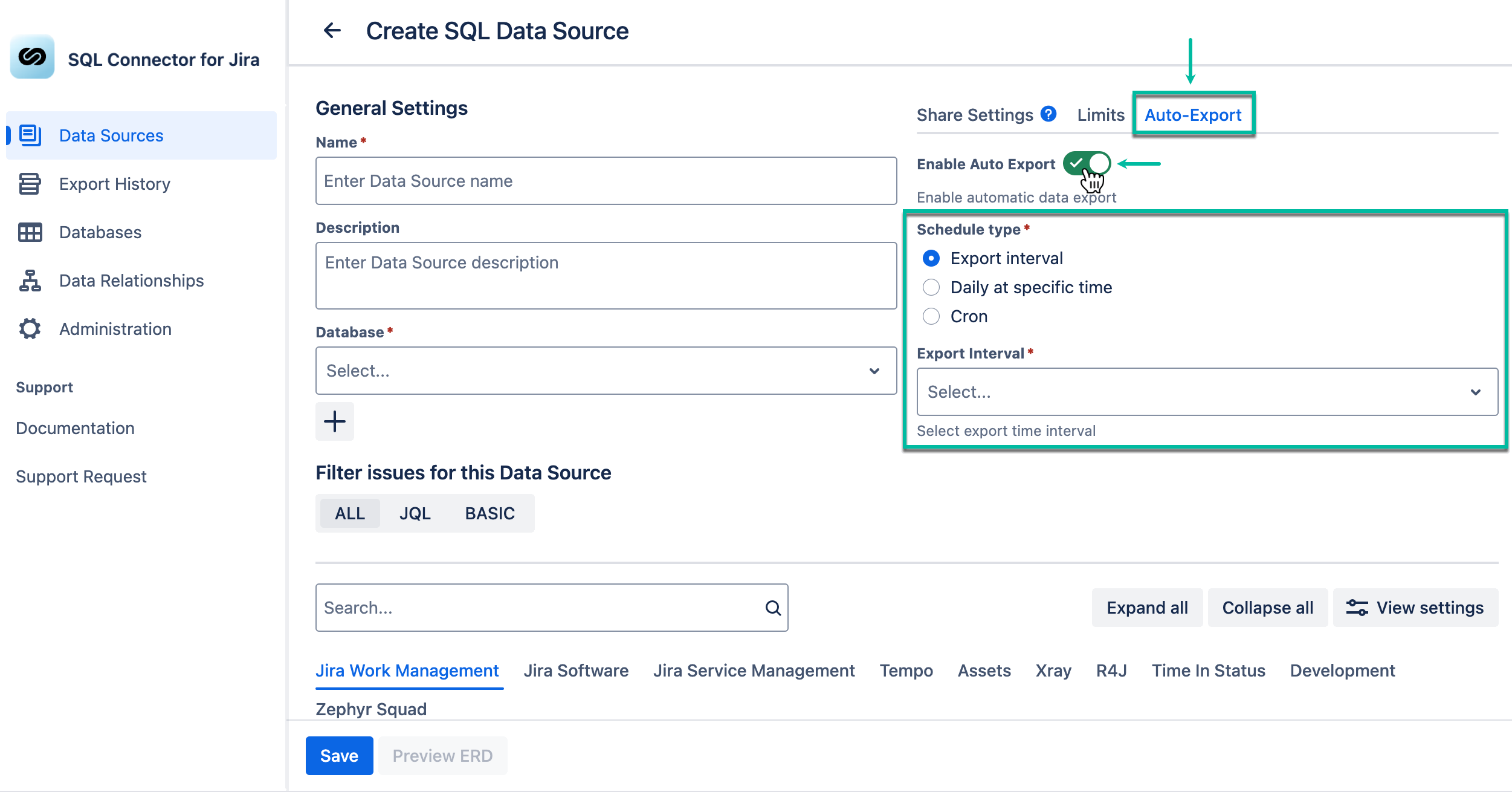
-
Select all filters and tables you want to be in your data source, and then select Save.
You can select different filter groups:
-
All (by default) - will return all data, select it, if you want to export all existing issues.
-
JQL - Jira Query Language, is a flexible tool that allows you to search for issues, projects, etc. in Jira and pinpoint exactly what you are looking for. Select it, if you want to use JQL to create your own request and filter data.
-
Basic - select it, if you want to use standard fields filters.

If you need additional information about Jira filters, please refer to this section.
