Shared Dashboards are enabled by default in your Jira Cloud environment, but only internal sharing options are available unless an admin enables the other options.
Jira Admins can use the Shared Dashboard Settings to customize the link access level settings (Link Options tab), see a list of all Shared Dashboards in the instance (Link List tab), and set requirements on any access codes created for Public Shared Dashboards (Access Code tab).
Enable Shared Dashboards
You must be a Jira Admin to enable this feature.
-
Navigate to the Custom Charts - Settings by:
-
Editing any Custom Charts gadget and clicking Admin settings in the bottom right corner of the gadget
-
In the Jira header, clicking Apps → Manage your Apps → Custom Charts - Settings
-
-
Click the Features tab
-
Navigate to the Shared Dashboards section and ensure the toggle is turned on (green with a
Access Shared Dashboard Settings
You must be a Jira Admin to access these settings.
-
In the Jira header, click Apps → Manage your apps
-
In the left navigation panel, in the Custom Charts section, click Custom Charts - Shared Dashboard
-
On the Shared Dashboard - Settings page, in the Link Options tab, find the Link Access Level you’d like to set for the Shared Dashboard, and click the toggle in the section to enable the level. In the Link List tab, see a list of all Shared Dashboards in the Jira instance
Link Access Tab Settings
You must be a Jira Admin to access these settings.
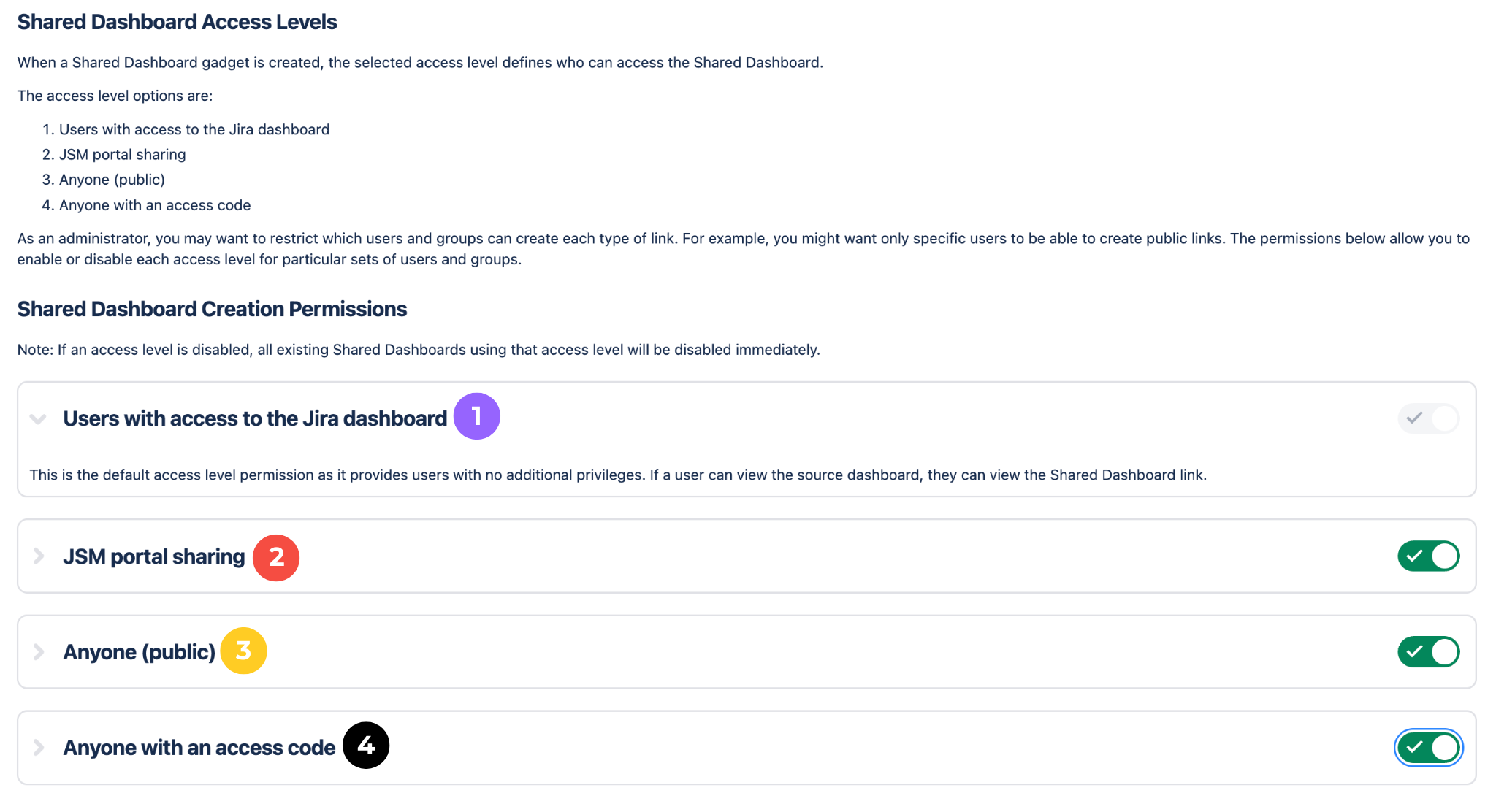
Users with access to this Jira dashboard
Licensed Jira users can see this Shared Dashboard if the Jira dashboard has been shared with them.
JSM portal sharing
This Shared Dashboard will be visible in the Jira Service Management customer portal for users in the selected JSM project, with the following restrictions:
-
Only issues where the portal user is the reporter or request participant will be available
-
Eg. All customers of the Support project will see the Shared Dashboard, and the charts will show only tickets they created or were added as a participant to.
-
-
If an organization has been selected, only issues where the organization on the issue matches the selected organization will be available
-
Eg. Only users part of Organization A will see the charts in the Support project, and they will only see charts for issues that have had their Organization added to them.
-
-
If a portal user has been selected, the dashboard will only show to that user, and only issues where that user is the reporter or request participant will be available.
-
Eg. Tom is the only person who will see the Shared Dashboard in the Support portal, and he will only see tickets that he created or was added as a participant to.
-
Anyone (public)
Any user with access to this link will be able to view this dashboard, with data loaded as the dashboard owner.
Anyone with an access code
Any user with access to this link and who has entered in the provided access code will be able to view this dashboard, with data loaded as the dashboard owner.
Link List Tab
You must be a Jira admin to access this list.
In the Link List tab, admins can see a list of all Shared Dashboards in the Jira instance. Each column in the list represents a detail of the Shared Dashboard’s settings.
|
Column |
Description |
|---|---|
|
Jira Dashboard |
The name of and a link to the Jira Dashboard where the Shared Dashboard gadget lives |
|
Jira Dashboard Owner |
The name of the user who created the Jira Dashboard where the Shared Dashboard gadget lives |
|
Shared Dashboard |
The name of and a link to the Shared Dashboard gadget |
|
Shared Dashboard Owner |
The Jira data on Shared Dashboards will be loaded using the permissions of the user listed here. |
|
Shared with |
Displays the Link Access level used on the Shared Dashboard gadget |
|
Status |
Displays the status of the Shared Dashboard |
Access Code Tab
You must be a Jira admin to access this tab.
In the Access Code tab, admins can set the requirements for access codes created for Public Shared Dashboards.
|
Setting |
Description |
|---|---|
|
Minimum characters |
The minimum length, in characters, for a created access code |
|
Maximum characters |
The maximum length, in characters, for a created access code |
|
Require letters |
When enabled, users must include at least one letter in their access code |
|
Require capital letters |
When enabled, users must include at least one capital letter in their access code |
|
Require numbers |
When enabled, users must include at least one numerical character in their access code |
|
Require special characters |
When enabled, users must include at least one special character in their access code |