
The Cursor connection pulls daily cost and usage data from Cursor and matches it to the work in Jira.
Once connected:
-
The Cursor spend is matched to contributors by email, so it rolls up to teams and spaces and appears in the Attributed Spend report where work activity exists.
-
The Cursor spend also appears in the Total AI Spend and AI Spend by Provider reports.
-
By configuring seat pricing, your reporting can reflect what the organization actually pays for Cursor, not only usage charges.
Connecting to Cursor
Step 1: Create a Cursor API Key
In Cursor:
-
Go to Settings | API Keys.
-
Select New API Key.
-
Enter a name for the key (we recommend “Workforce Intelligence”), select an expiration date, and click Save.
-
Copy the key.
Step 2: Add the Cursor Connector in Workforce Intelligence
In Workforce Intelligence:
-
Go to Settings | Connectors.
-
Locate the Cursor connector and select Connect.
-
Enter the API key from Step 1 and select Verify & Connect.
Once verified, Workforce Intelligence automatically pulls the last 90 days of Cursor data, and then keeps it up to date daily.
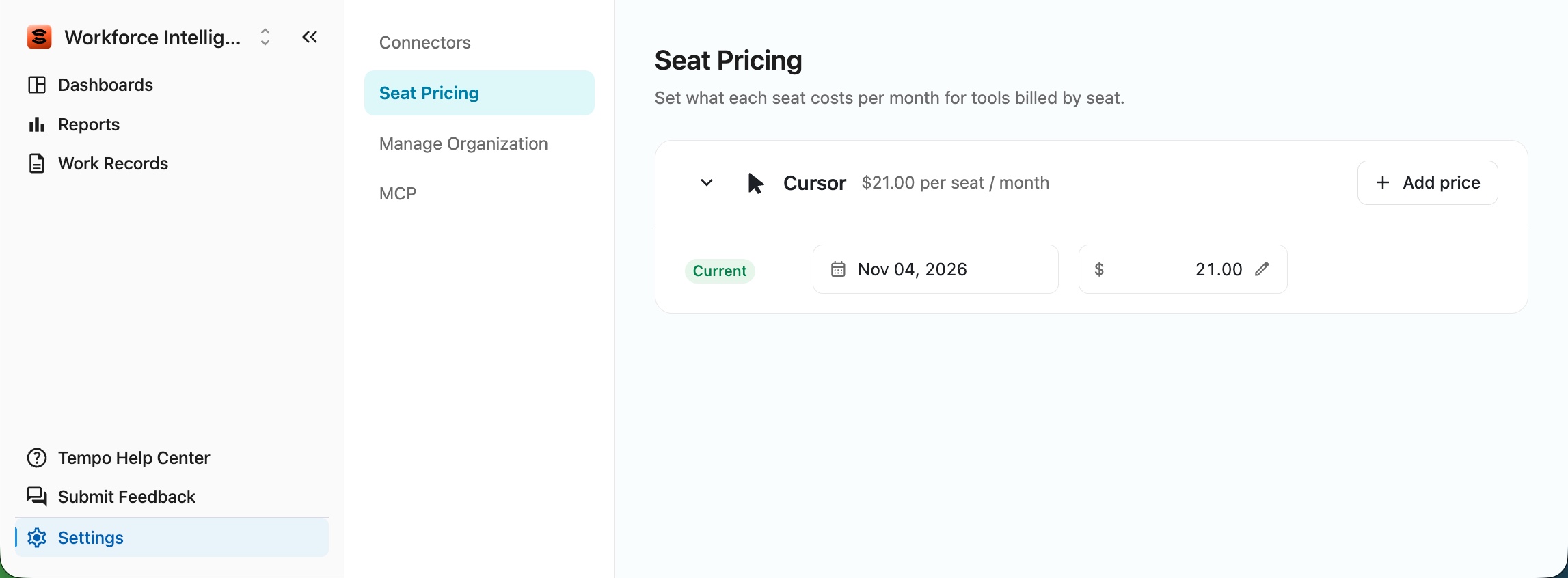
Step 3 (optional): Set up Seat Pricing
Setting the per-seat price for Cursor allows Workforce Intelligence reporting to reflect what your organization actually pays for Cursor, not just usage charges.
-
Go to Settings | Seat Pricing.
-
Under the Cursor menu, select + Add price.
-
Enter your per-seat pricing.
Disconnecting Cursor
To disconnect Cursor from Workforce Intelligence:
-
Go to Settings | Connectors.
-
Locate the Cursor connector and select Disconnect.
After you disconnect, Workforce Intelligence stops accessing Cursor. Data that was already imported is retained, but no longer appears in reports. If you reconnect Cursor, your previous data will appear in reports again.
To reconnect later, select Connect and enter a key.
What Data is Collected from Cursor?
Workforce Intelligence collects the following information from Cursor:
-
A list of team members (which it matches to Workforce Intelligence members by email)
-
How much each team member spent
-
The individual AI requests, with their cost
-
Daily activity per person (such as requests made and code suggestions accepted)
This information is updated once each day, typically overnight.
How is Cursor Data Attributed to Jira Work?
Workforce Intelligence collects each team member’s daily Cursor cost and then shares that cost across the work they completed that day.
Workforce Intelligence calculates completed work based on each person's GitHub and/or GitLab activity (commits, pull requests, reviews, and comments). This activity is linked to Jira work items when a Jira work item key (for example, ABC-123) appears in the commit message or branch name, or in the pull request title, description, or branch name. Where activity is linked to Jira work items, the person's spend for the day is split across those work items, in proportion to the lines of code changed or, when line counts are not available, evenly by the number of GitHub events.
Spend is attributed to Jira work items based on work activity detected on the same day. Spend that can't be matched to a person, or to GitHub activity linked to a work item on that day, still counts toward the total for this connection and is labeled Unattributed.
If a team member in Workforce Intelligence is not matched to a Cursor user, or they tracked no work for the day, their cost will not be linked to any work items for that day.
Seat Pricing
If you have configured Cursor seat pricing, Workforce Intelligence adds your monthly seat fee to the total Cursor cost. This fee is spread evenly across the Cursor billing cycle and is counted per team member, so your seat fees can be calculated into the cost of each Jira work item.
If no seat price is set, only usage-based cost is counted.
Limitations
-
Seat price must be entered by hand. Cursor does not report a per-seat price, so an admin must enter this manually via Workforce Intelligence | Settings | Seat Pricing. Until a price is set, seat fees are not counted.
-
Matching depends on email. Cursor spend is linked to a Workforce Intelligence contributor only when the Cursor email matches the email listed in Workforce Intelligence | Settings | Manage Organization | Contributors.
-
Included usage is not counted as spend. Usage covered by the seat allowance carries no extra charge. Only usage-based charges and the seat price add to spend.