Global and Local Filters
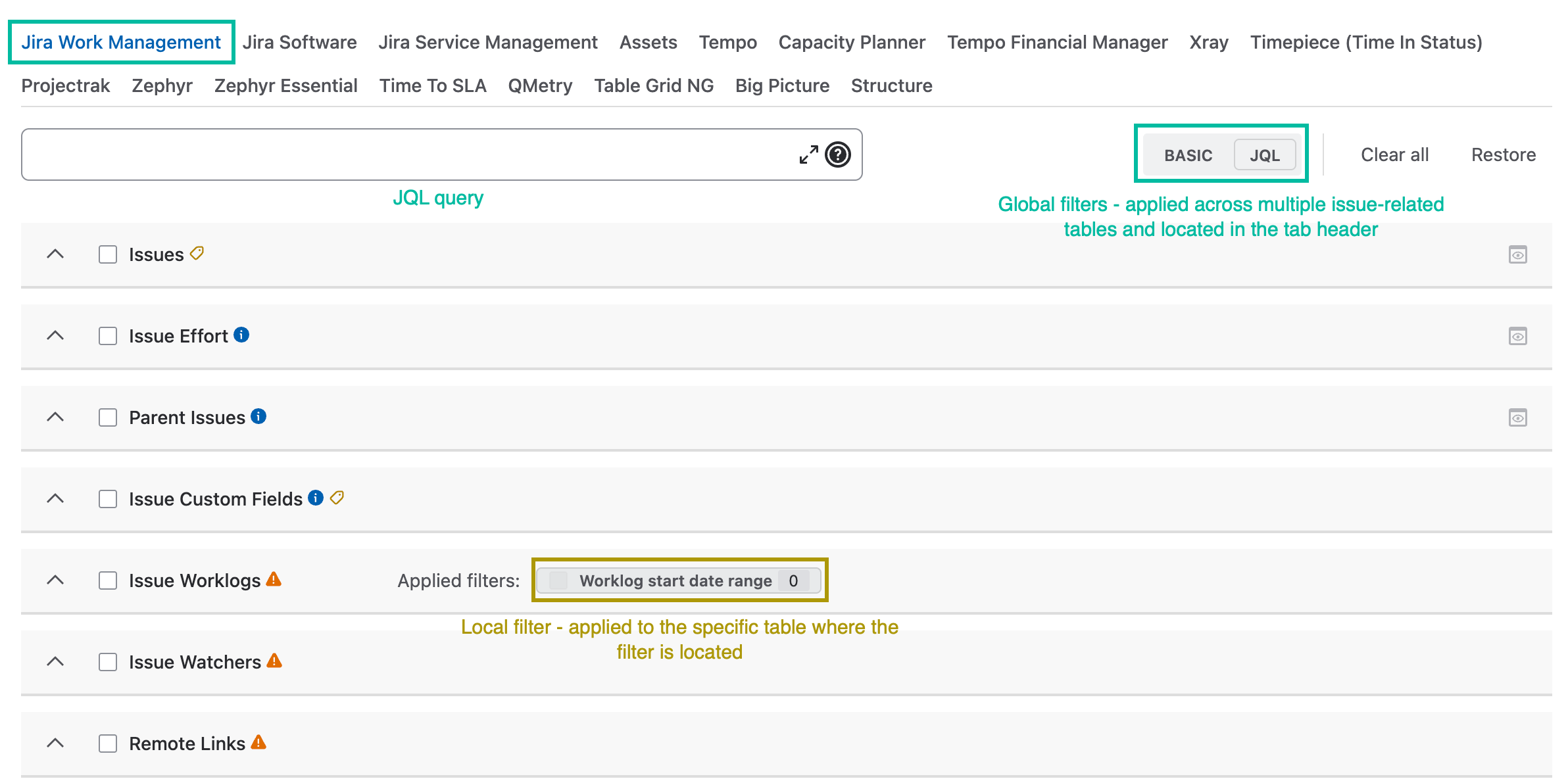
The app supports two types of filters for Jira Work Management tables:
-
Global filters - applied across multiple issue-related tables and located in the tab header.
-
Local filters - applied only to the specific table where the filter is located.
Tables with Global Filters
Two global filter types are available:
-
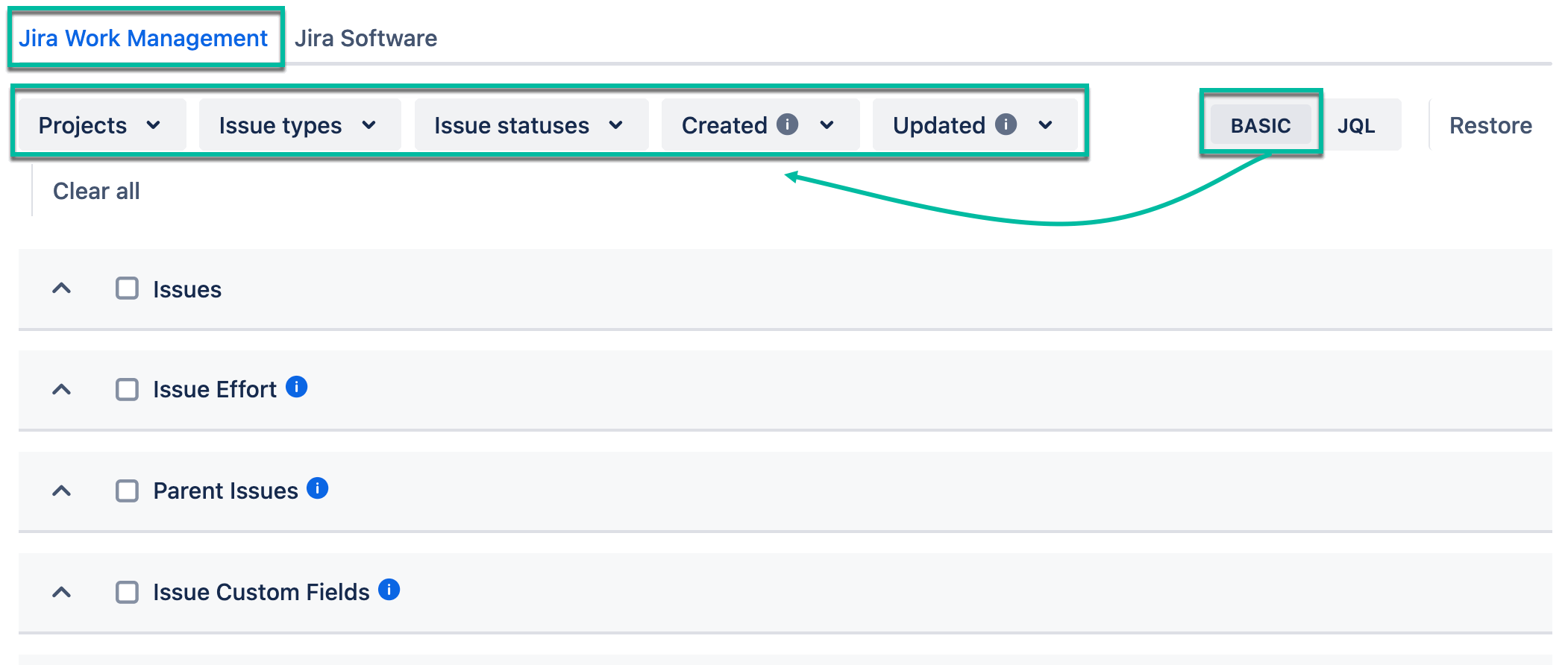
Basic
-
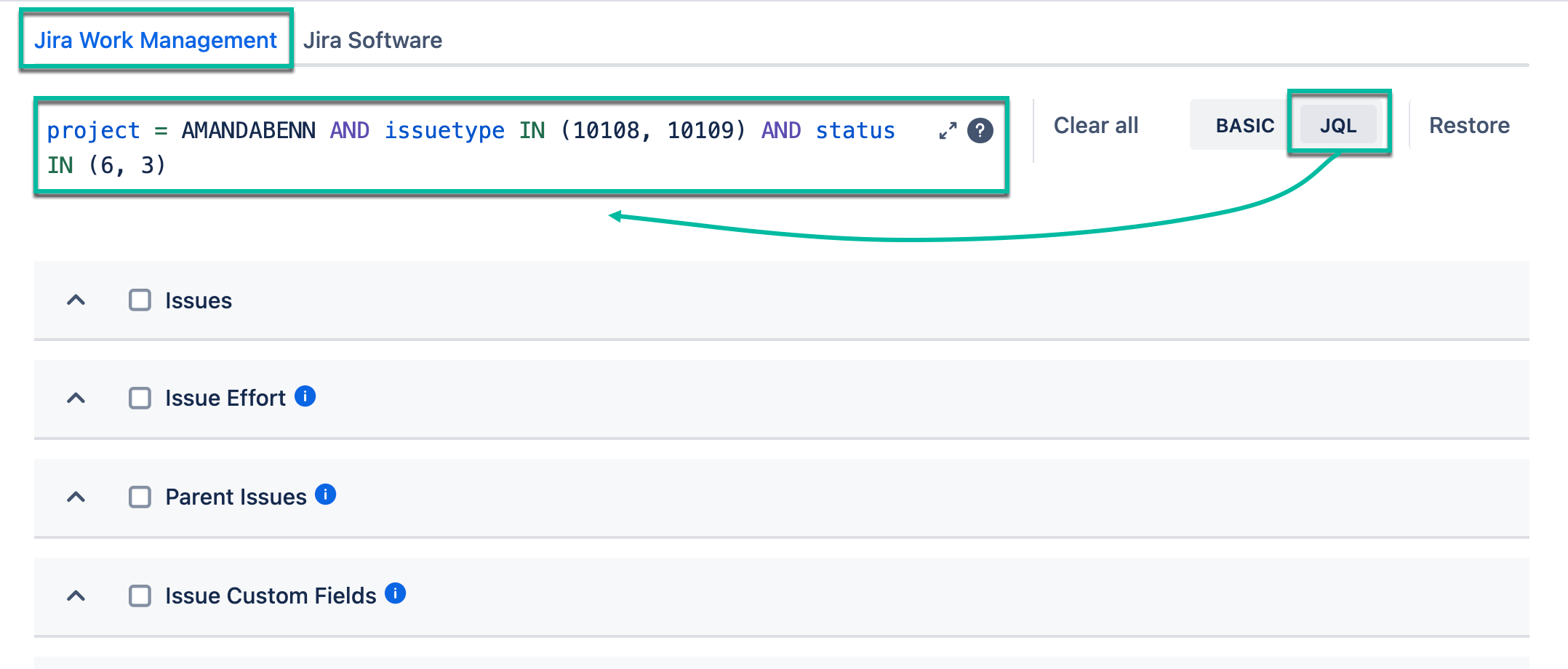
JQL
Global filters operate on issues. As a result, any table that retrieves or processes issue-related data is filtered according to the selected global filter criteria.
Global filters are applied to the following tables:
-
Issues
-
Issue Effort
-
Parent Issues
-
Issues Custom Fields
-
Worklogs
-
Issue Watchers
-
Remote Links
-
Issues Comments
-
Issue Attachments
-
Issue Labels
-
Issue Links
-
Histories
-
Issues Components
-
Issue Fix Versions
-
Issue Affect Versions
-
Time In Status
-
Time With Assignee
Basic and JQL Filters
The Basic filter provides a visual interface for the most commonly used filtering options. Internally, it is translated into JQL.
Although both Basic and JQL filters are based on JQL, the Basic filter supports only a limited set of filtering criteria and is therefore less flexible than a custom JQL query.
The Basic filter includes the following filtering criteria:
-
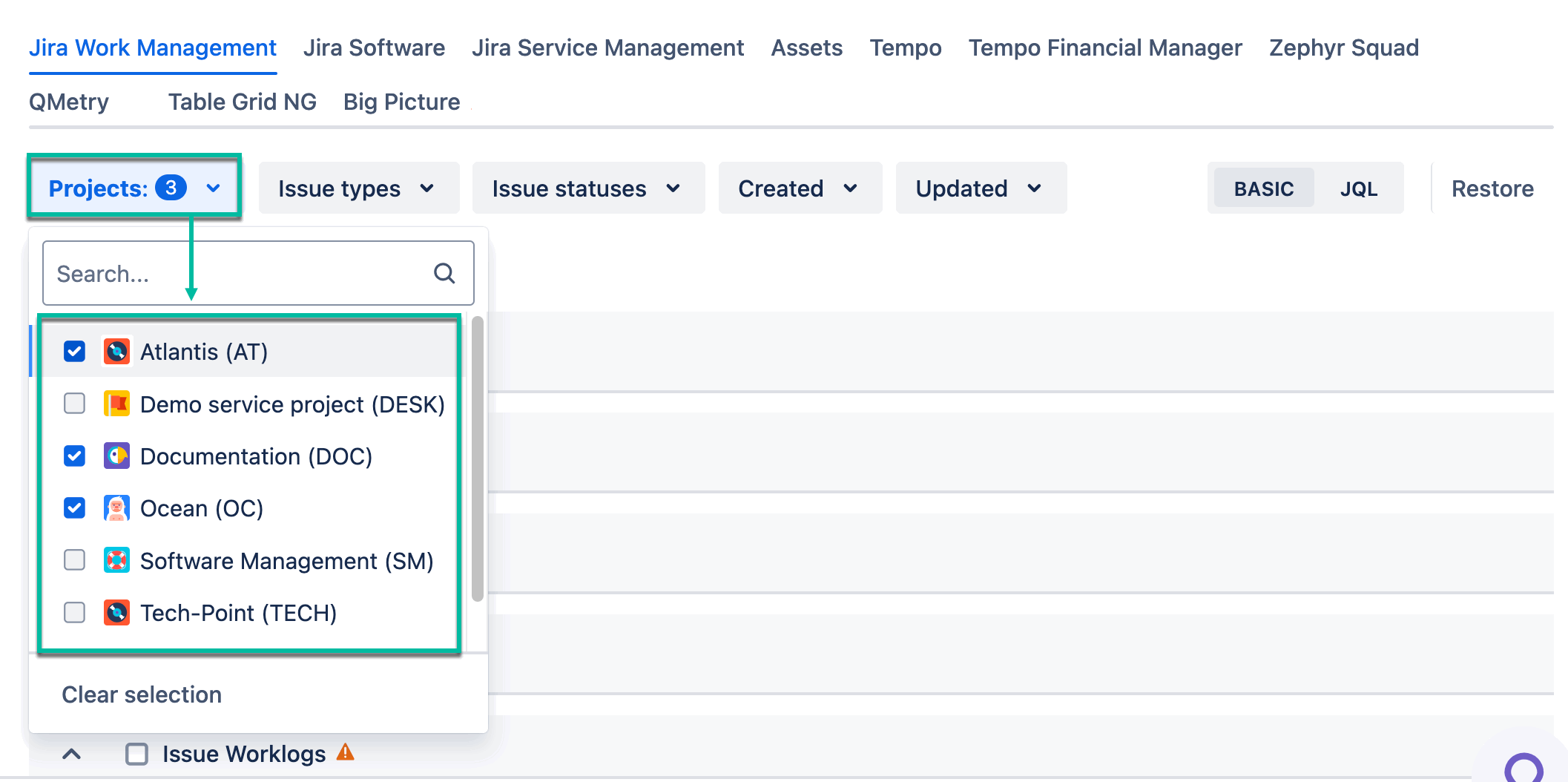
Projects - The filter allows you to select projects to be included in your export.
-
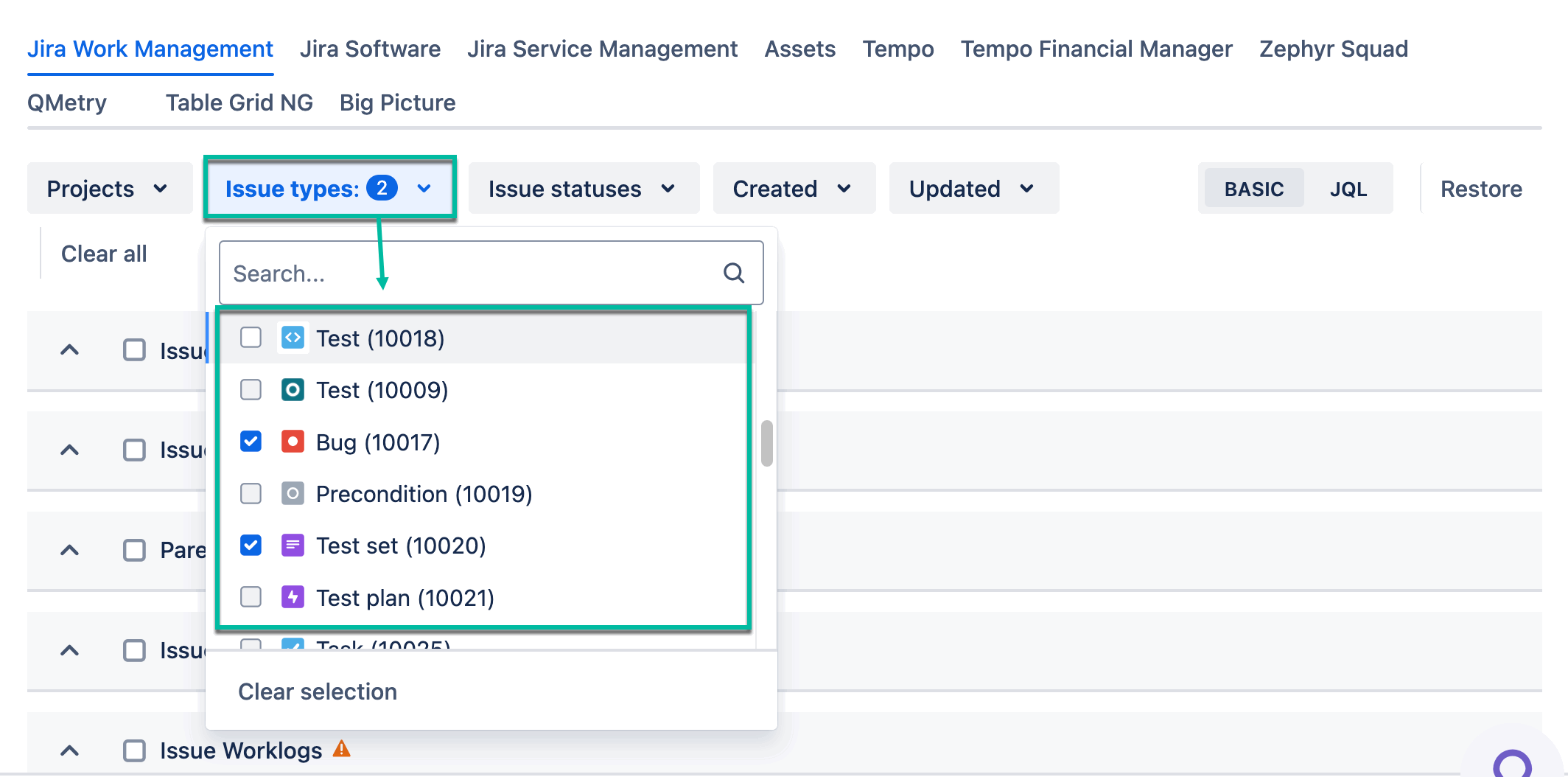
Issue types - The filter allows you to select the issue types to be included in your export (e.g. Tasks, Sub-tasks, Bugs, etc.). You can also select the custom issue types.
-
Use the Search box to quickly find the exact issue type you need. Use the Clear selection button to remove your issue type selection.
-
-
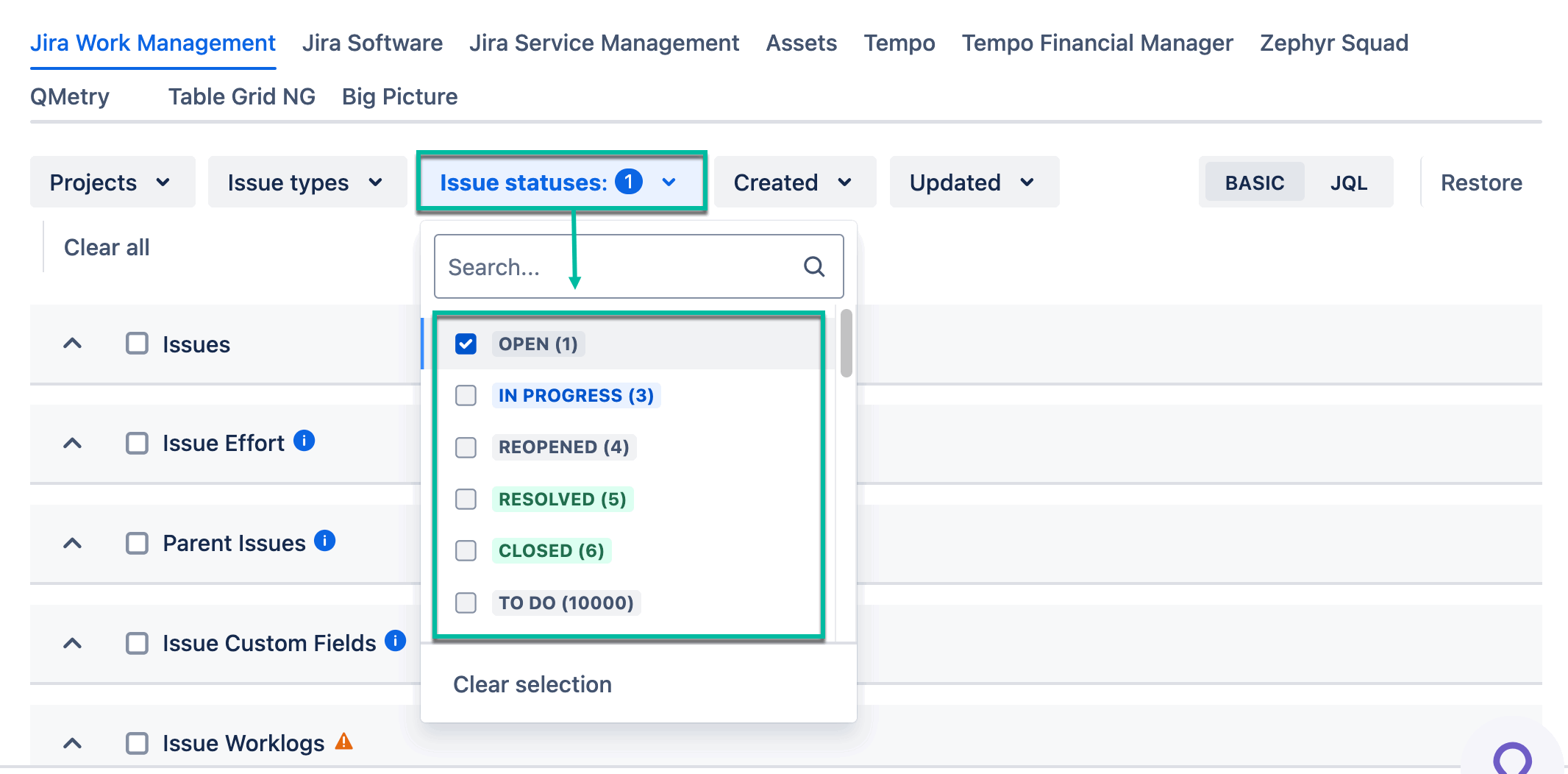
Issue statuses - The filter allows you to select statuses of issues to be included in your data source (e.g. Open, In Progress, Closed, etc.). You can also select the custom issue statuses.
-
Use the Search box to quickly find the exact issue status you need. Use the Clear selection button to remove your issue status selection.
-
-
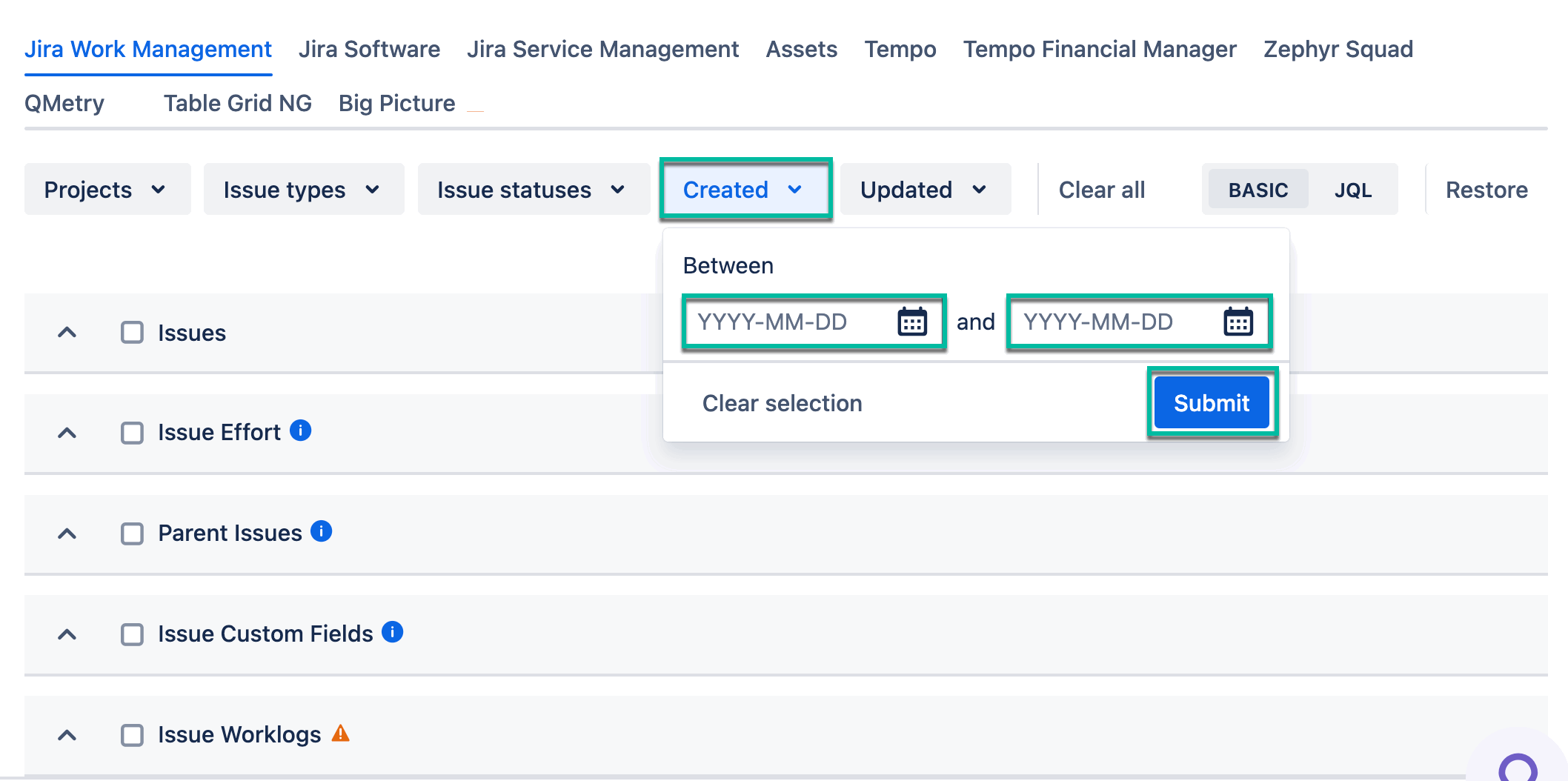
Created - The filter allows you to select the date range when the issue was created in the format YYYY-MM-DD.
-
You can enter the date manually or select it from the date picker. Use the Clear selection button, and then the Submit button to remove your date range selection.
-
-
Updated - The filter allows you to select the date range when the issue was updated in the format YYYY-MM-DD.
-
You can enter the date manually or select it from the date picker. Use the Clear selection button, and then the Submit button to remove your date range selection.
-
.gif?cb=8f3aec8e07da726261410dd15747c607)
Filtering Logic
The Basic filter uses AND logic between all selected criteria (filters). Each additional filter narrows the resulting dataset.
-
Projects - selects all issues from the specified projects.
-
Issue types - filters the selected issues by issue type.
-
Issue statuses - further filters the issues by status.
-
Created and Updated - apply additional date-based restrictions.
As more criteria are added, the number of returned issues decreases.
As a result, only issues from the specified projects that match the selected issue types, statuses, and date criteria are returned.
JQL-Basic Switch
In general, the global filters use JQL, the same query language used in Jira. You can enter any valid JQL query to control which data is exported. Because the app uses standard Jira JQL, you can compare the query with the results in Jira to verify which data will be included in the export.
For common filtering scenarios, you can use the Basic filter. The Basic filter is a visual representation of JQL that supports a limited set of fields and operators.
Use the Basic filter when you want to quickly create a query using these common criteria. If you need more advanced filtering, switch to the JQL tab and enter any valid JQL query.
When you switch between the two modes:
-
JQL to Basic: If your JQL query contains only the fields and operators supported by the Basic filter, it is automatically converted and displayed in the Basic view.
-
Basic to JQL: Changes you make in the Basic filter are automatically converted into an equivalent JQL query when you switch back to the JQL view.
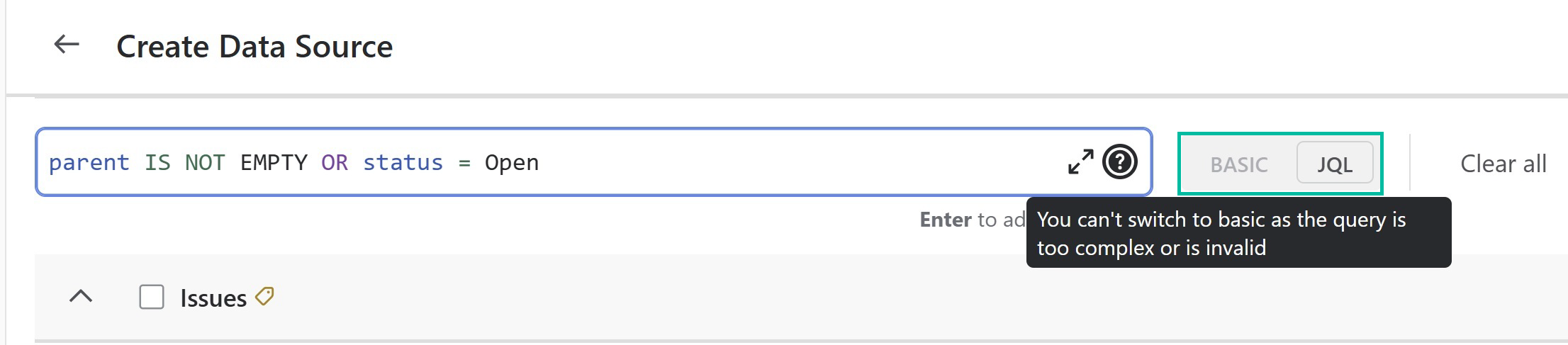
If the JQL query contains fields, operators, or functions that are not supported by the Basic filter, the query cannot be converted to the Basic view. In this case, switching from JQL to Basic is disabled.
The following example shows a JQL query that cannot be converted to the Basic filter. As a result, the Basic view is unavailable.
General Rules
The following fields are supported between JQL and Basic filters:
-
PROJECT -
ISSUE_TYPE -
STATUS -
CREATED -
UPDATED
Only the AND and ORDER BY keywords are acceptable.
When the user types an ORDER BY clause in the JQL string, it is preserved even after switching to the Basic filter view. If the user selects or modifies fields in the Basic view and then switches back to the JQL view, the ORDER BY clause remains part of the query string.
The ORDER BY clause may use any JQL fields, not just the fields supported by the Basic view. Even if the ORDER BY clause includes fields that are not part of the Basic filter view, it will still be retained when switching back to JQL.
❗ The following keywords will trigger an error message if used: OR, NOT, EMPTY, NULL.
❗ Usage of any JQL functions with these fields is not supported, and will result in an error.
Tables with Local Filters
Local filters affect only the table where they are located and do not impact other tables.
Local filters are available for the following tables:
-
Issue Worklogs
-
Histories
-
Projects
-
Project Components
-
Versions
-
Project Role Members
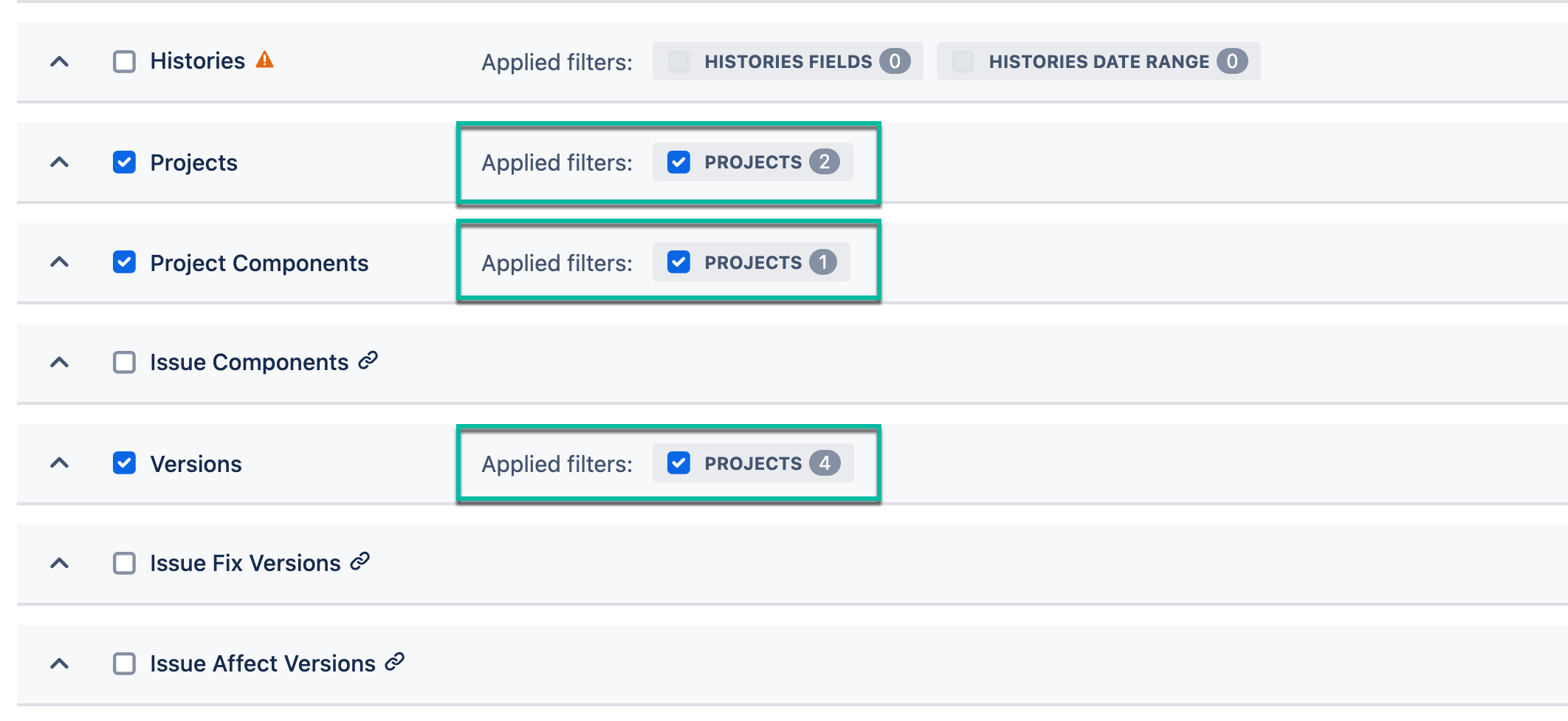
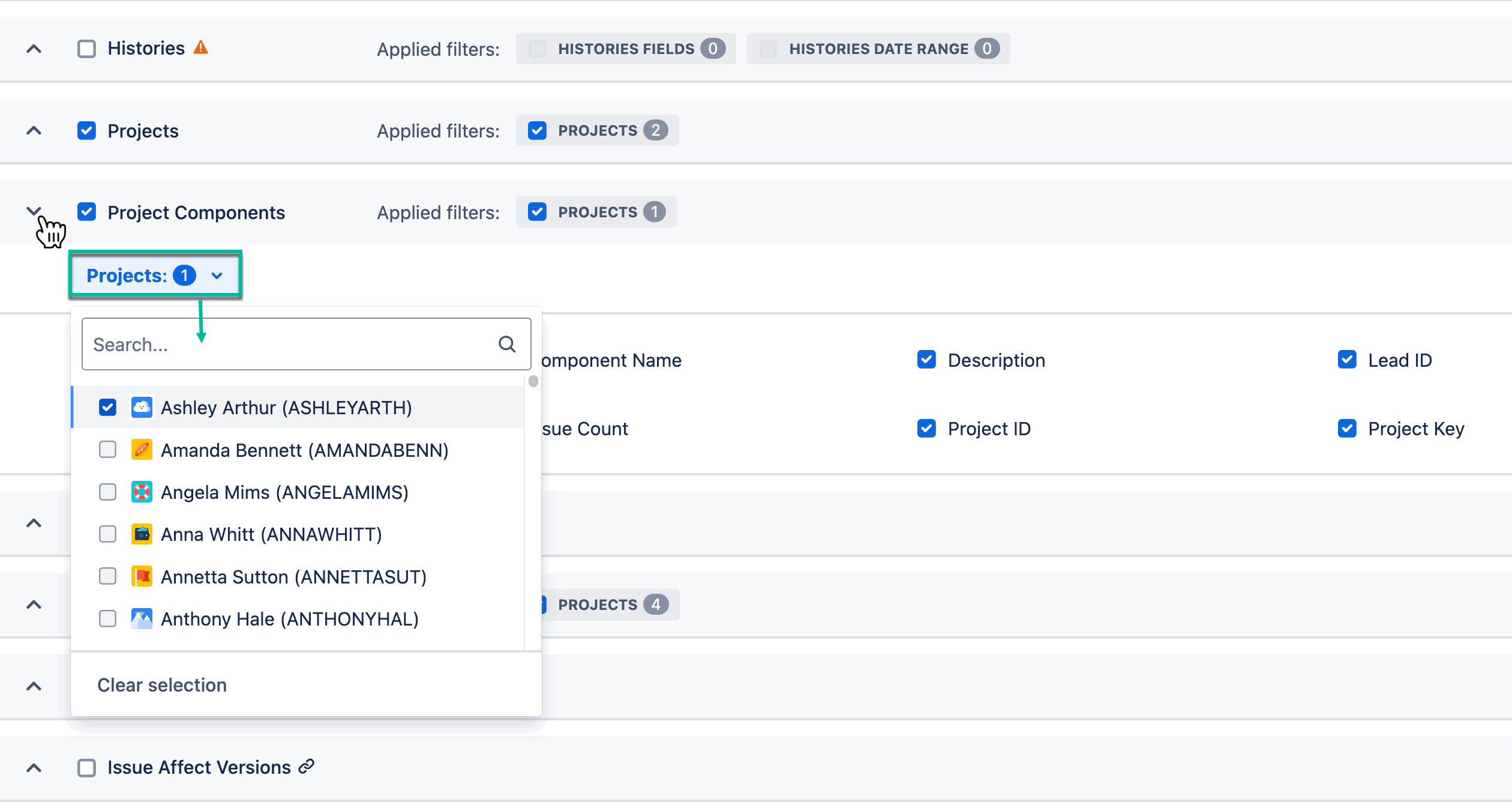
These tables are not affected by the global filters. Instead, they provide a local Projects filter that can be used to limit the exported data to specific projects.
If no local Projects filter is applied, the export includes all records available in the Jira instance for the selected table. To export data related only to a specific project, the corresponding project must be selected using the table's local Projects filter.
Tables with Both Global and Local Filters
The following tables support both global and local filters:
-
Issue Worklogs
-
Histories
For these tables, filtering is performed in two stages:
-
Data is selected based on the issues returned by the global filter criteria (for example, Projects, Issue Types, and Issue Statuses).
-
The resulting records are then filtered using the table's local filter criteria.
As a result, local filters are applied only to records associated with issues that match the global filter conditions.
Issue Worklogs Table
-
Issues are selected according to the global filters.
-
Worklogs associated with those issues are retrieved.
-
The retrieved worklogs are filtered using the local filter criteria, such as a date range.
The same filtering sequence applies to the Histories table.
Histories Table
-
Issues are selected according to the global filter criteria.
-
History records associated with the filtered issues are retrieved.
-
The retrieved history records are filtered by the selected history fields.
-
The resulting records are then filtered using the local date range filter.
Buttons
-
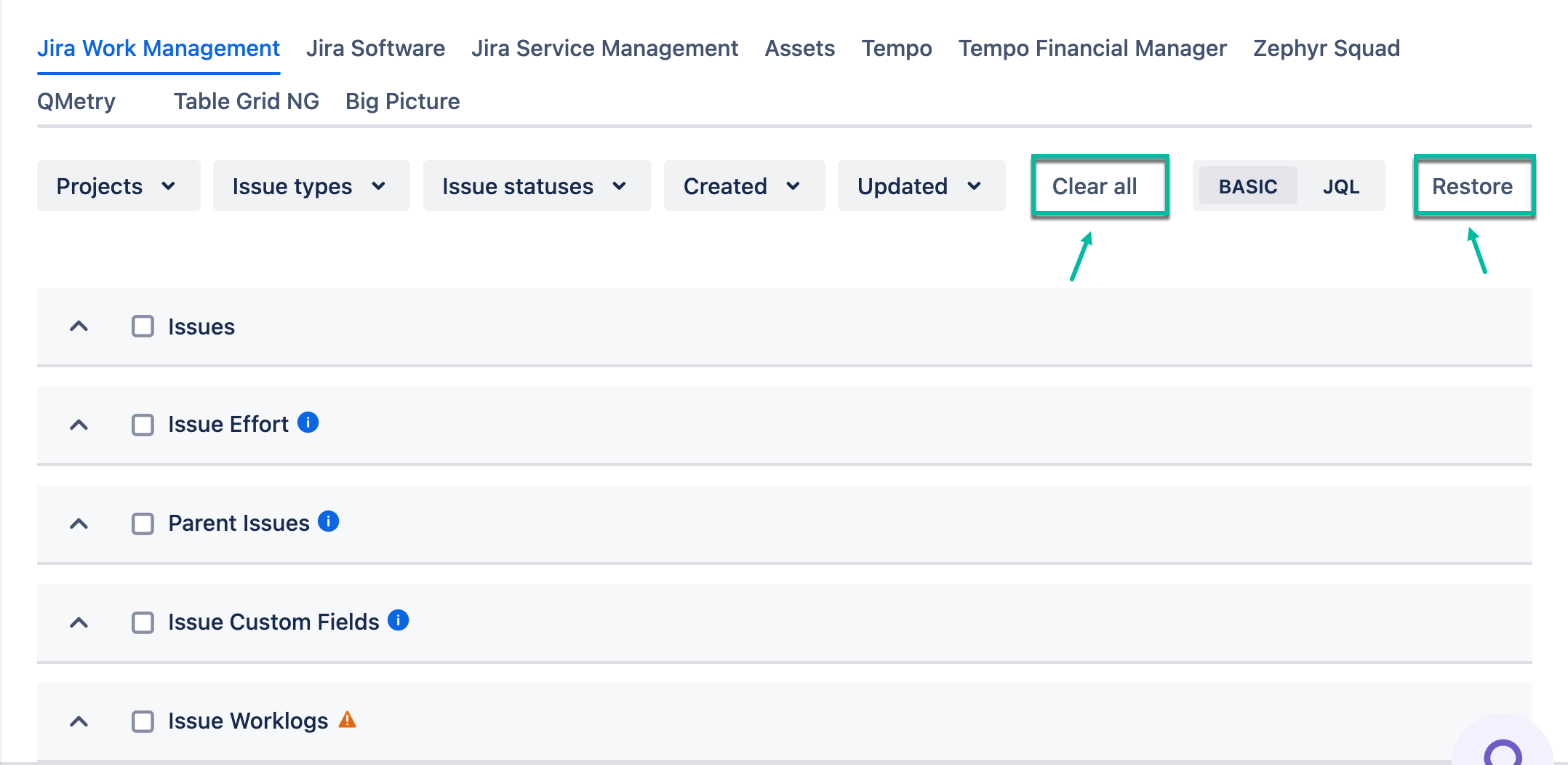
Use the Clear all button to remove all applied filters.
-
Using the Restore button during data source creation will remove all applied filters and return you to the JQL option.
-
Using the Restore button during data source editing will revert filters to their previously applied settings.