Administer Jira permissions are required to follow the instructions on this page. You can learn more about this here.
If you don’t have Administer Jira permissions, you can request your Jira Administrator to install the app by selecting Request this app.
For more information, see this instruction.
Book a video demo to see Data Studio Connector for Jira in action:

An update to the latest version is recommended to maintain full functionality. Older versions may not be fully compatible with recent backend changes, which can cause some features to work incorrectly or become unavailable. Upgrading ensures continued access to the latest functionality and improvements.
How to Install Data Studio Connector from Your Jira Cloud Instance
-
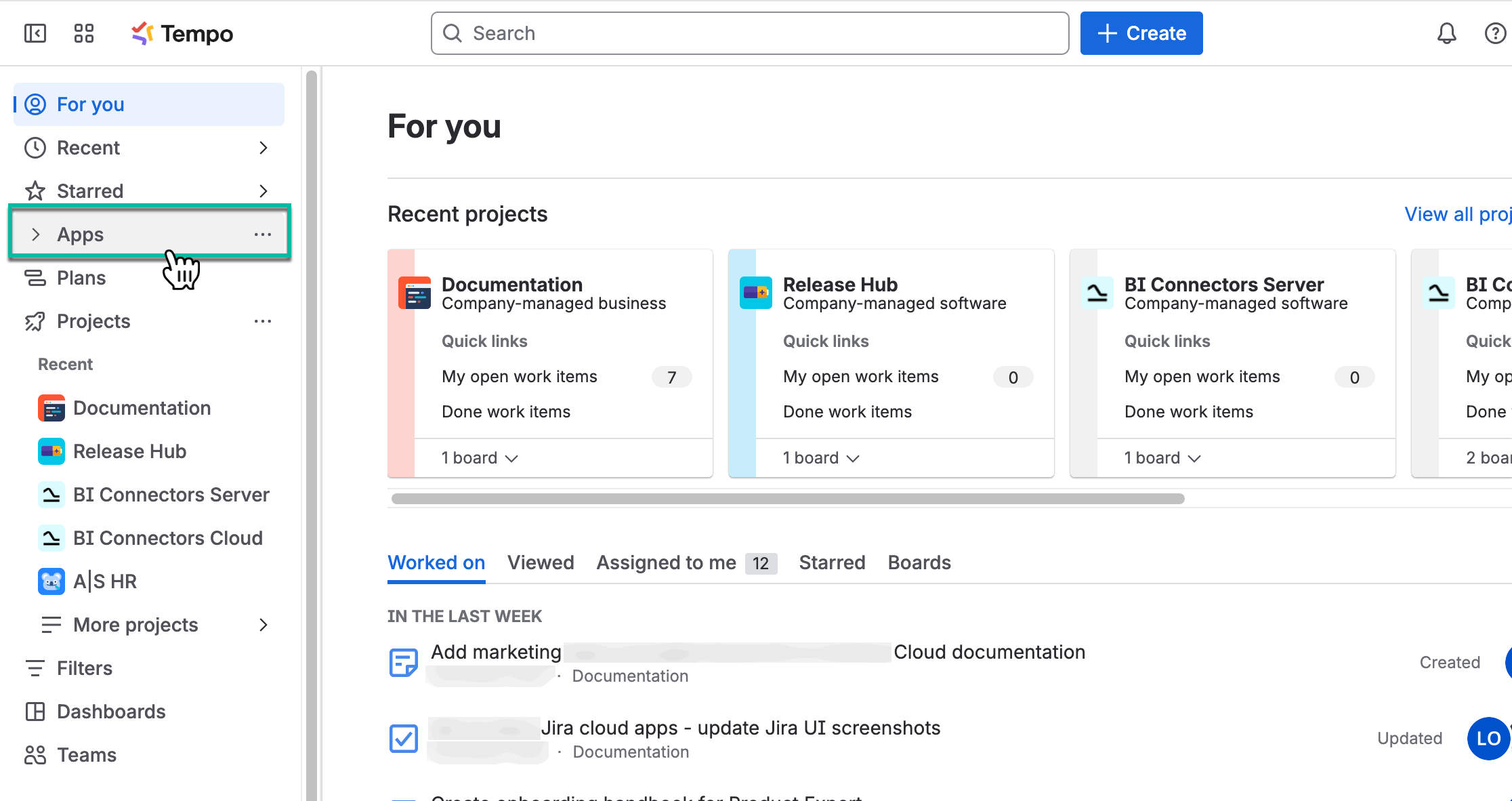
Being signed in to your Jira Cloud instance, select Apps.
-
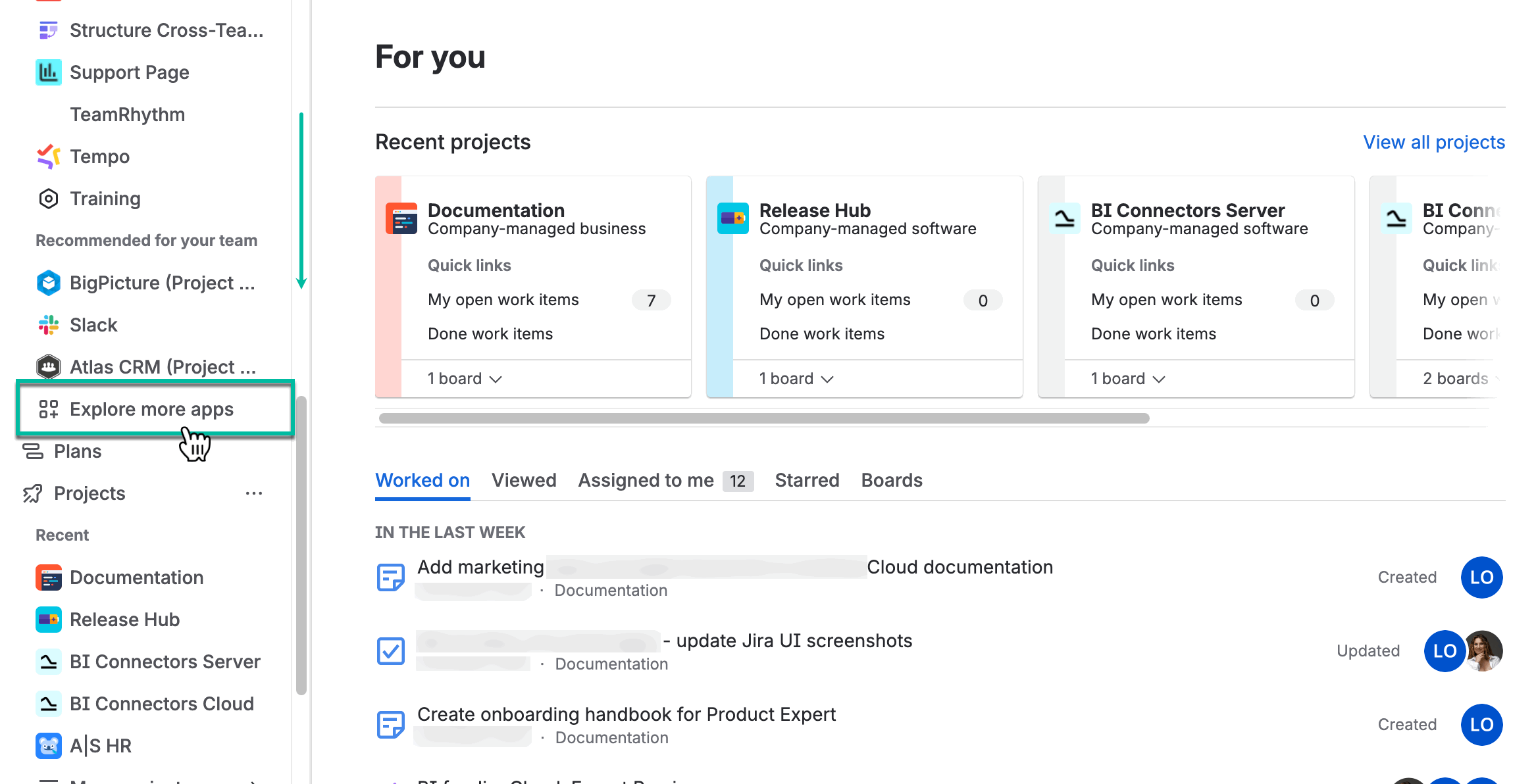
Select Explore more apps.
-
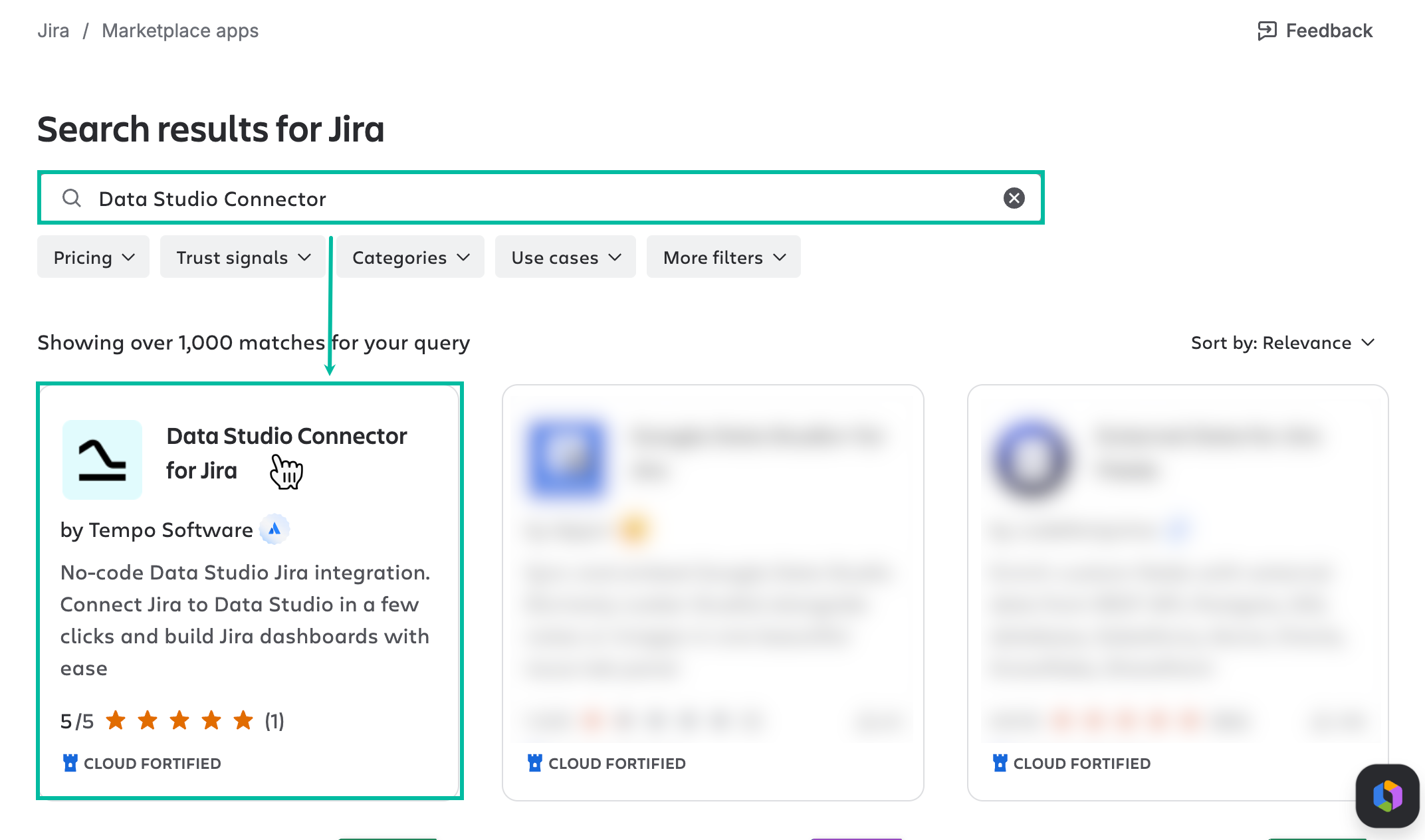
In the Search for apps box, enter Data Studio Connector, and then press the Enter button.
-
From the search results, select Data Studio Connector for Jira by Tempo Software.
-
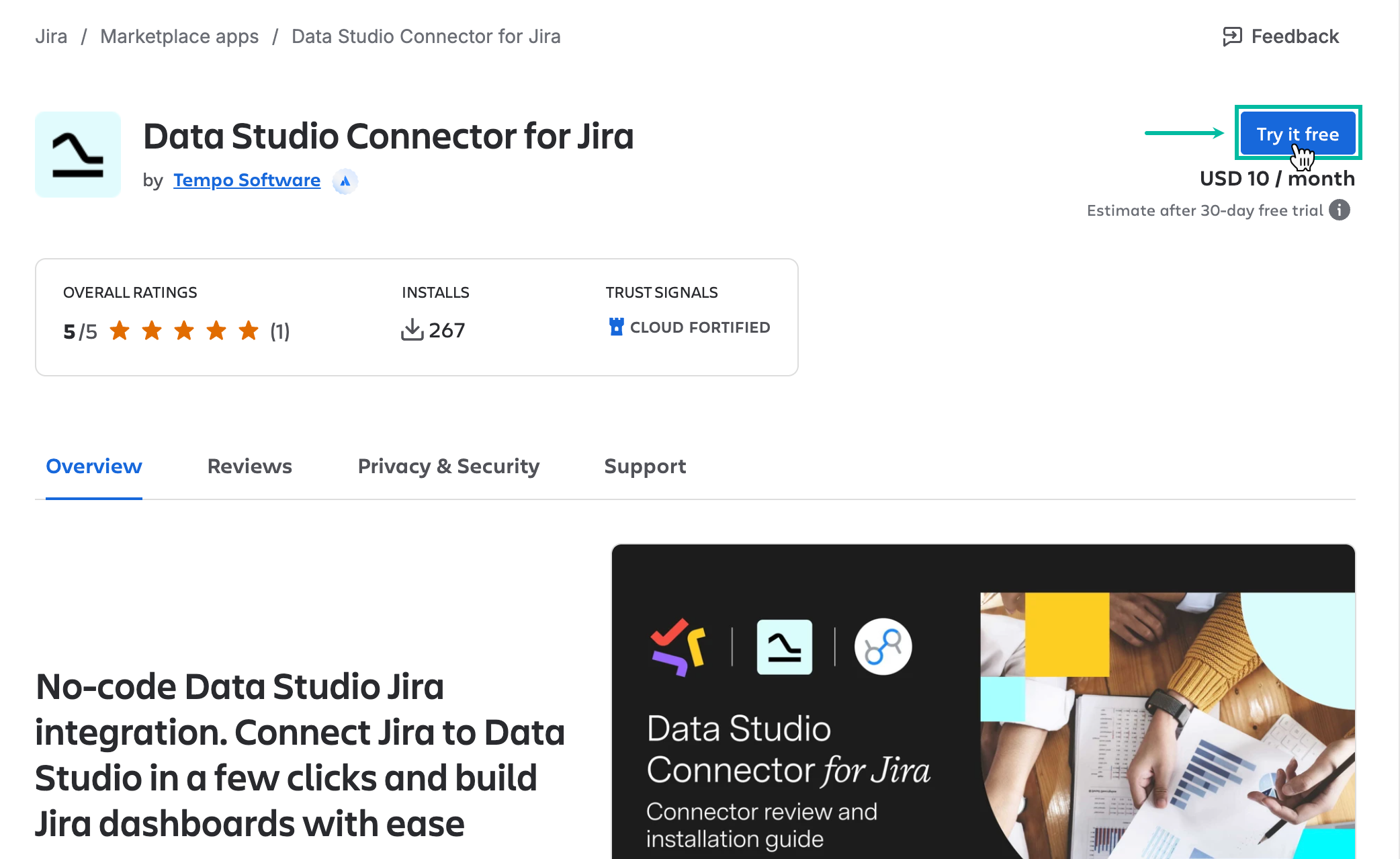
Select Try it free.
Selecting this option, you will get a 30-day free trial license.
-
Select Review.
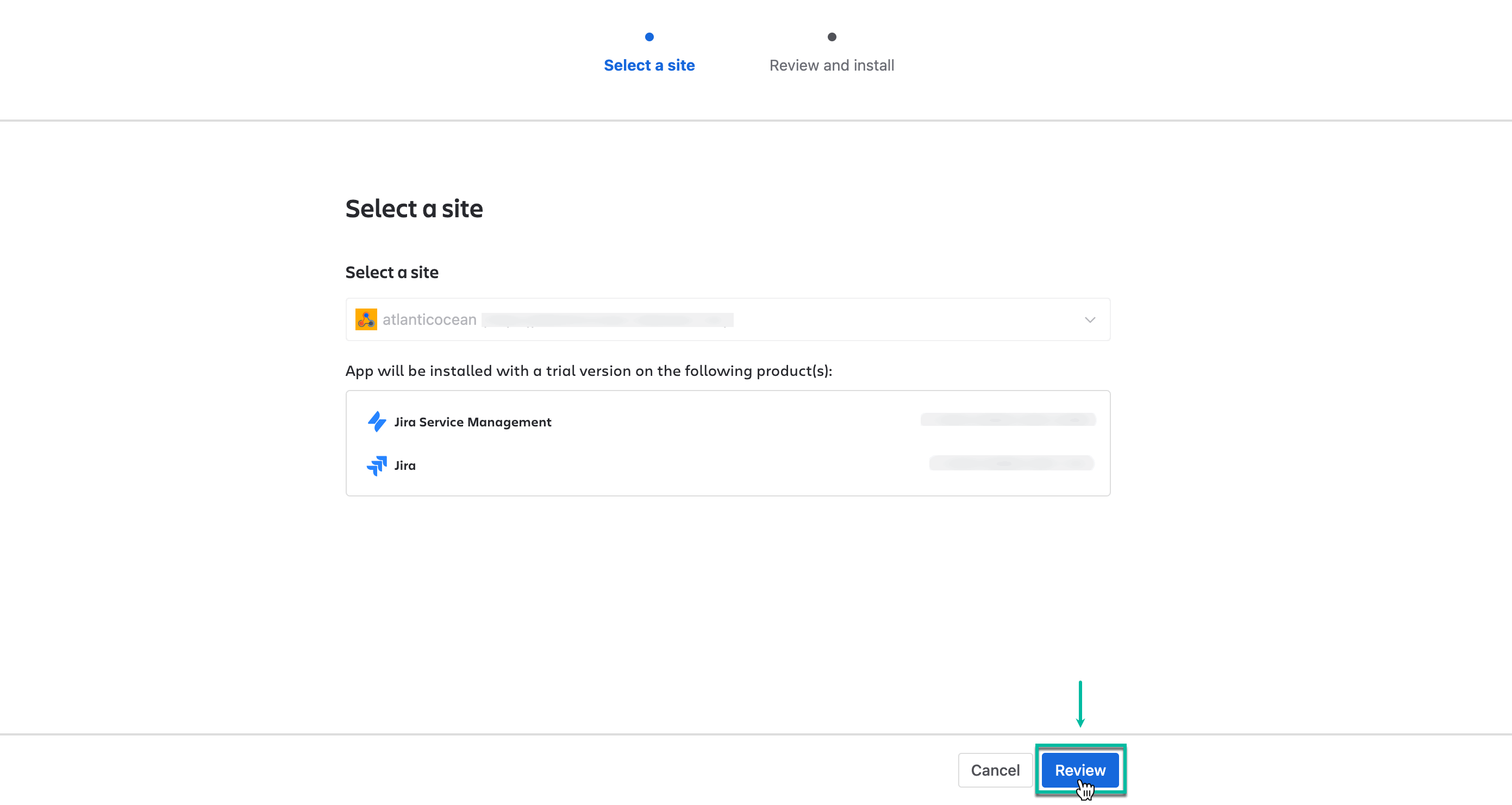
-
Select Start free trial.
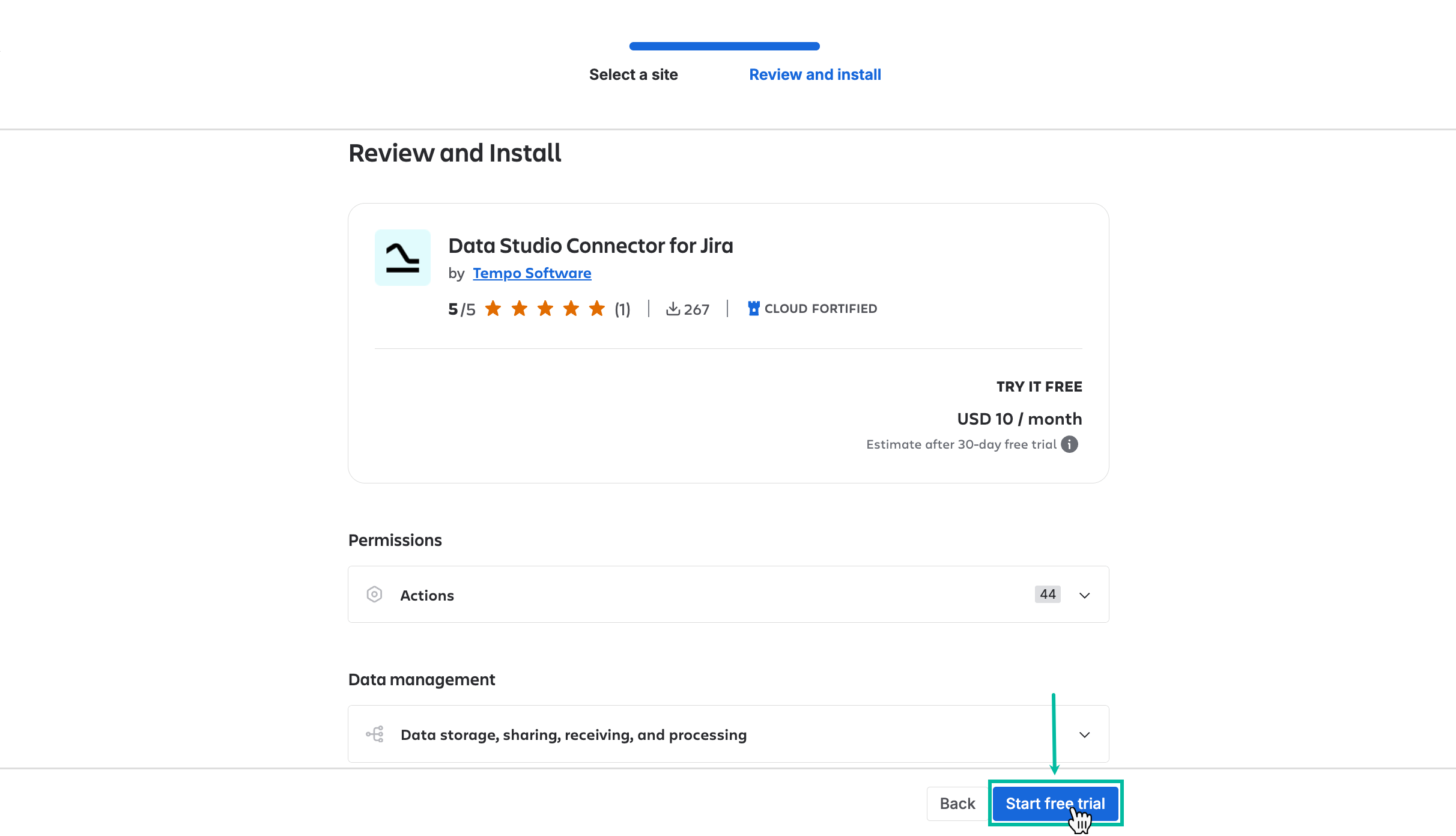
You’re all set!
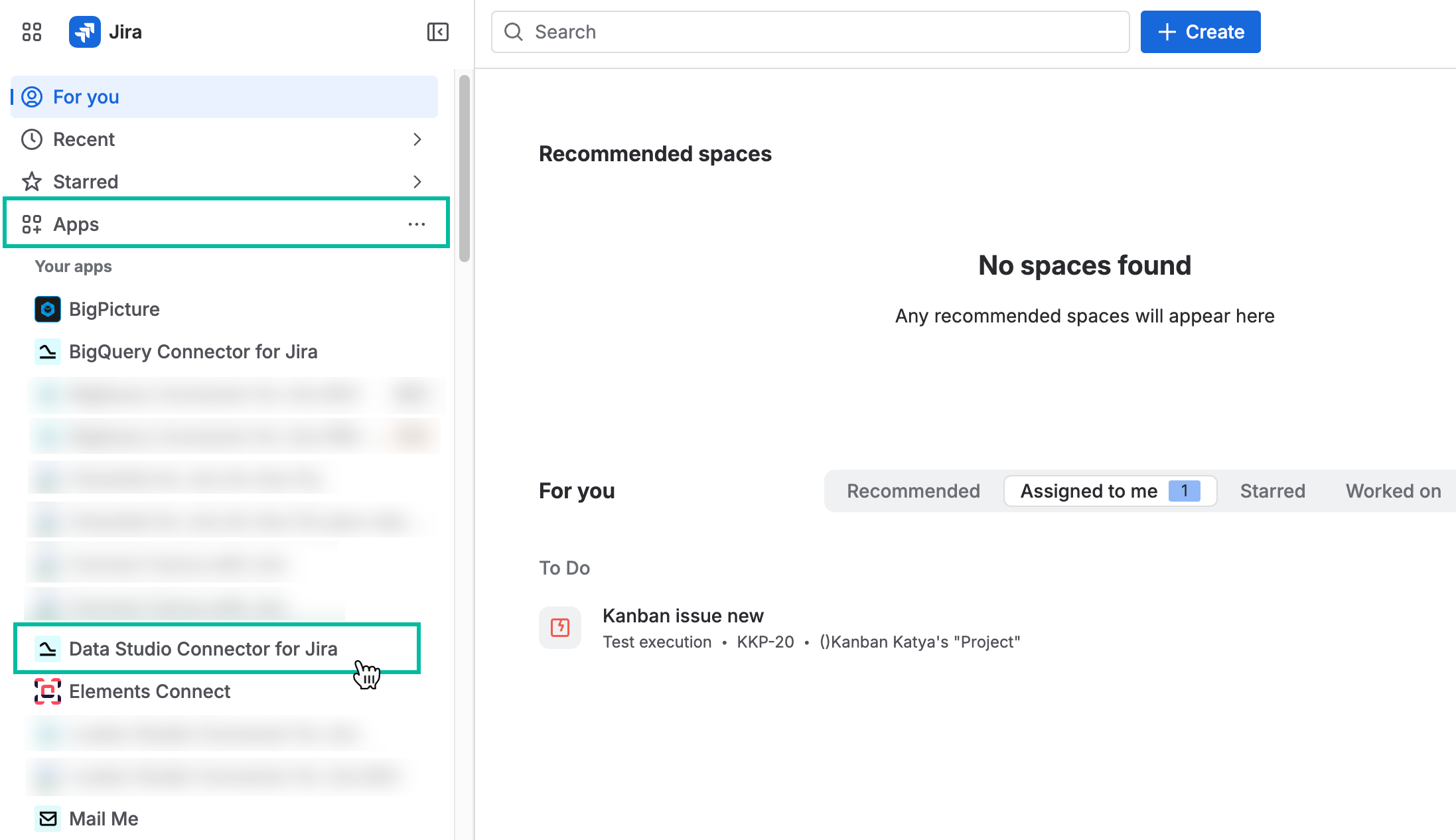
Now you can easily access Data Studio Connector for Jira from the Apps section in your Jira Cloud instance.
How to Install Data Studio Connector from Atlassian Marketplace
-
Navigate to Atlassian Marketplace.
-
Select Try it free.
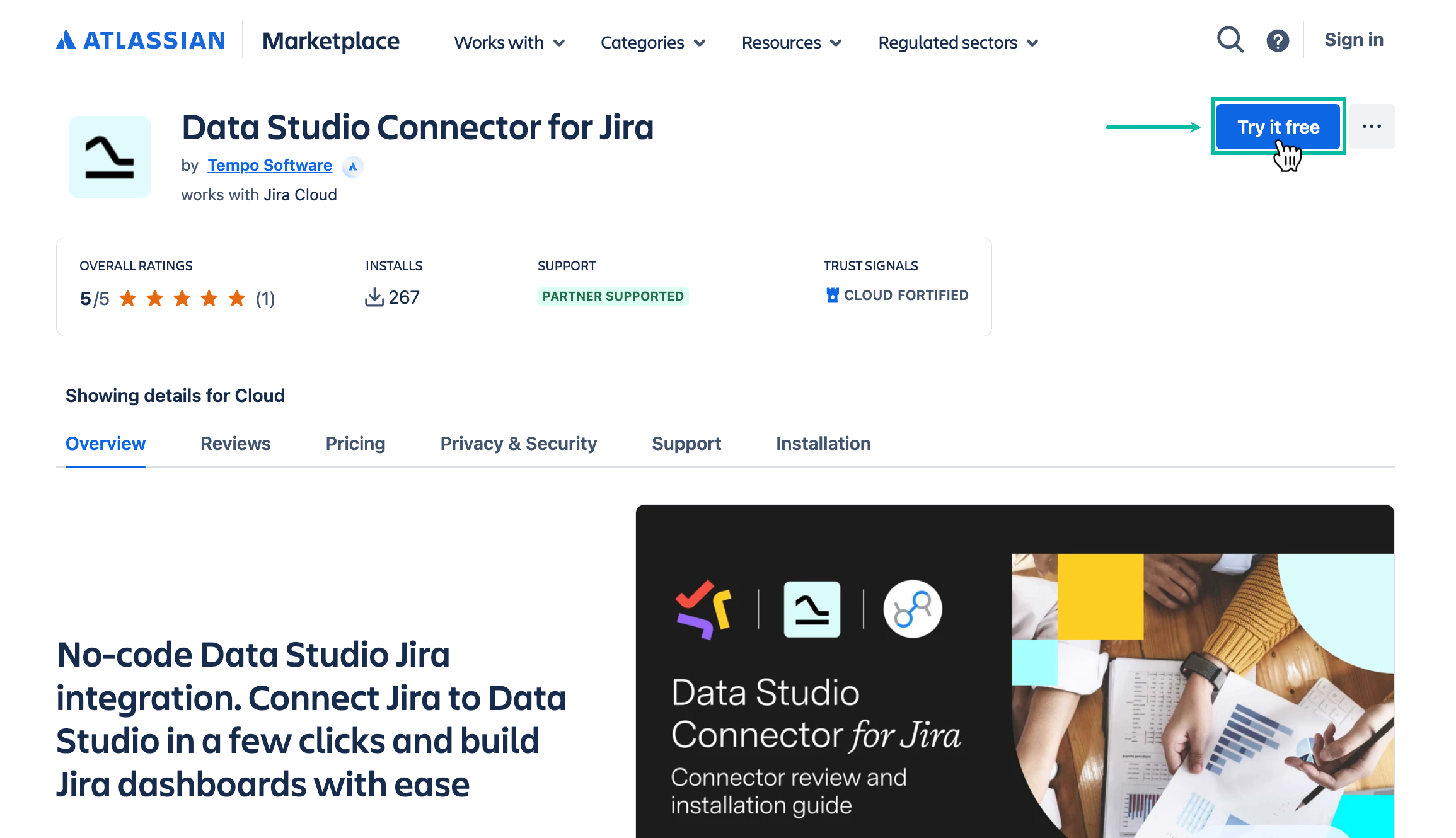
-
Select where to install the app, and then select Review.
-
Select Start free trial.
How to Uninstall or Disable Data Studio Connector
-
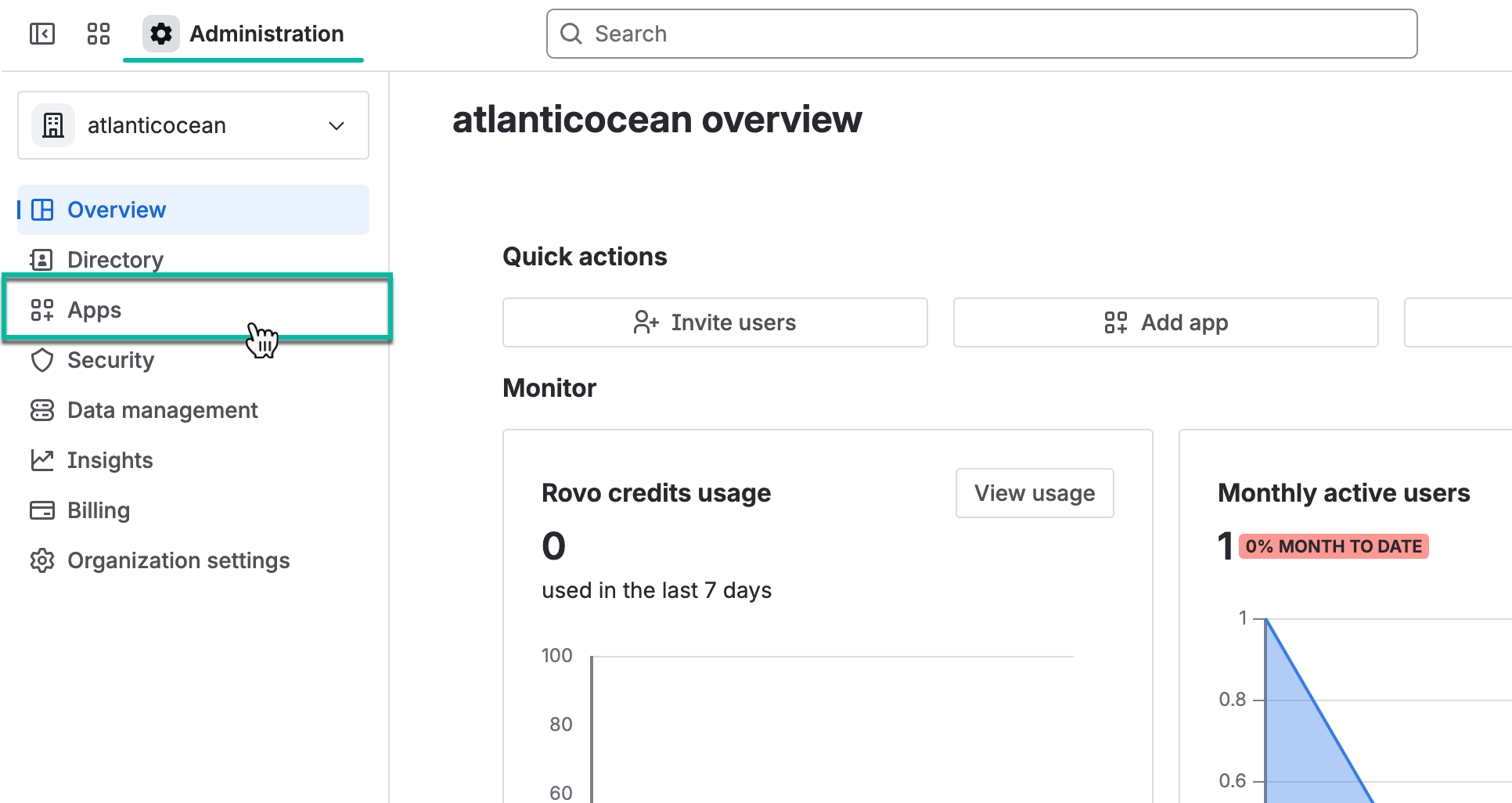
Navigate to Atlassian Administration, and then select Apps.
-
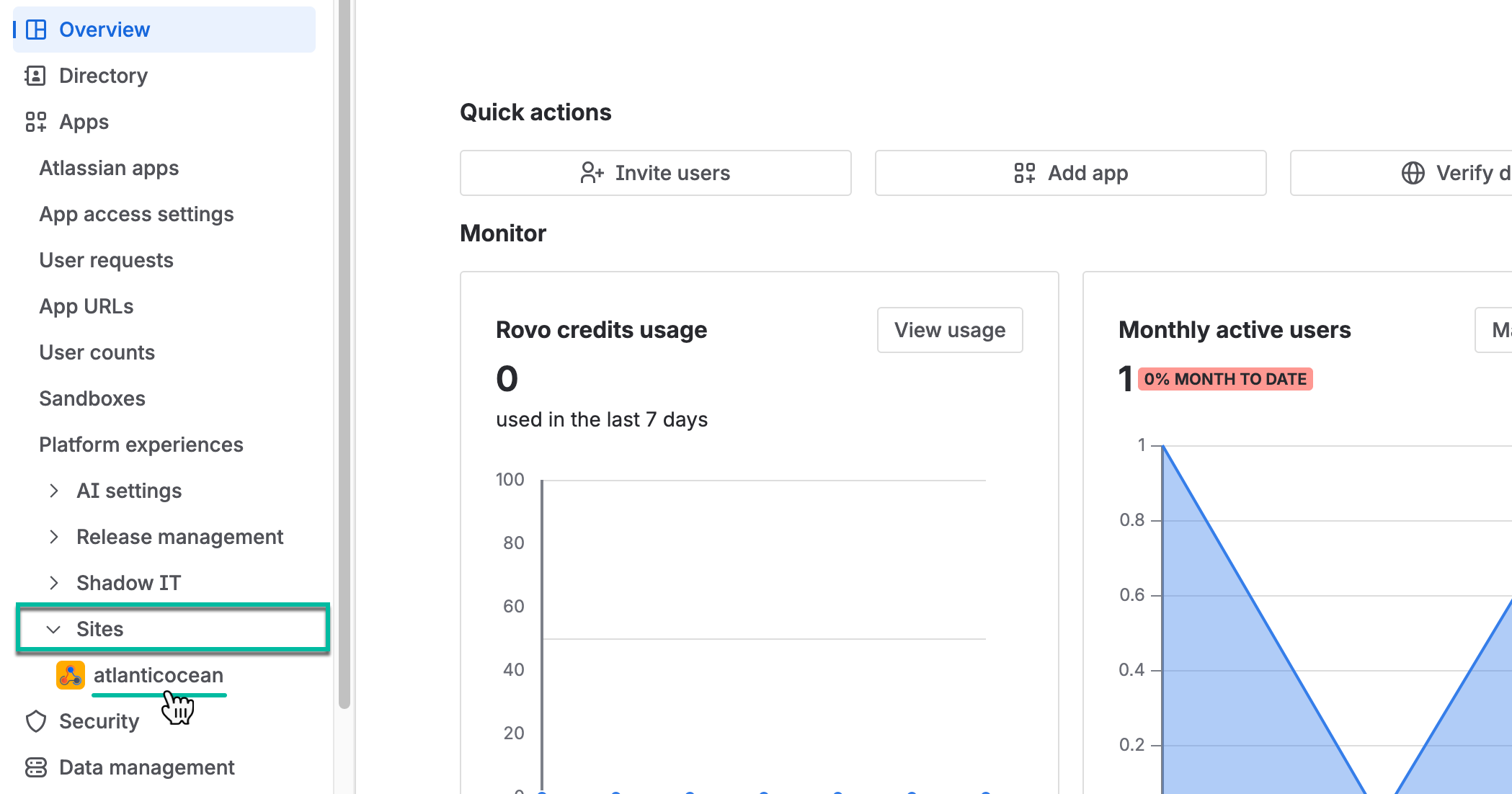
Select Sites, and then select the one you need.
-
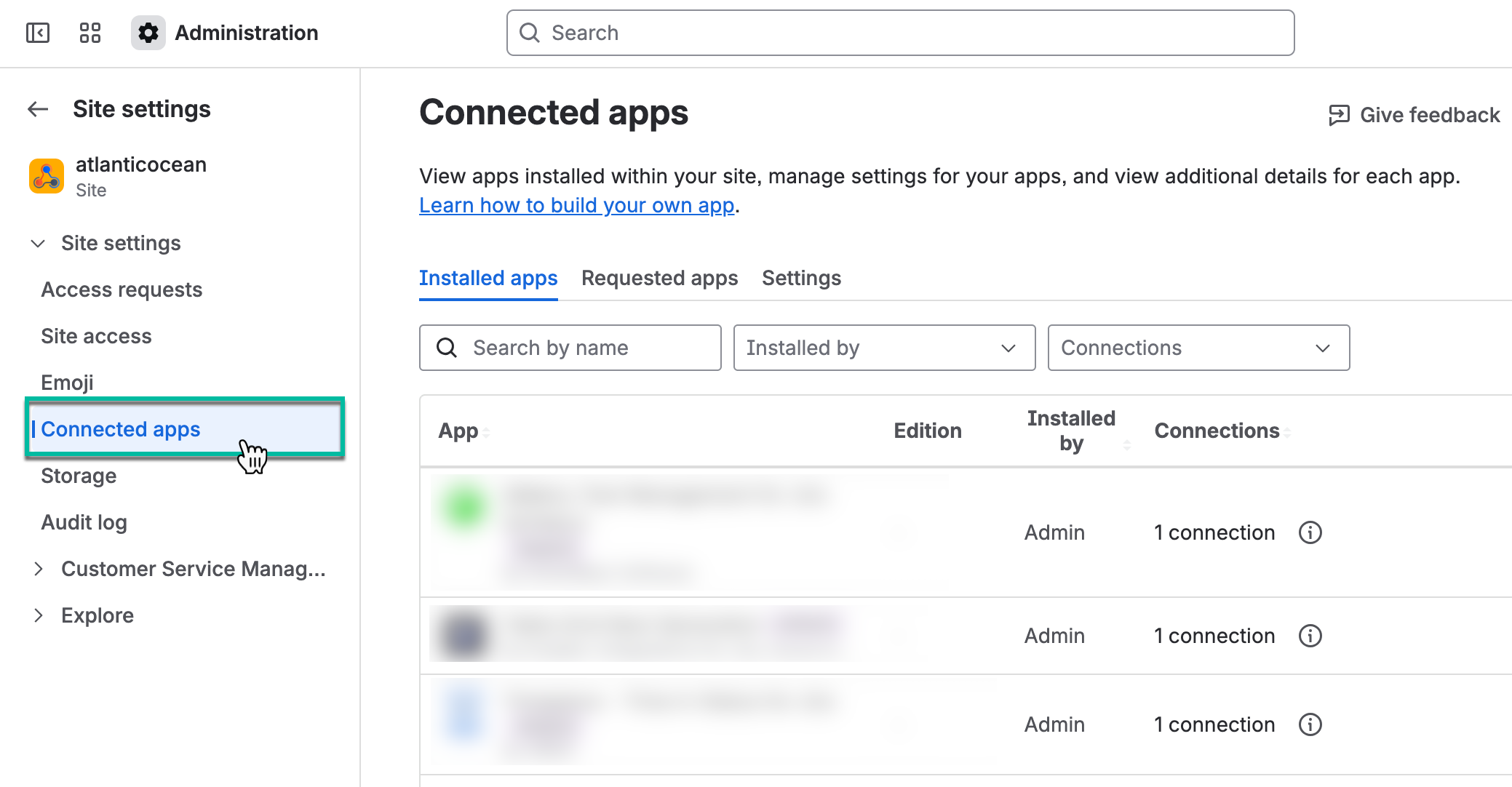
Select Connected apps.
-
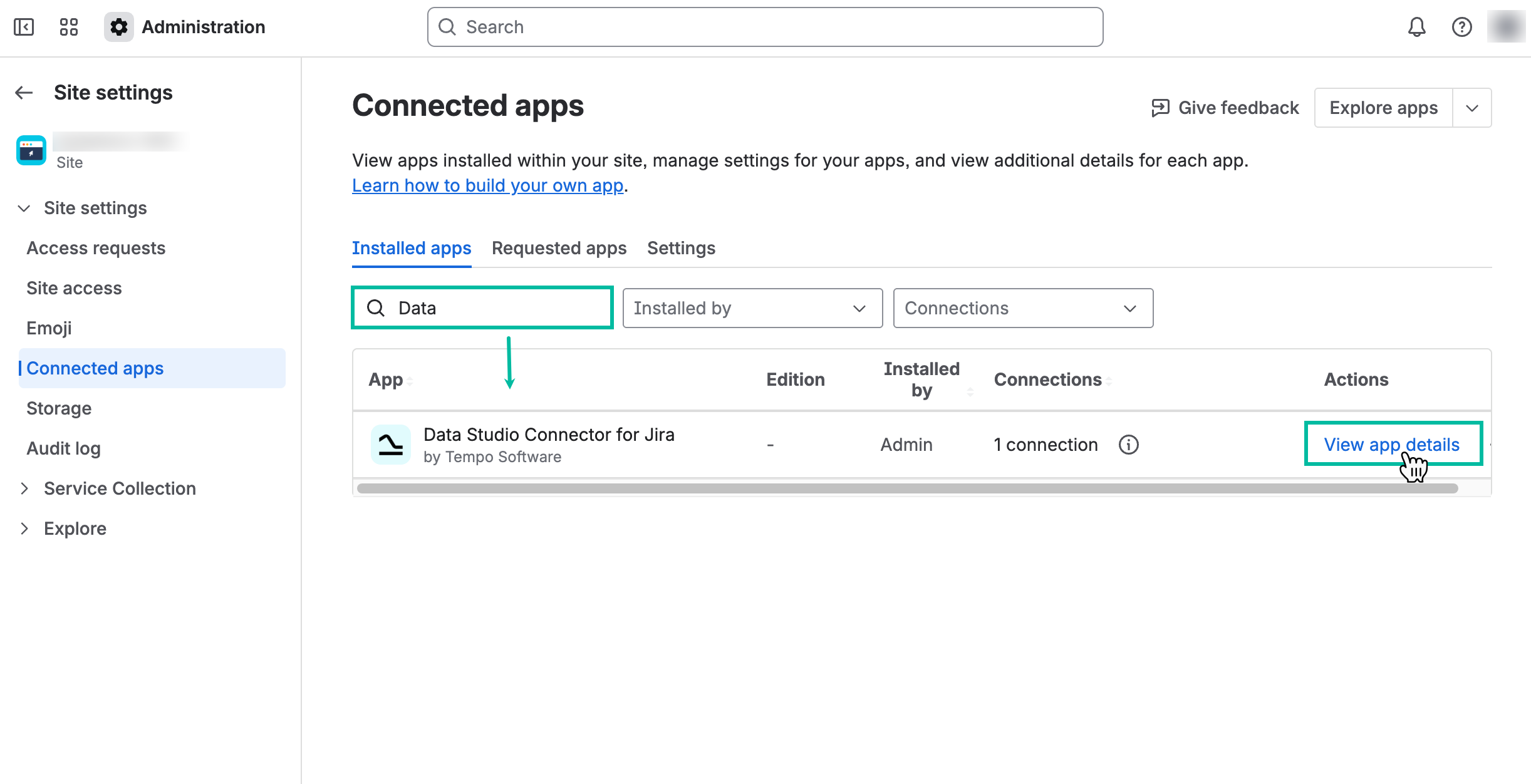
In the search box, start entering the app name, and then select View app details.
-
Select Uninstall.
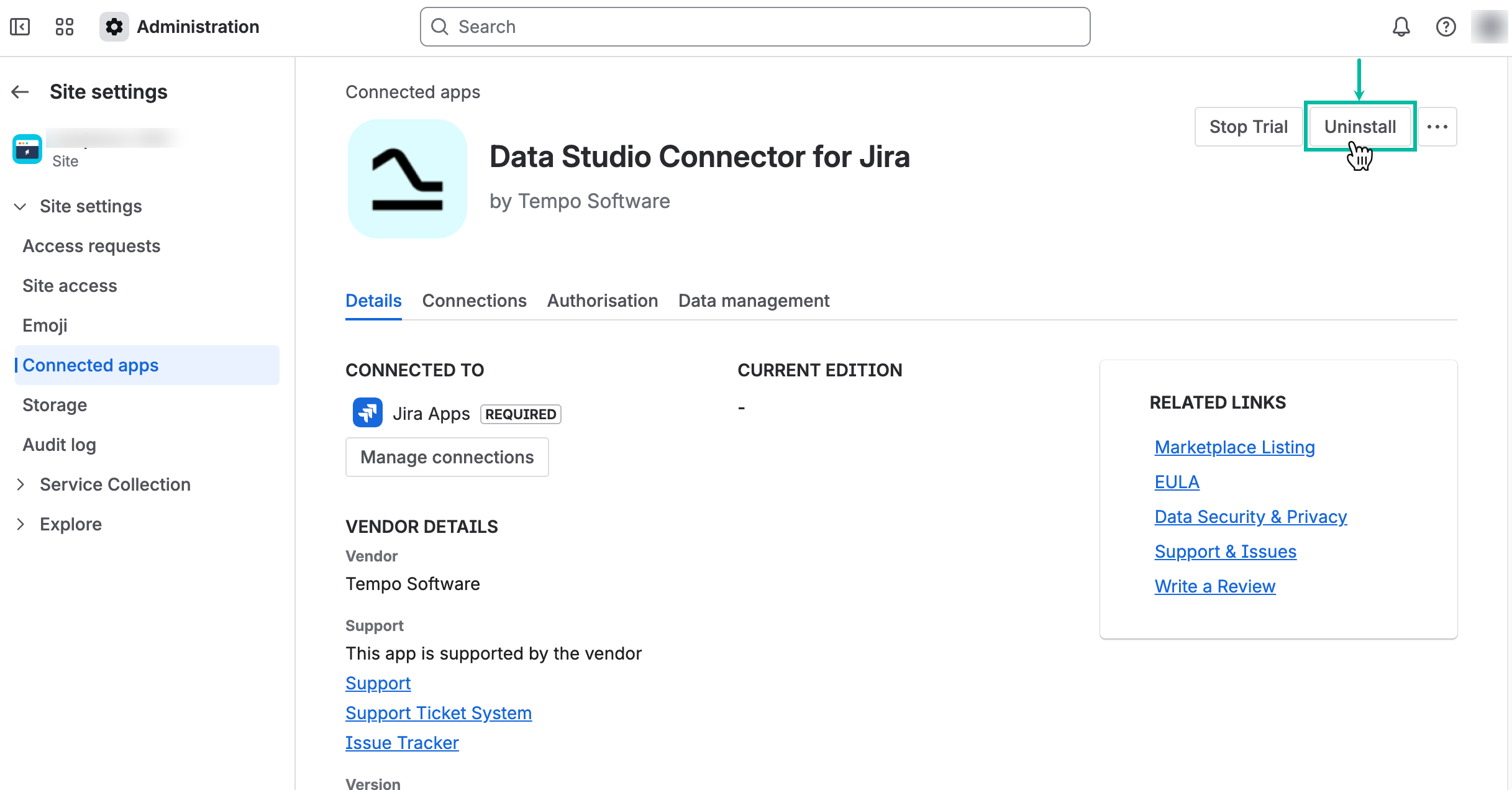
The Uninstall option removes Data Studio Connector from your application and file system. You can temporarily stop your trial without uninstalling the app.