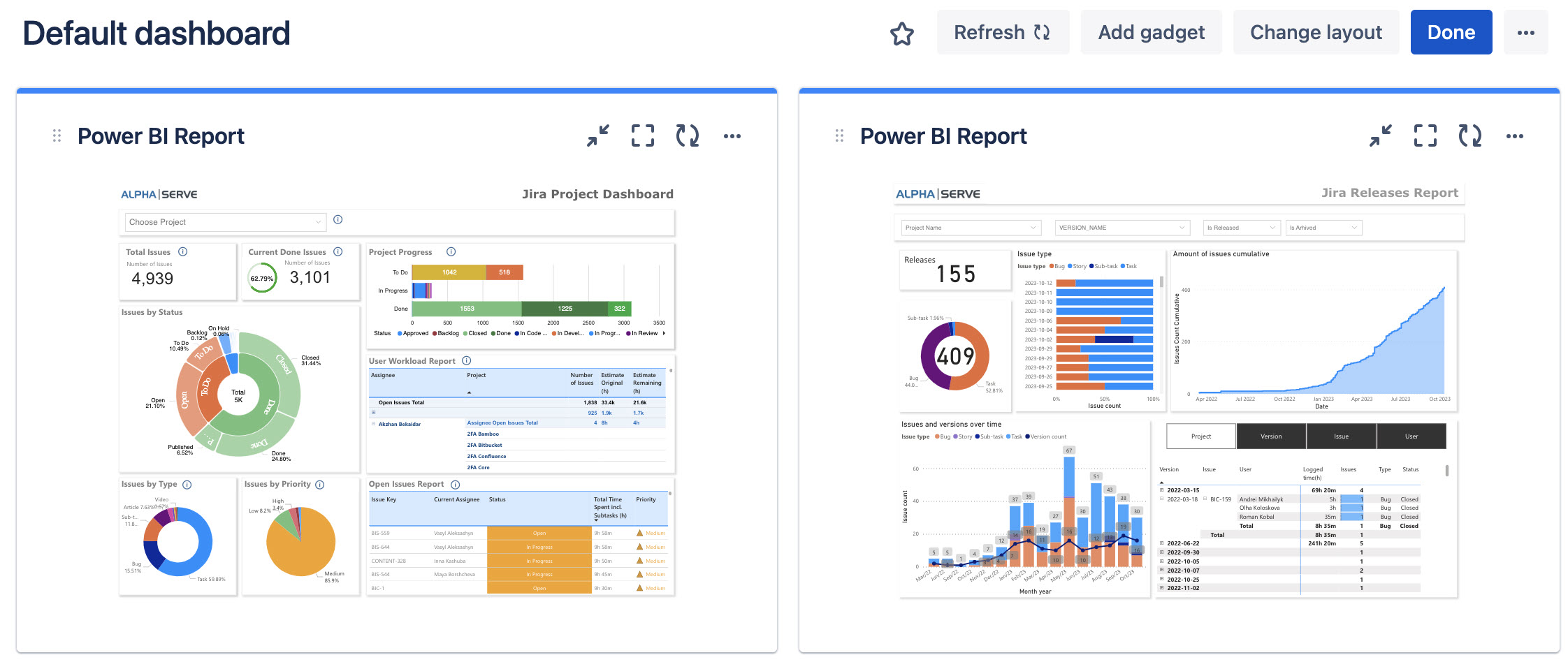
How to Add Add Power BI Report Gadget
-
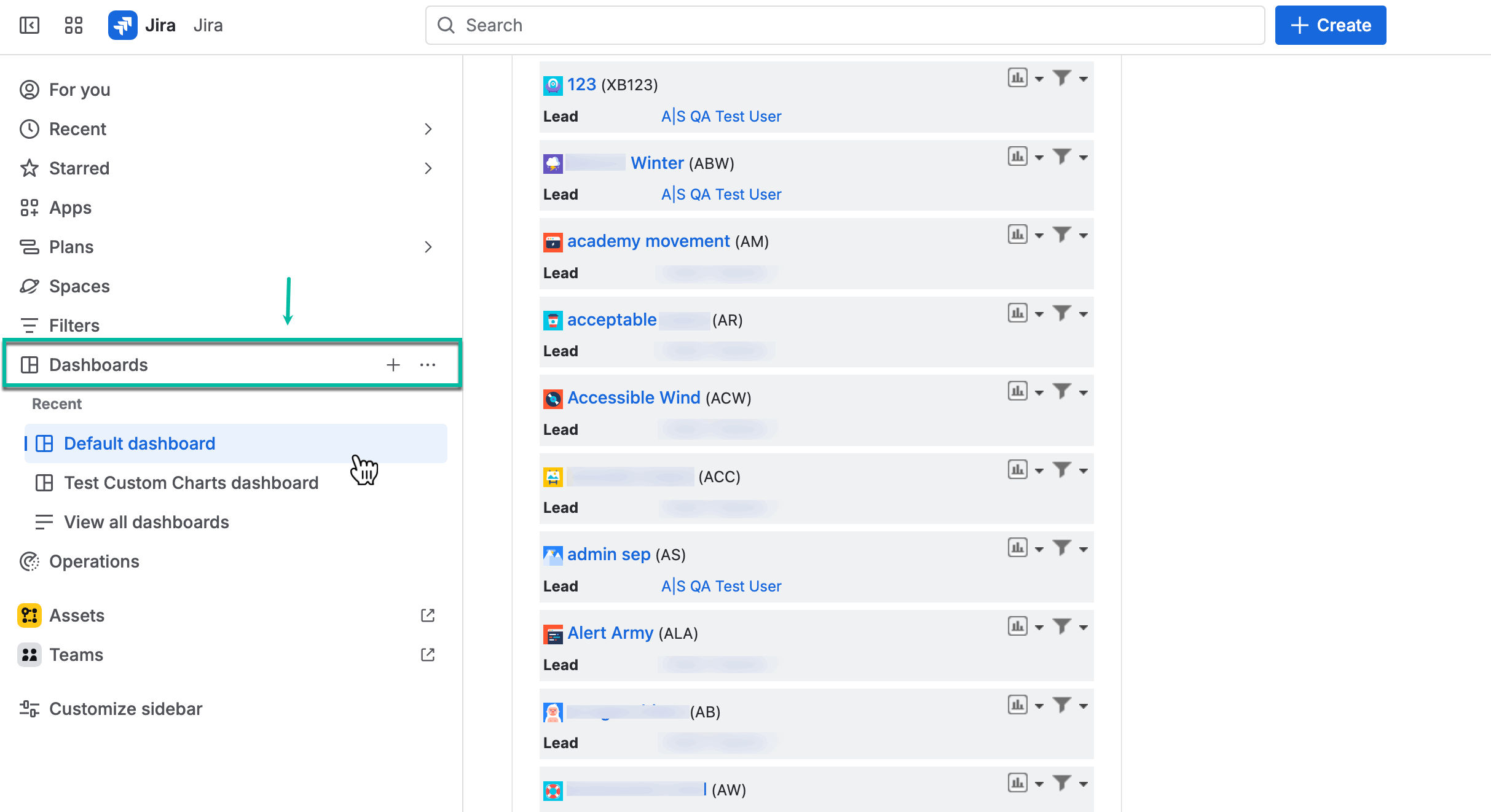
Being signed in to your Jira Cloud instance, select Dashboards, and then select the dashboard you want to add a gadget to.
-
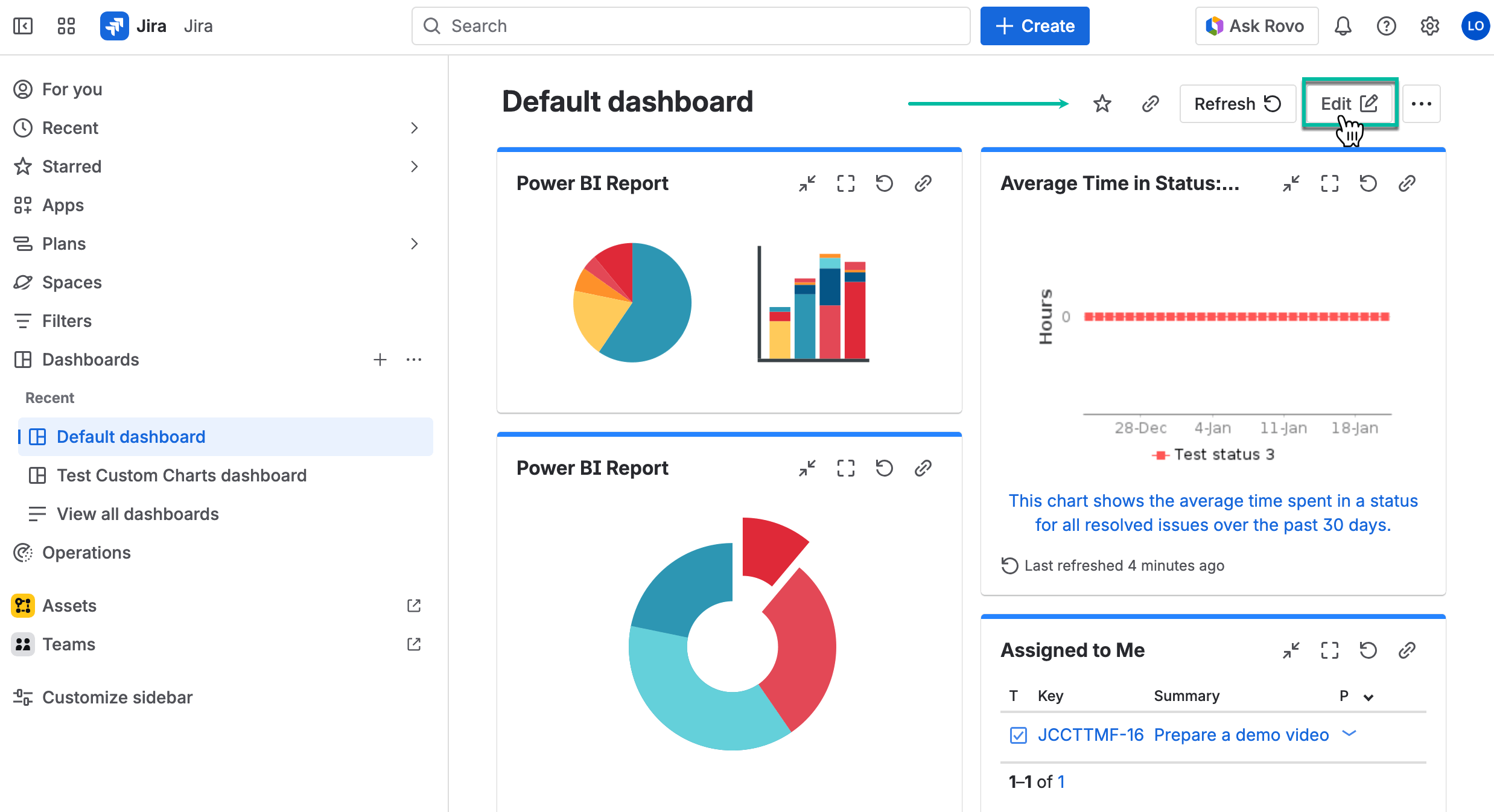
Select the Edit button.
-
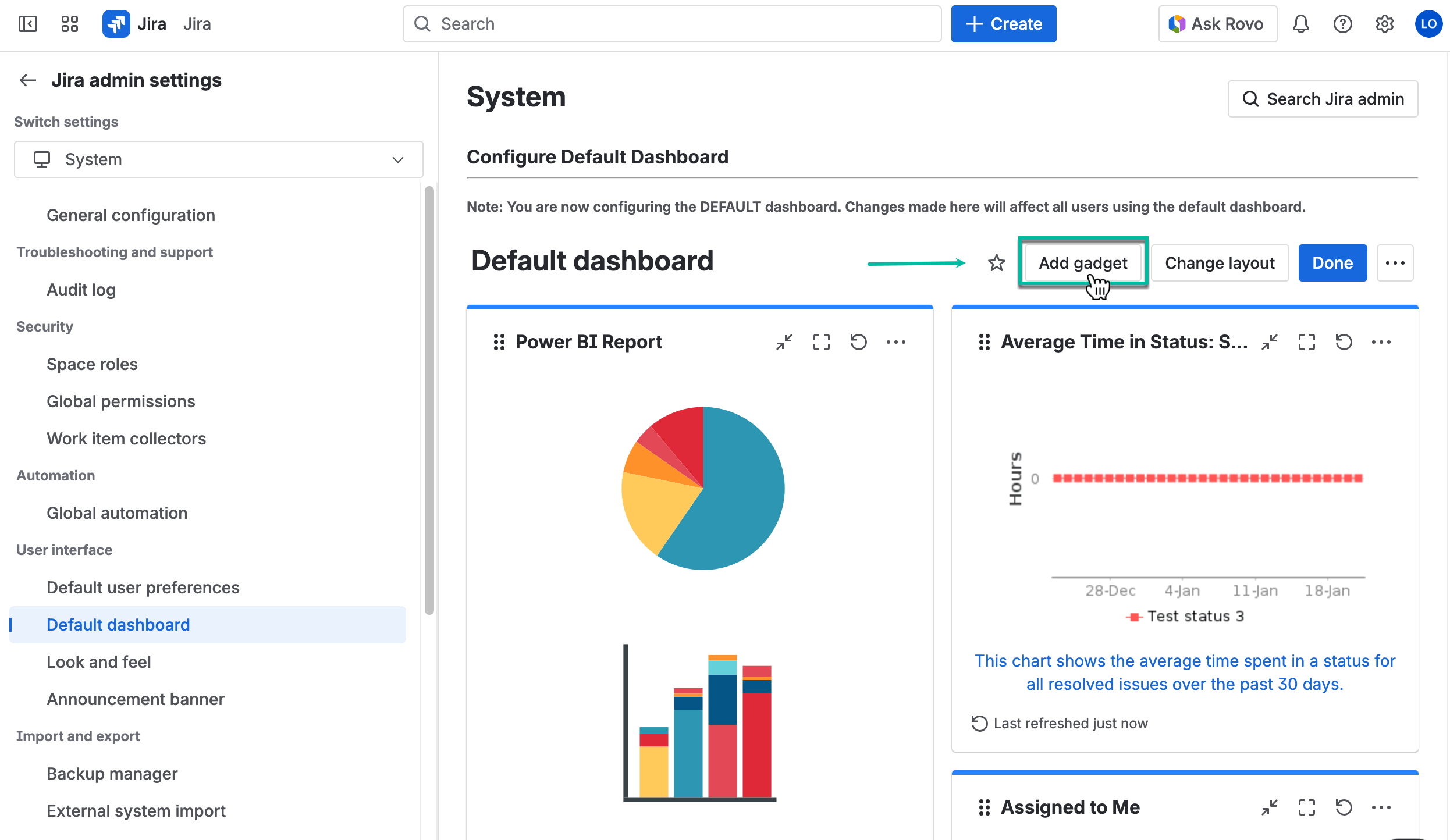
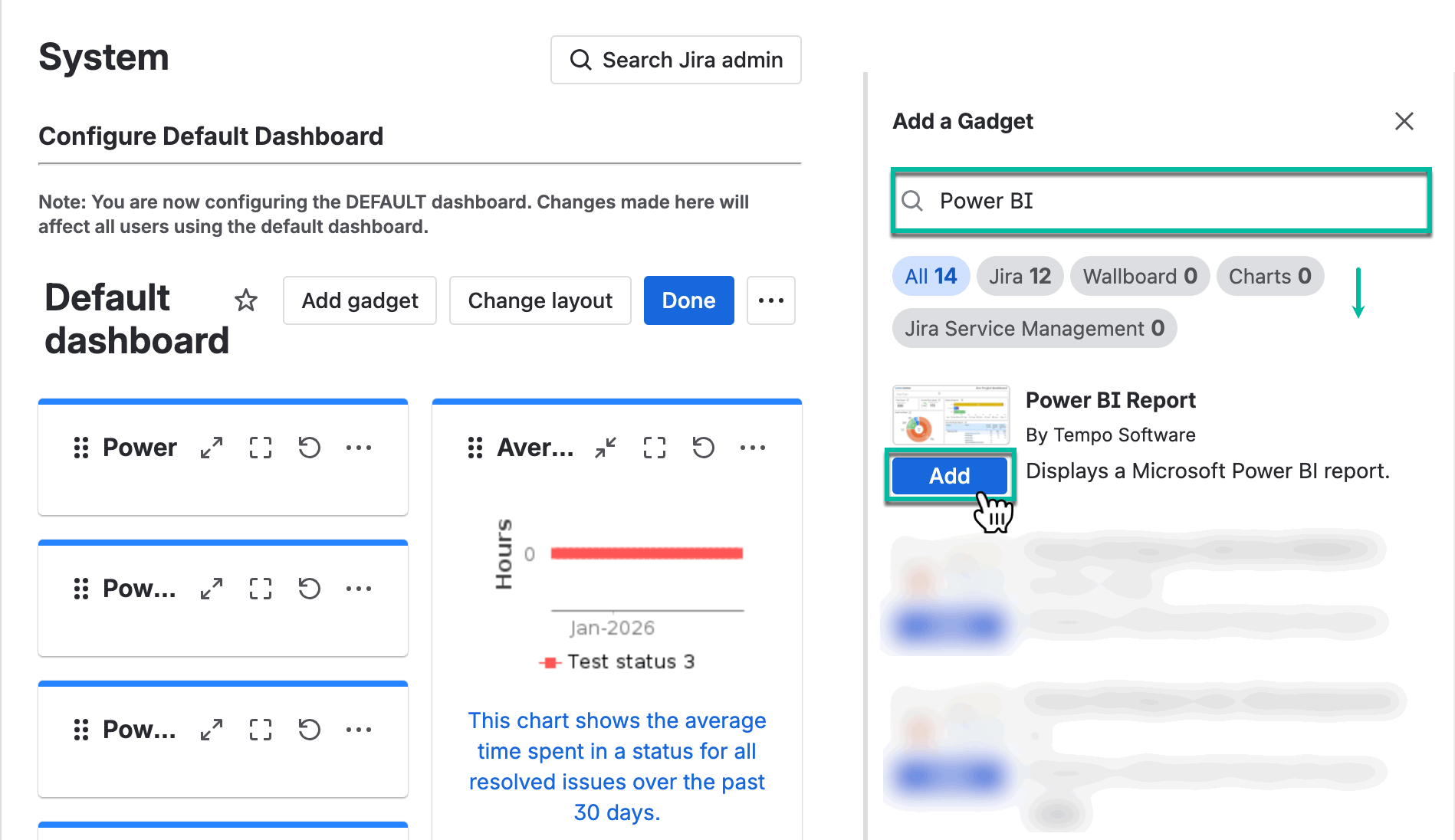
Select Add gadget.
-
In the search box, enter Power BI.
-
Select Add.
In the search results, Power BI Report by Tempo Software will appear.
-
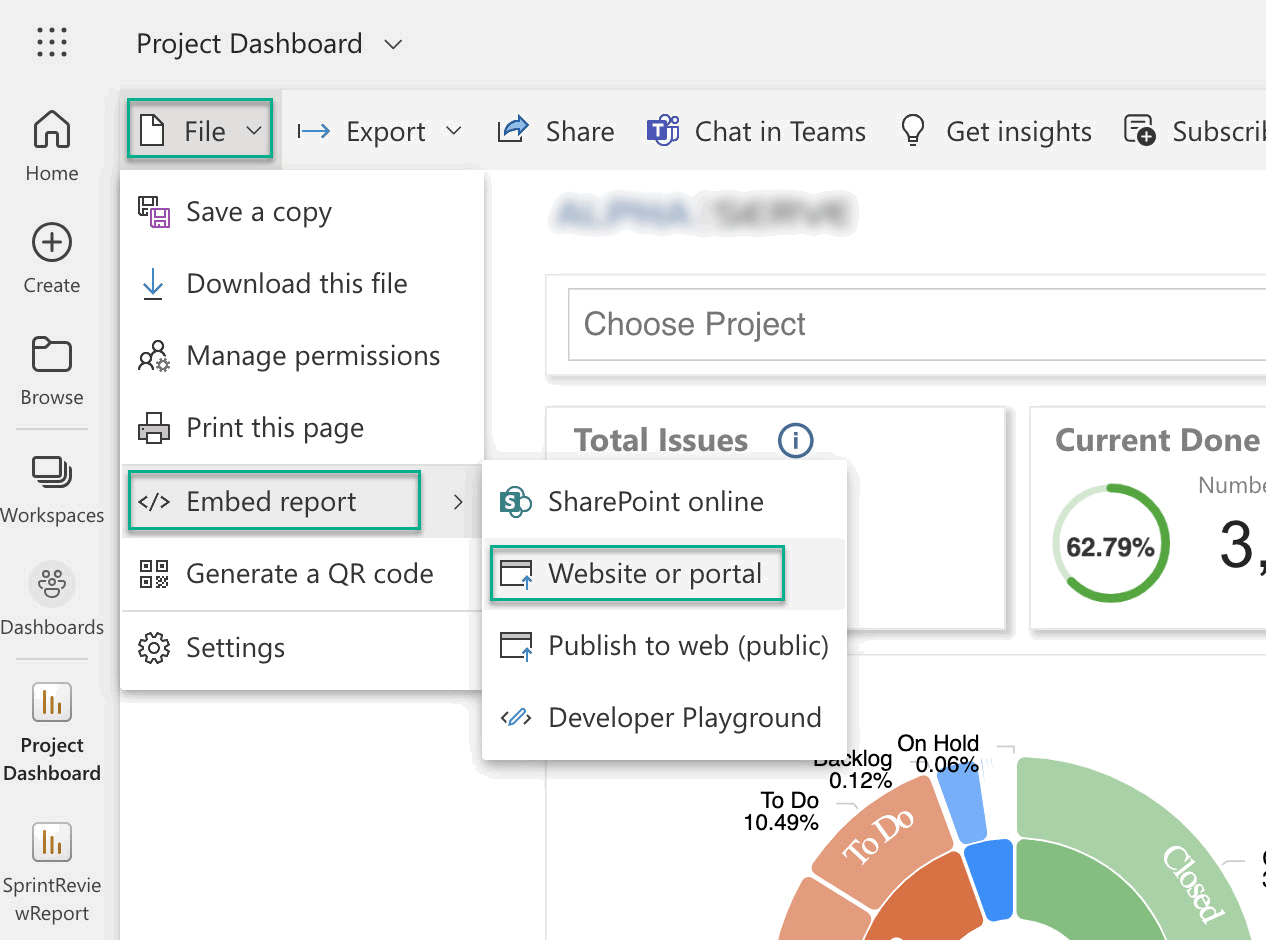
Open your Microsoft Power BI Pro, and then open the report you need.
-
Select File, select </> Embed report, and then select Website or portal.
-
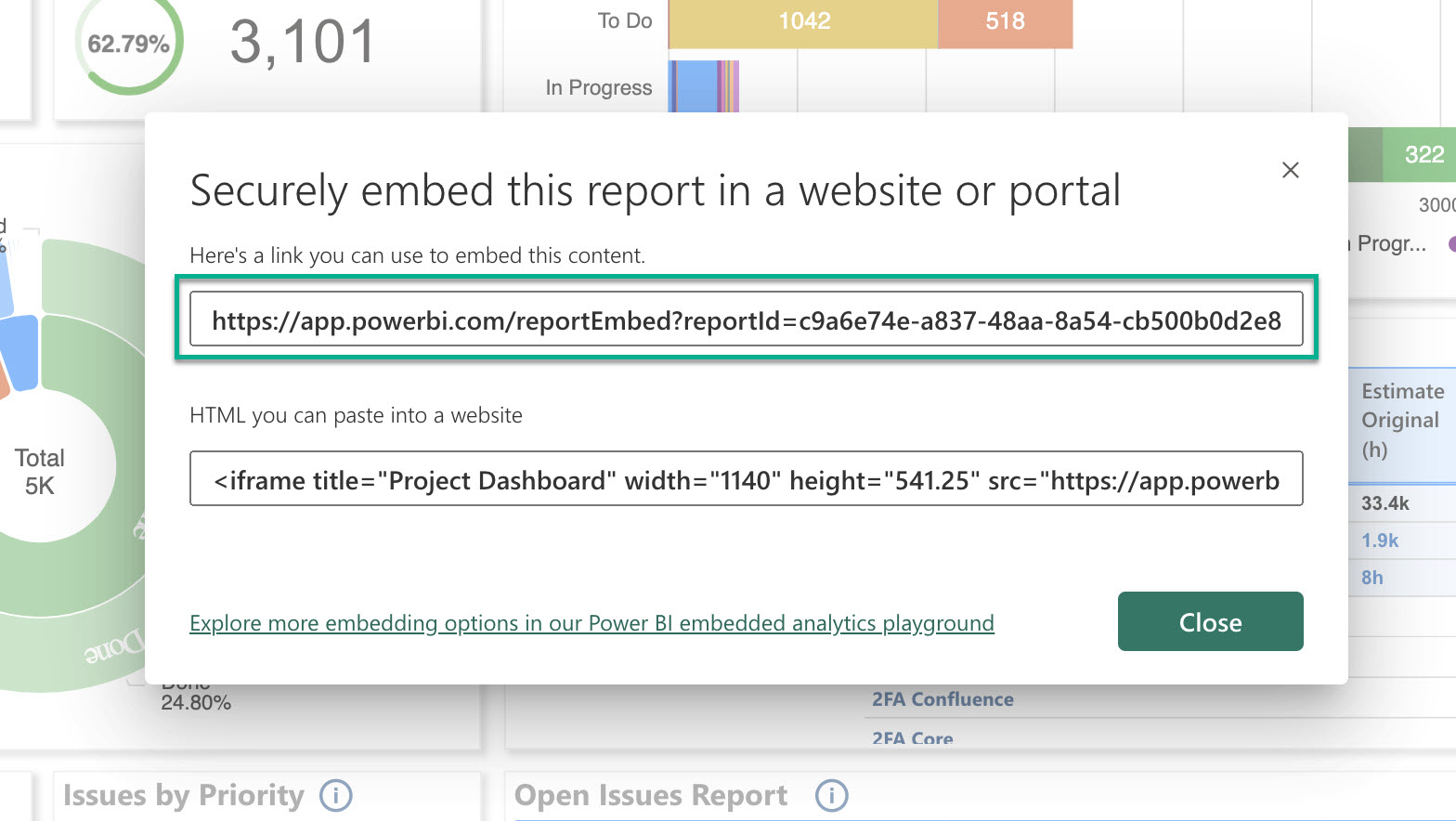
Copy the link, and then go back to your Jira Cloud instance.
-
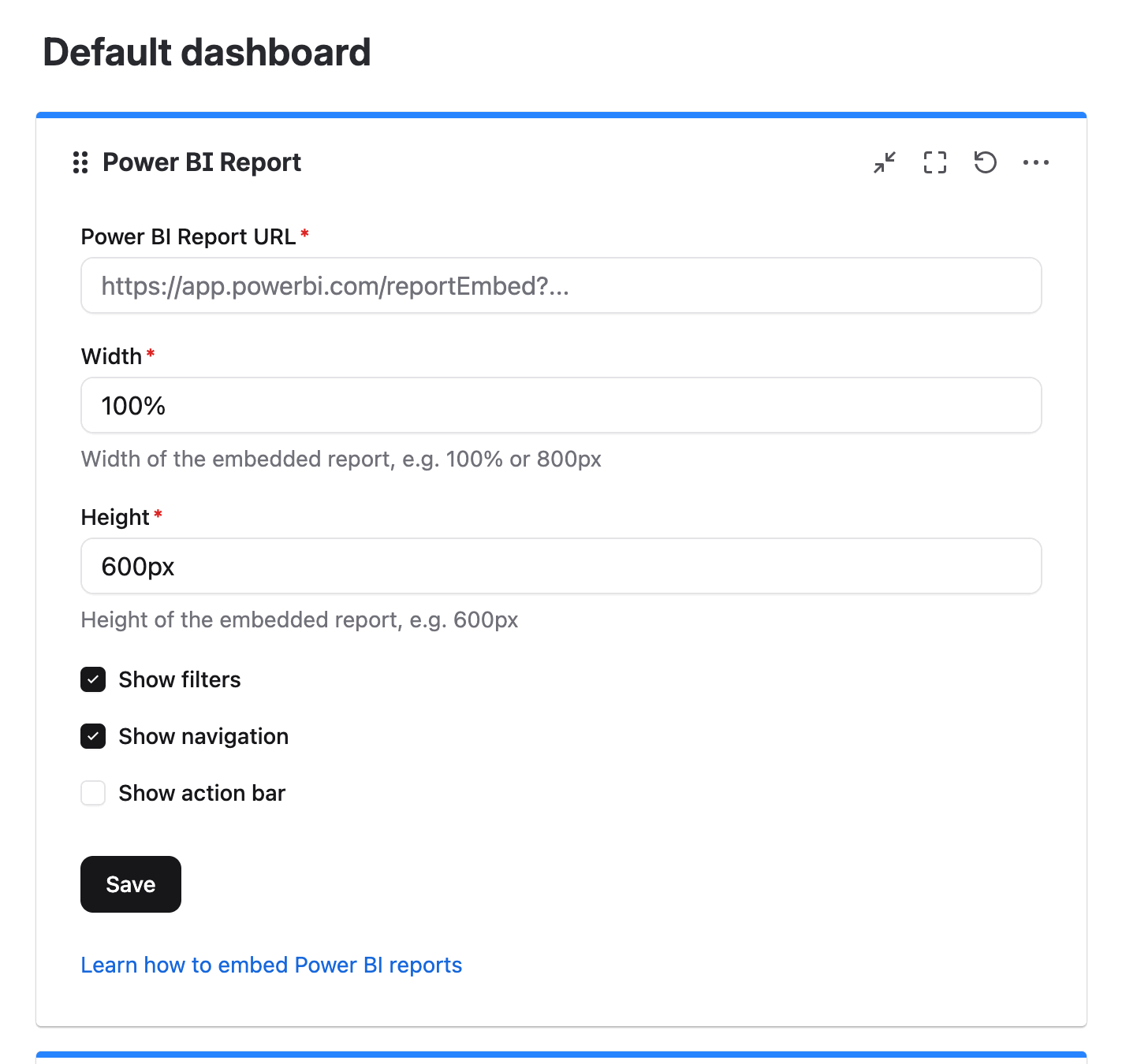
In the Power BI Report URL* field, paste the link.
-
In the Width* and Height* fields, select the desired width and height of your gadget, and then select Save.
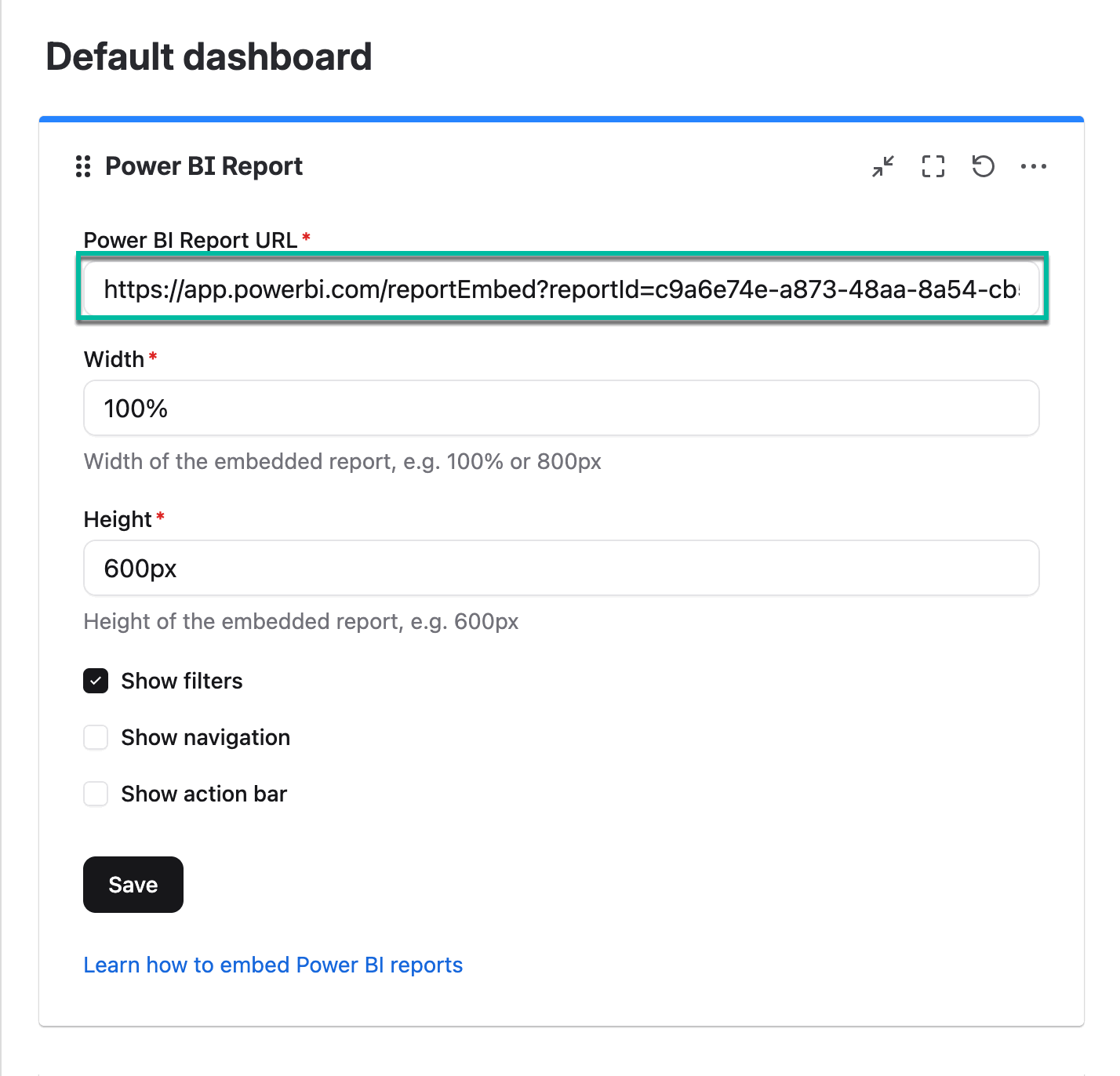
Power BI Report Gadget Configuration
-
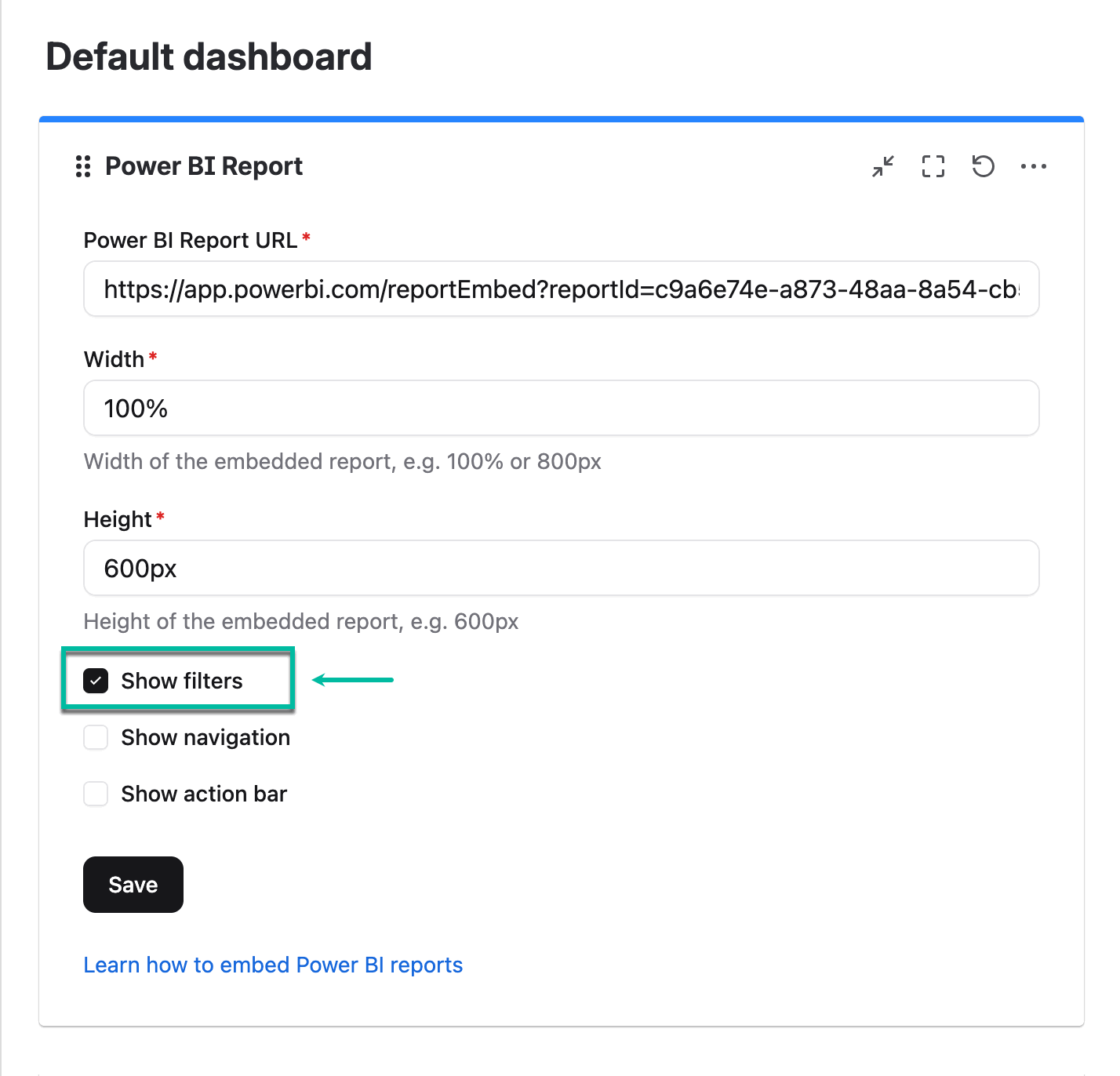
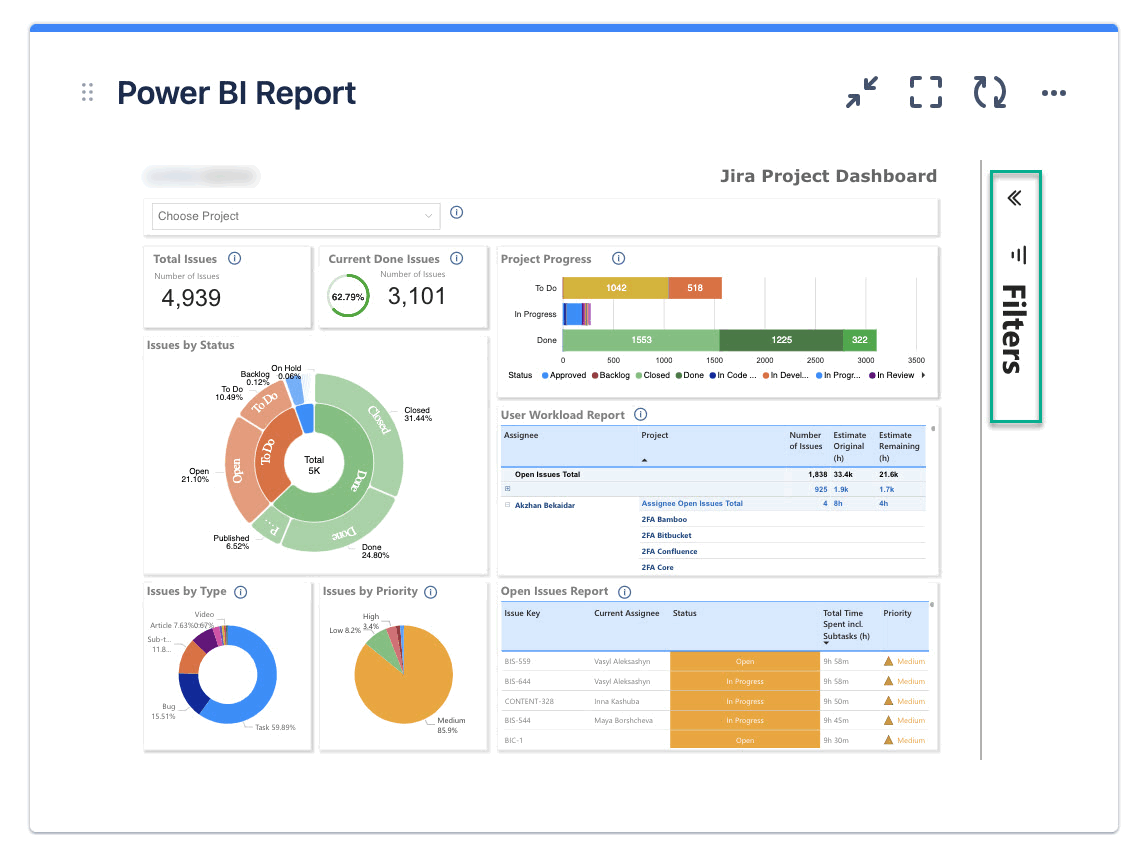
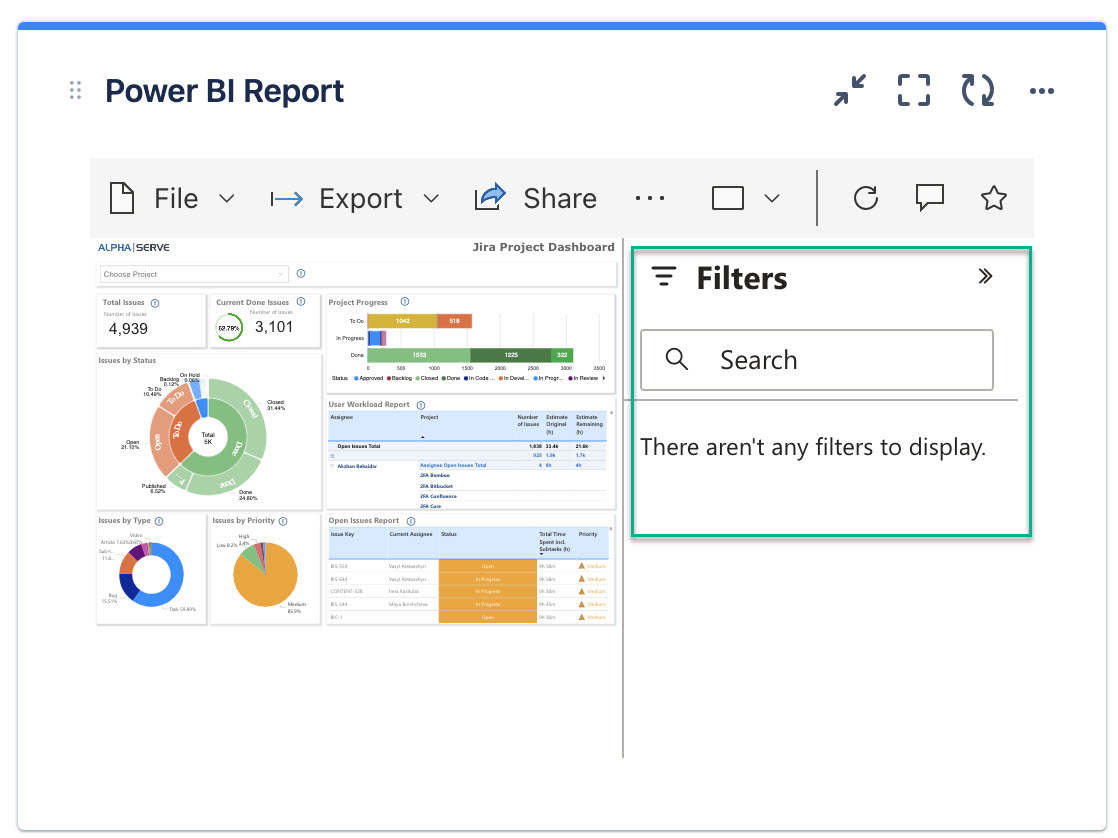
Select Show filters if you want the filters panel to be displayed on your gadget.
-
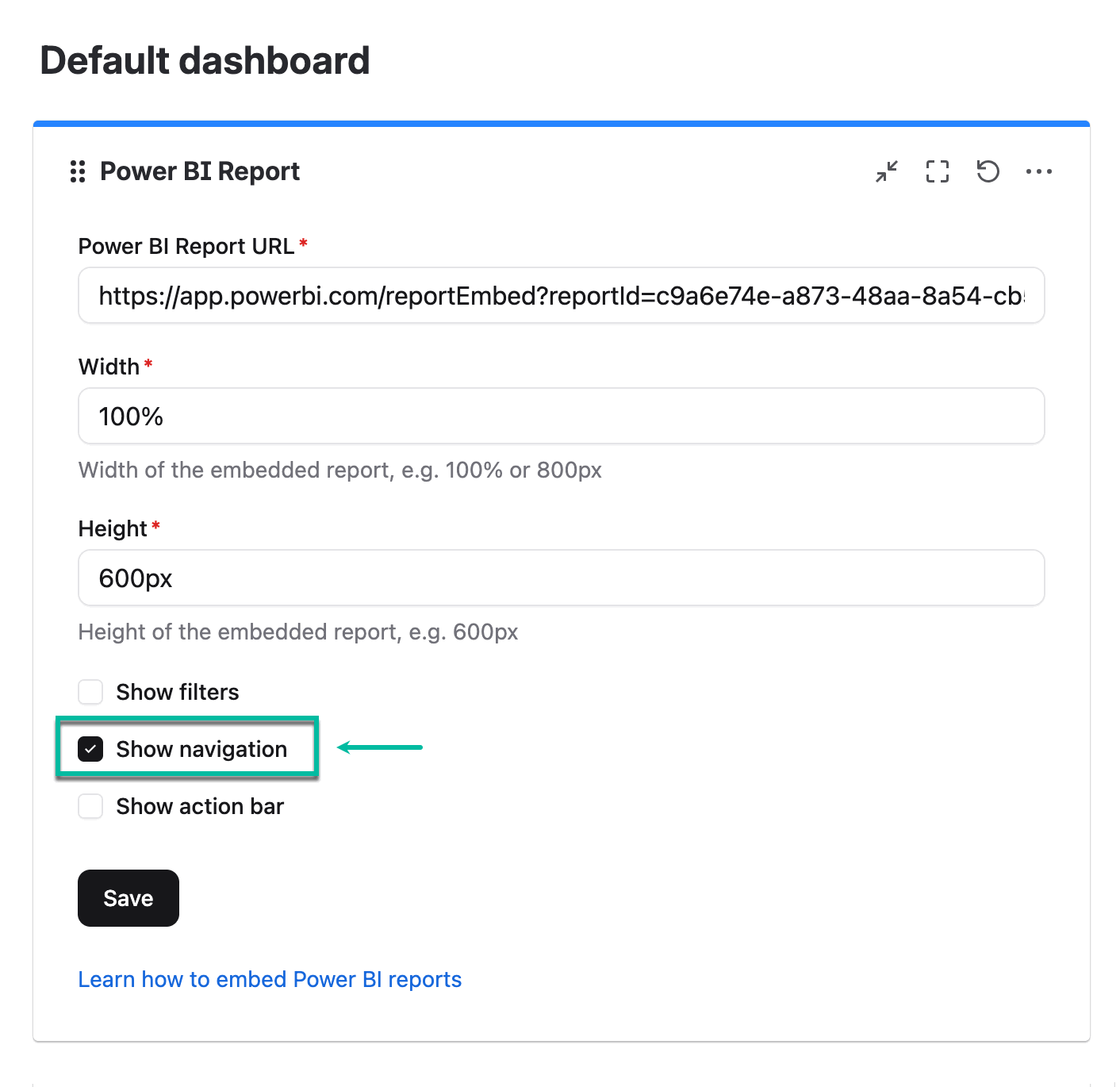
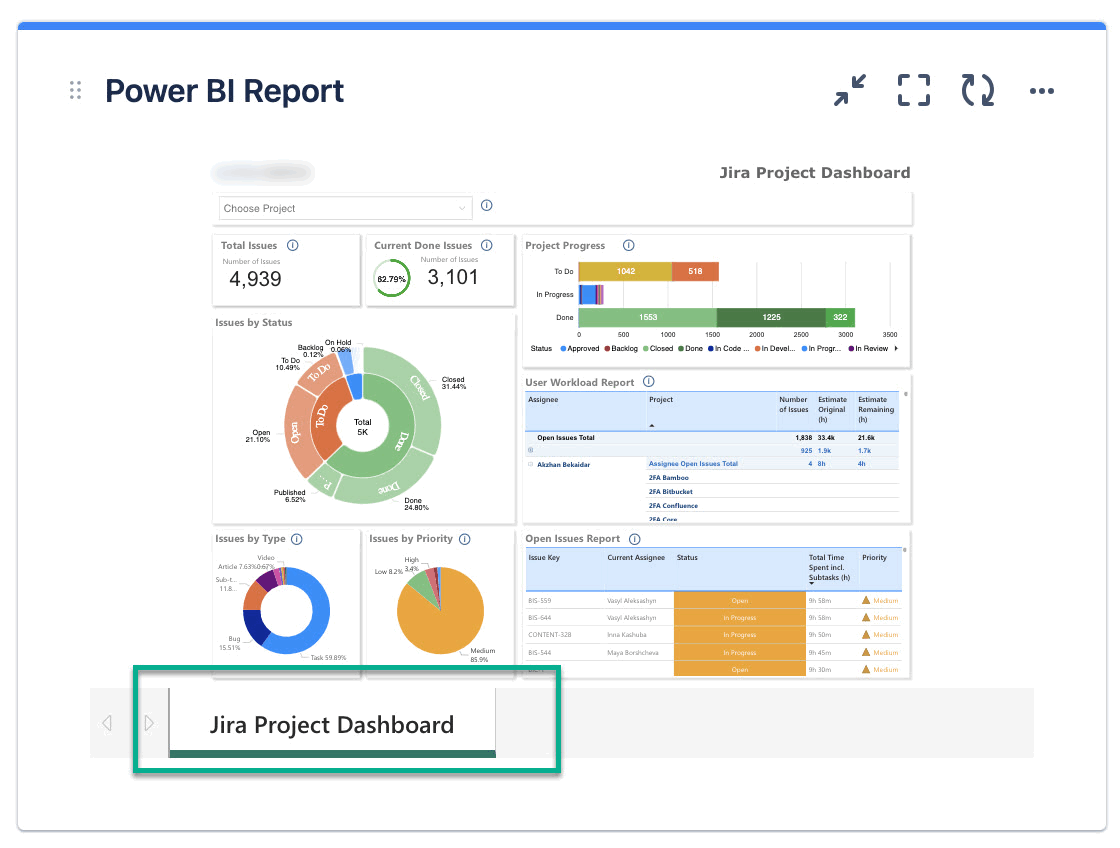
Select Show navigation if you want the navigation panel to be displayed on your gadget.
-
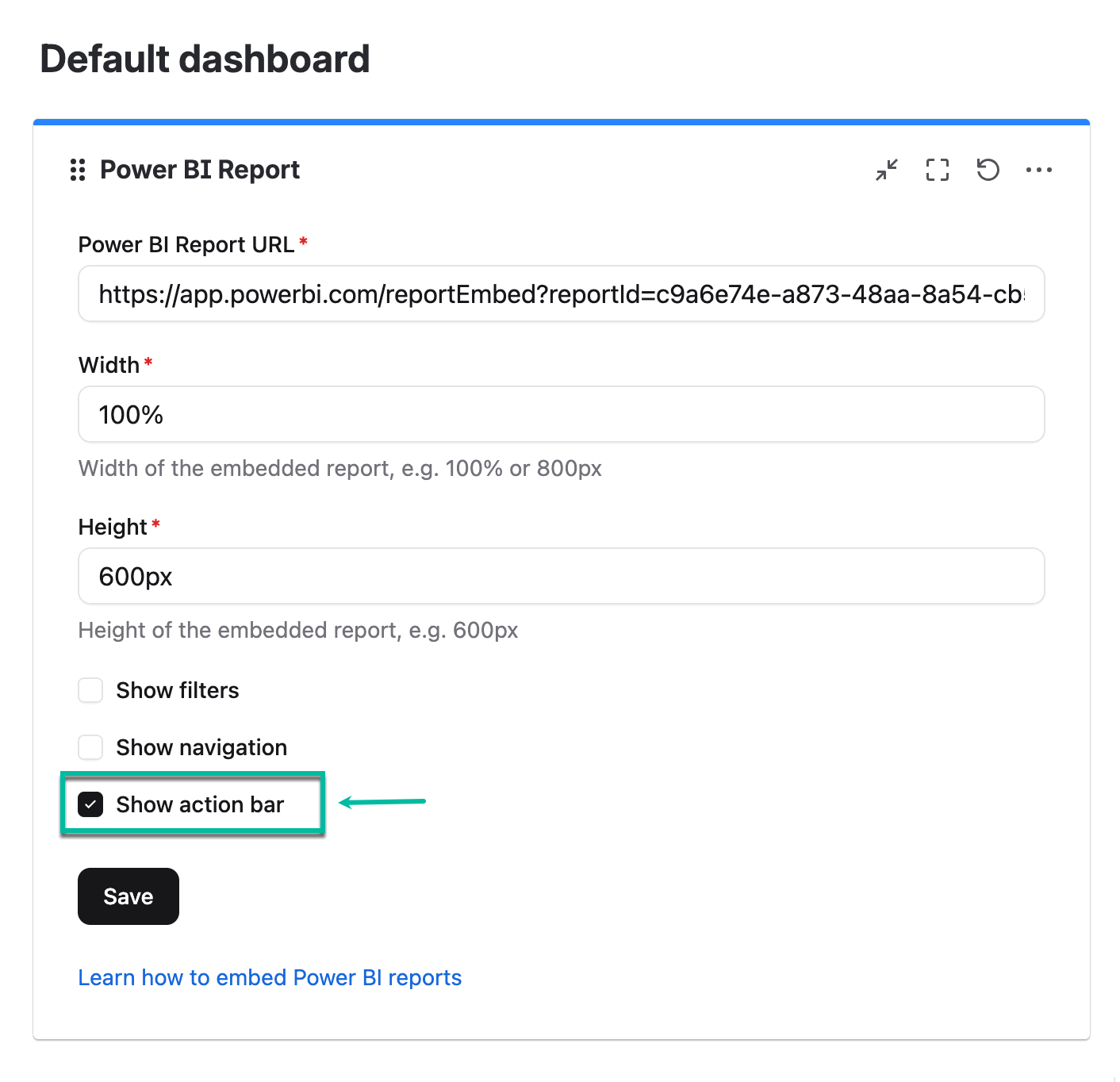
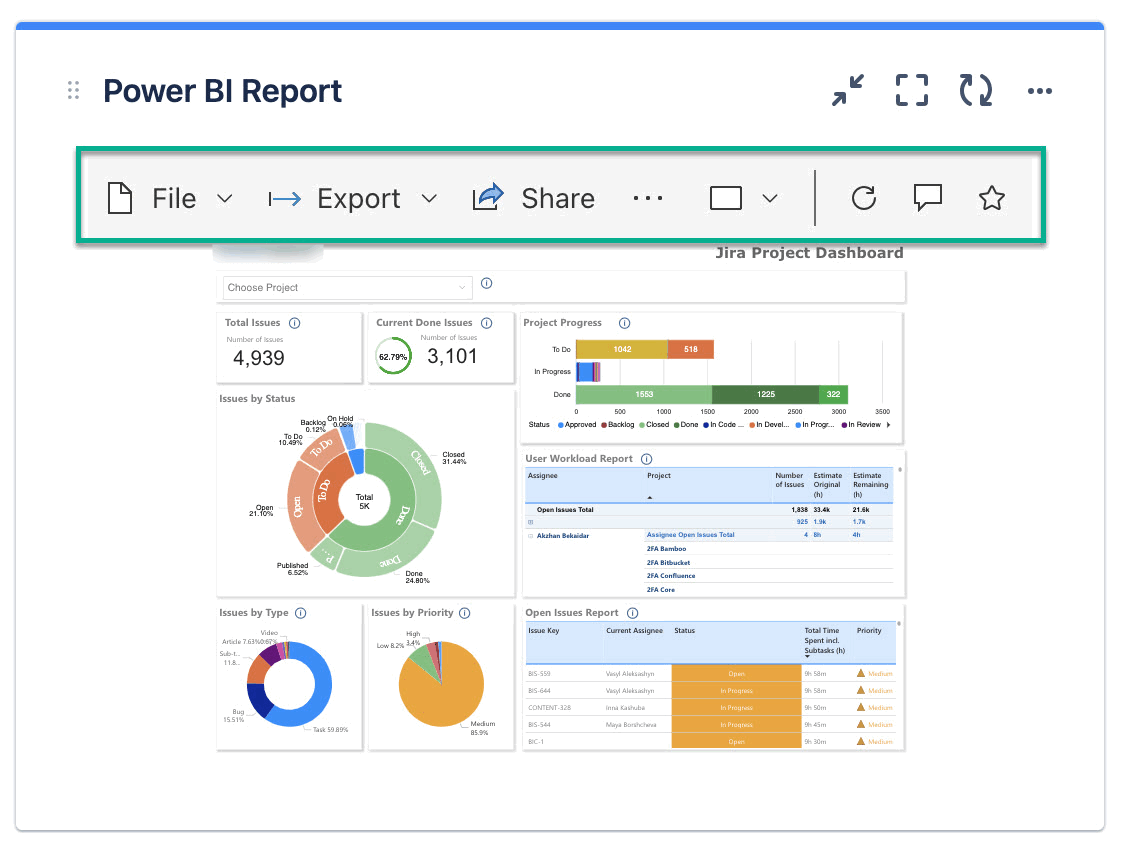
Select Show action bar if you want the upper ribbon with possible action to be displayed on your gadget.
-
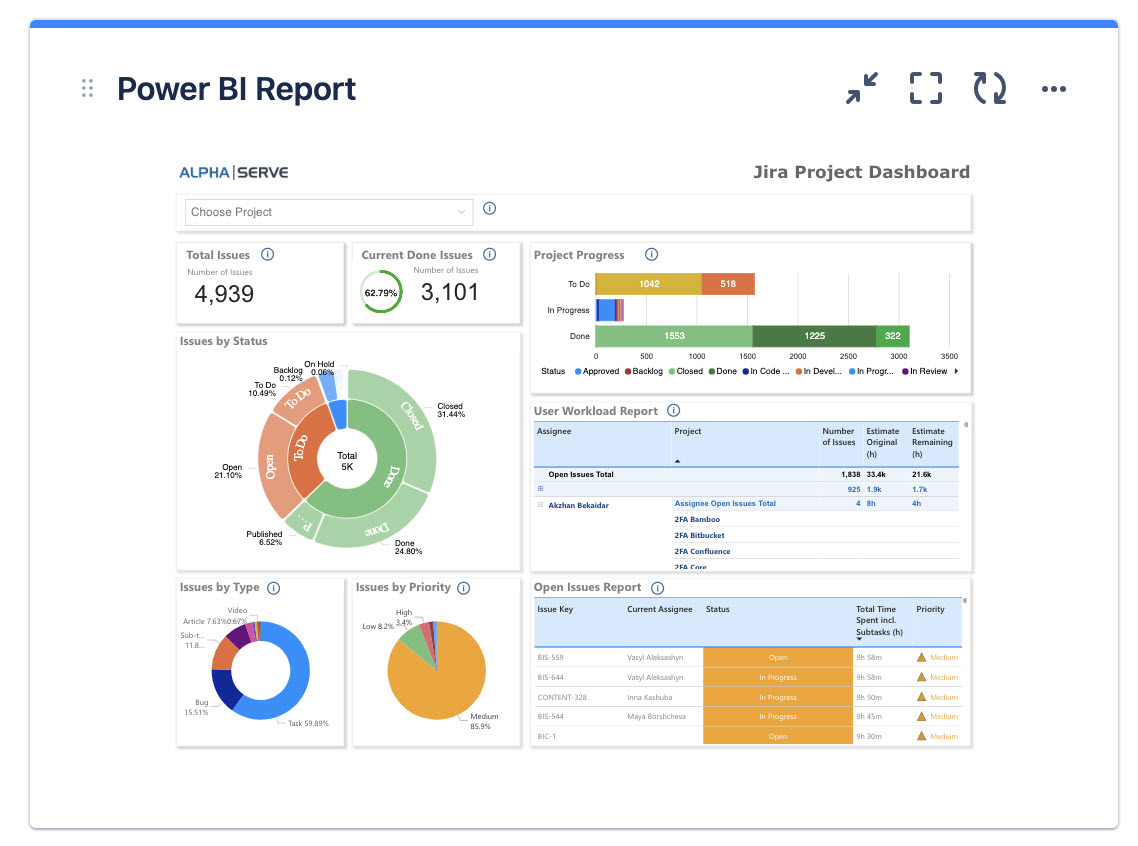
This is what the Power BI gadget looks like when everything is disabled.
-
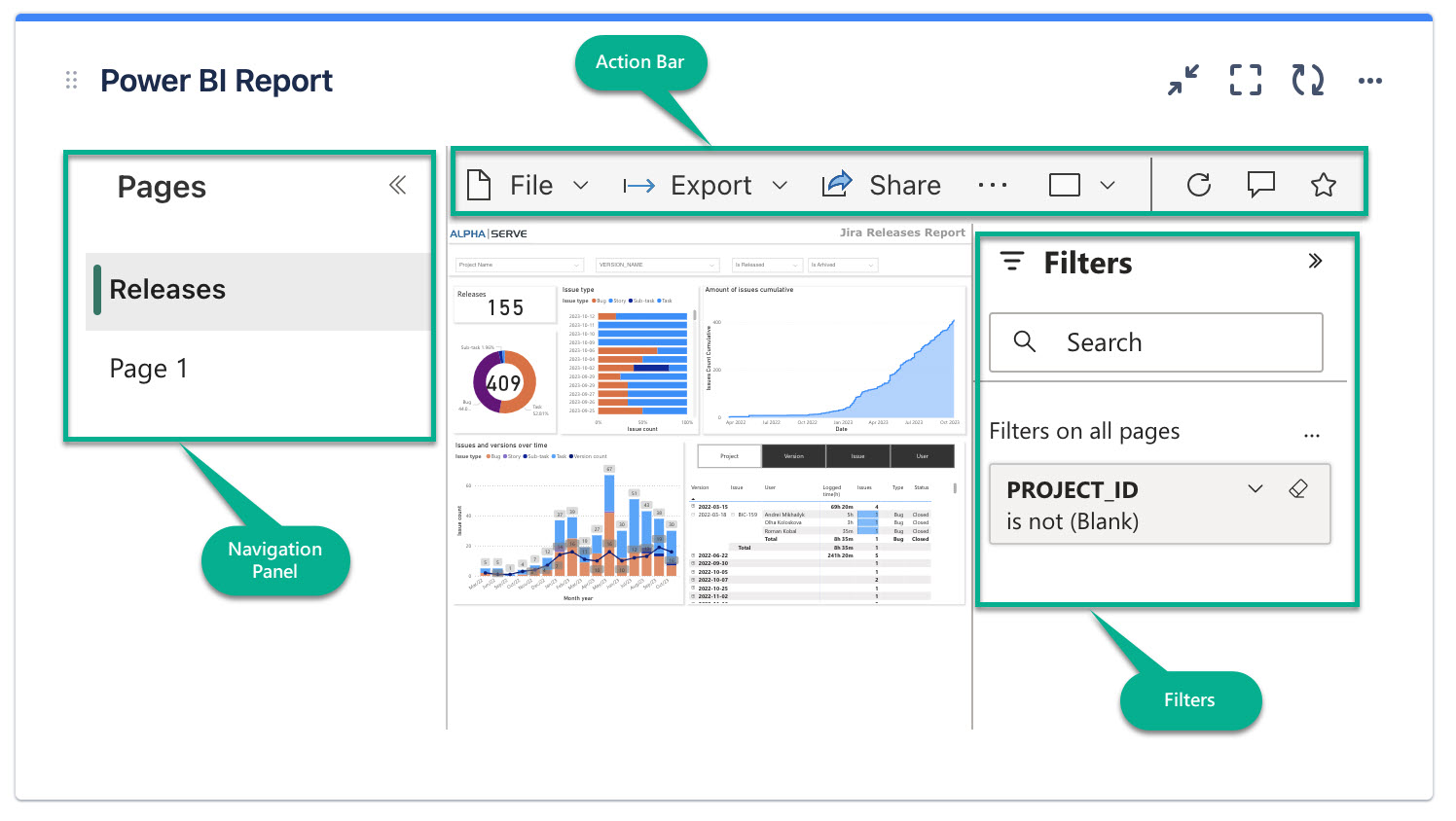
This is what the Power BI gadget looks like when everything is enabled.
When everything is enabled, the navigation panel moves to the left.
-
This is what it looks like when you have 2 Power BI gadgets at the same time.