
Introduction
Before moving the Power BI Connector for Jira data residency, ensure your Jira instance is already pinned or scheduled to move to the target data residency location. Some Marketplace apps, including Power BI Connector for Jira, require a separate data residency migration after the Jira instance move is completed.
If your Jira instance is already pinned to the target location, continue to Moving Power BI Connector Data Residency. If not, follow the steps below first.
Moving Jira Data Residency
To move you Jira data residency, follow these steps:
-
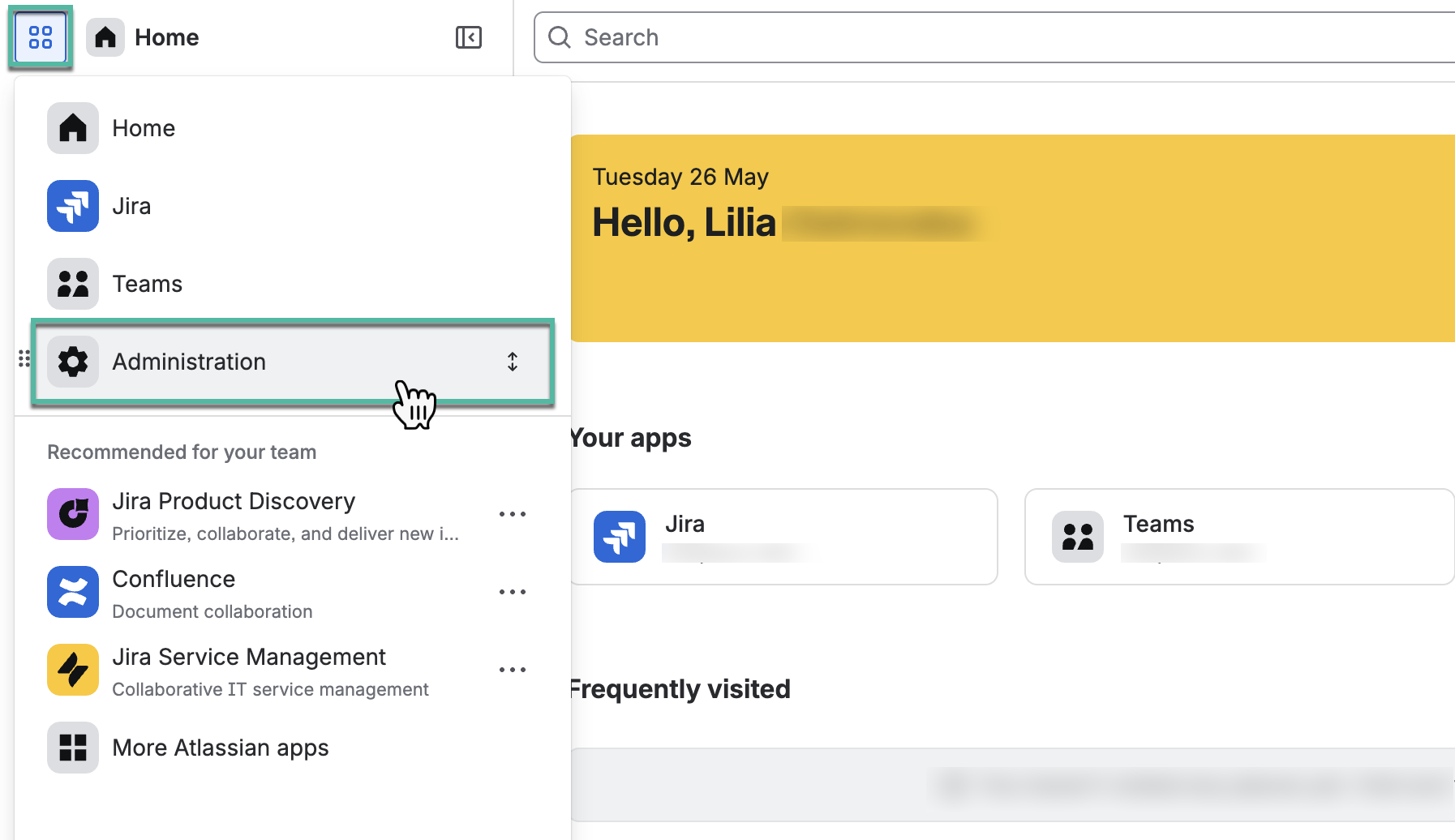
Being signed in to your Jira instance, select Switch sites or apps, and then select Administration.
-
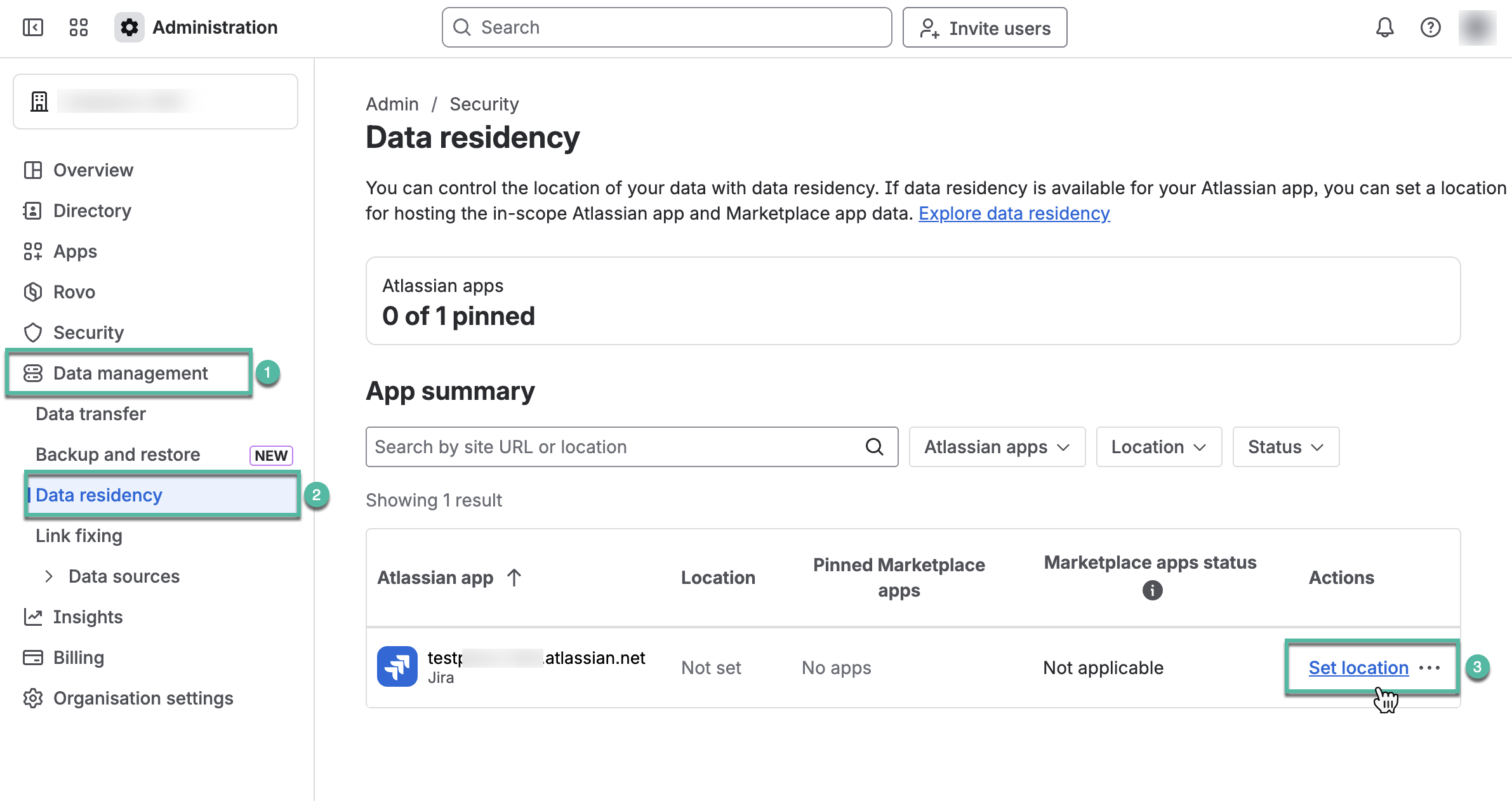
Select Data management, and then select Data residency.
-
Find your Jira instance, and then select Set location.
-
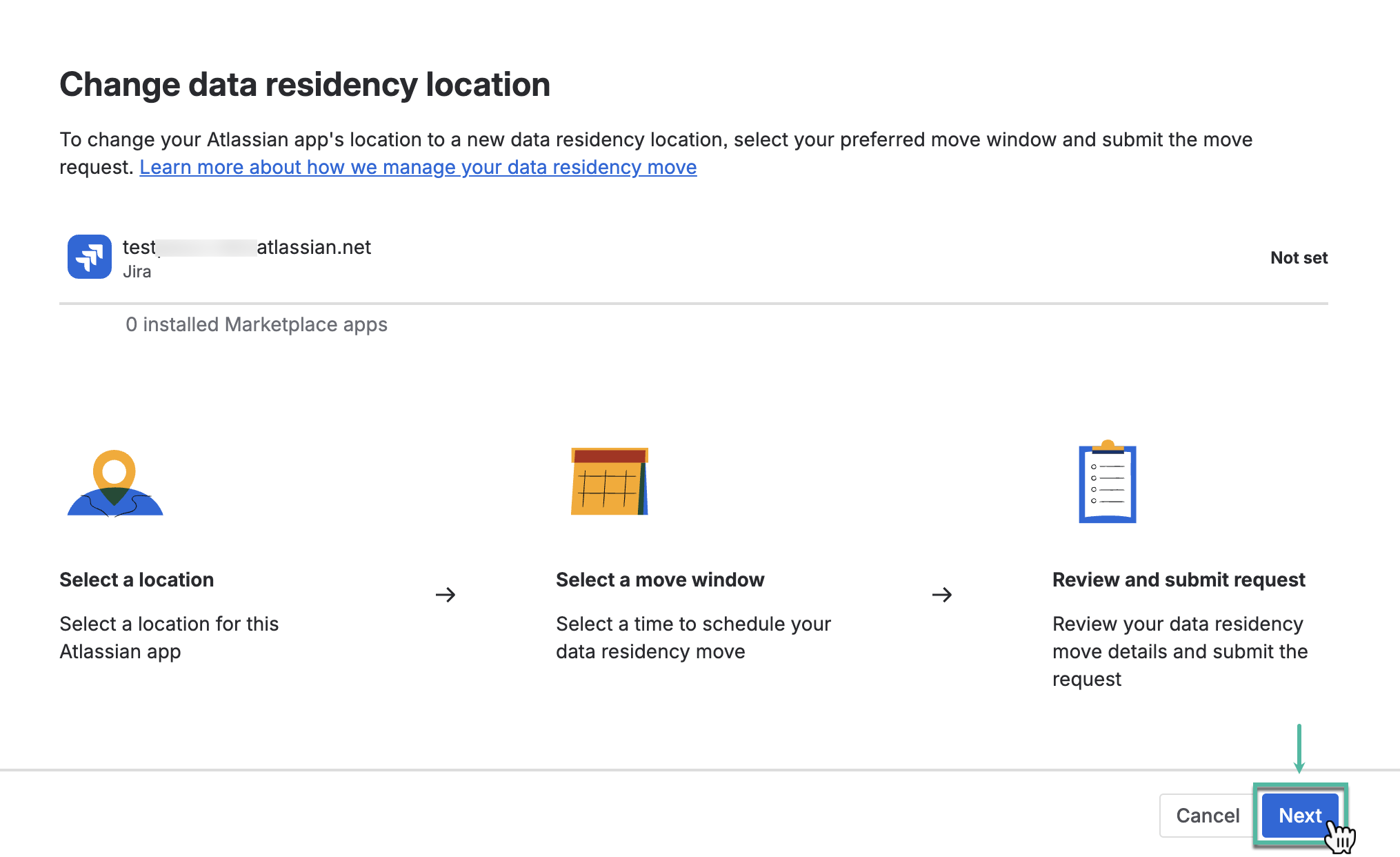
Review the general information, and then select Next.
-
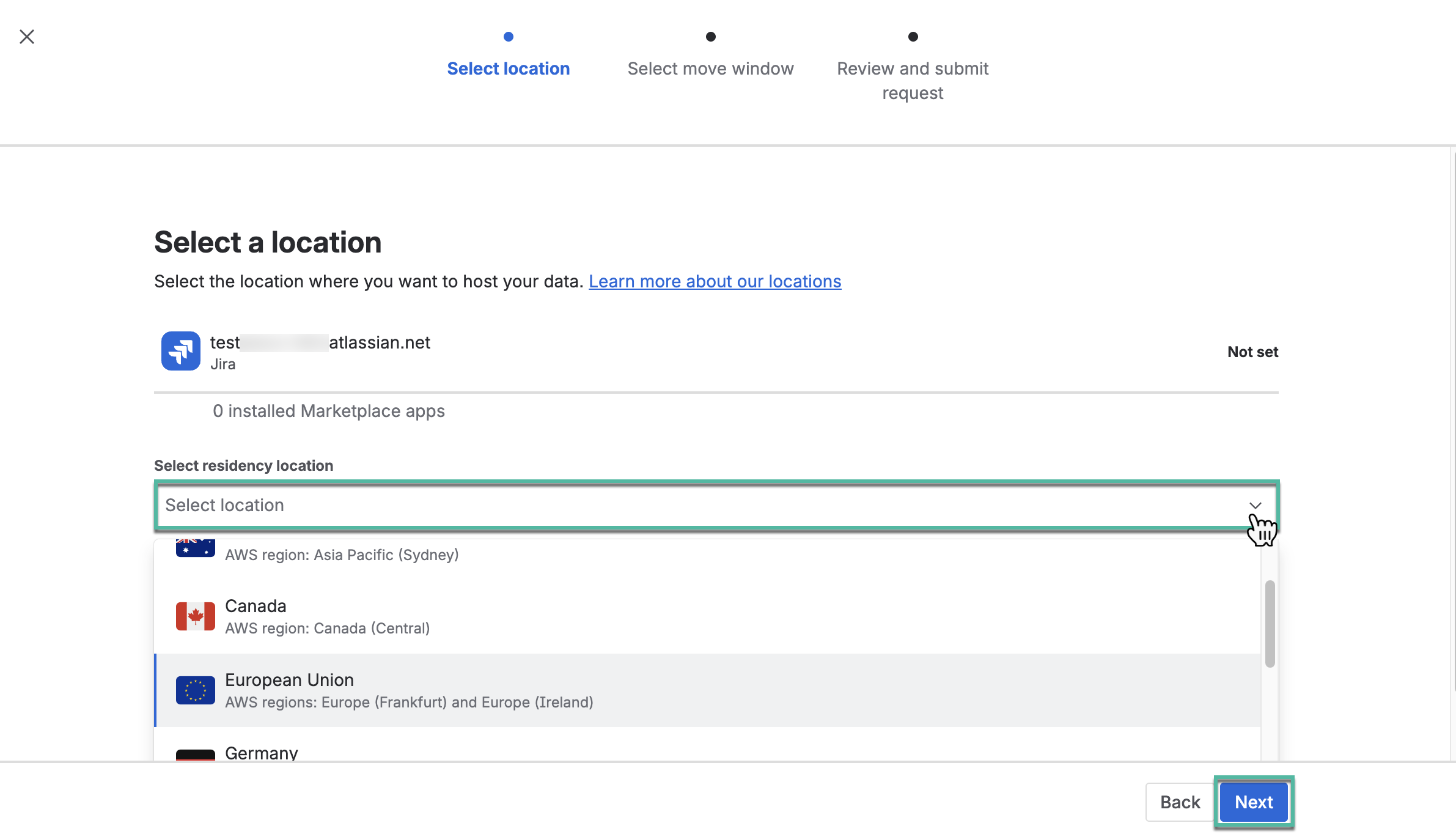
Select residency location, and then select Next.
-
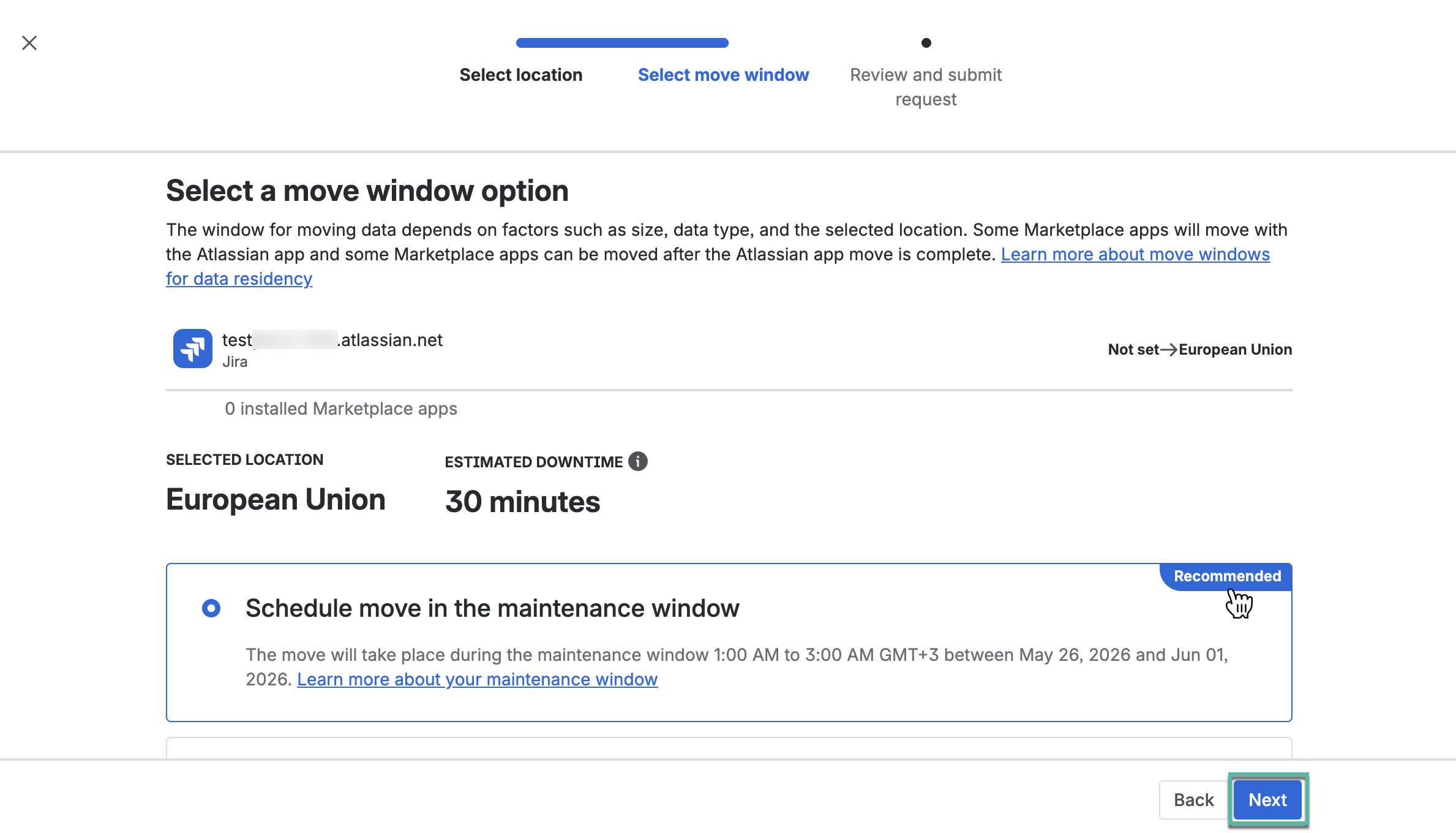
Select a move window option, and then select Next.
-
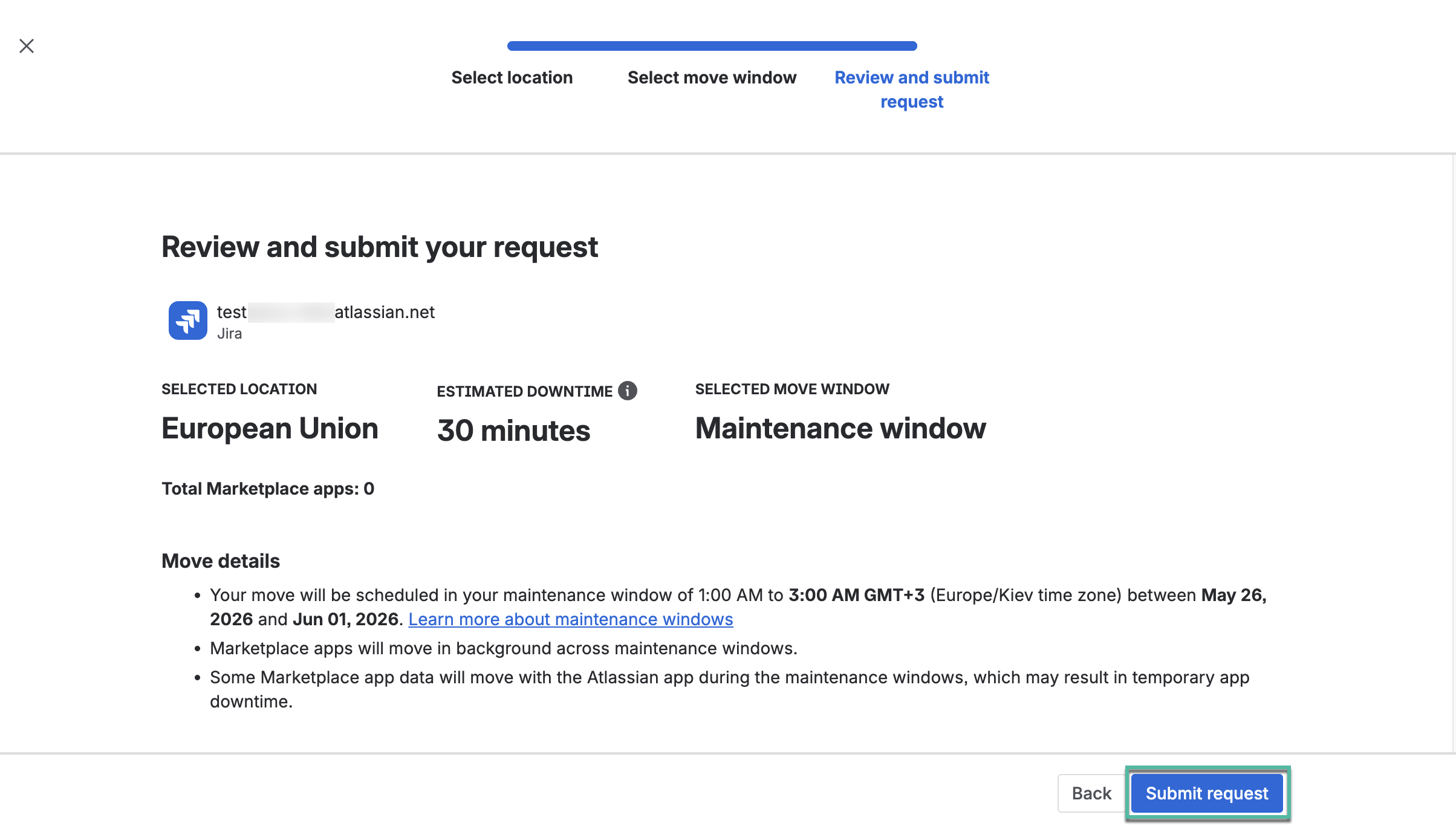
Review all the information, and then select Submit request.
-
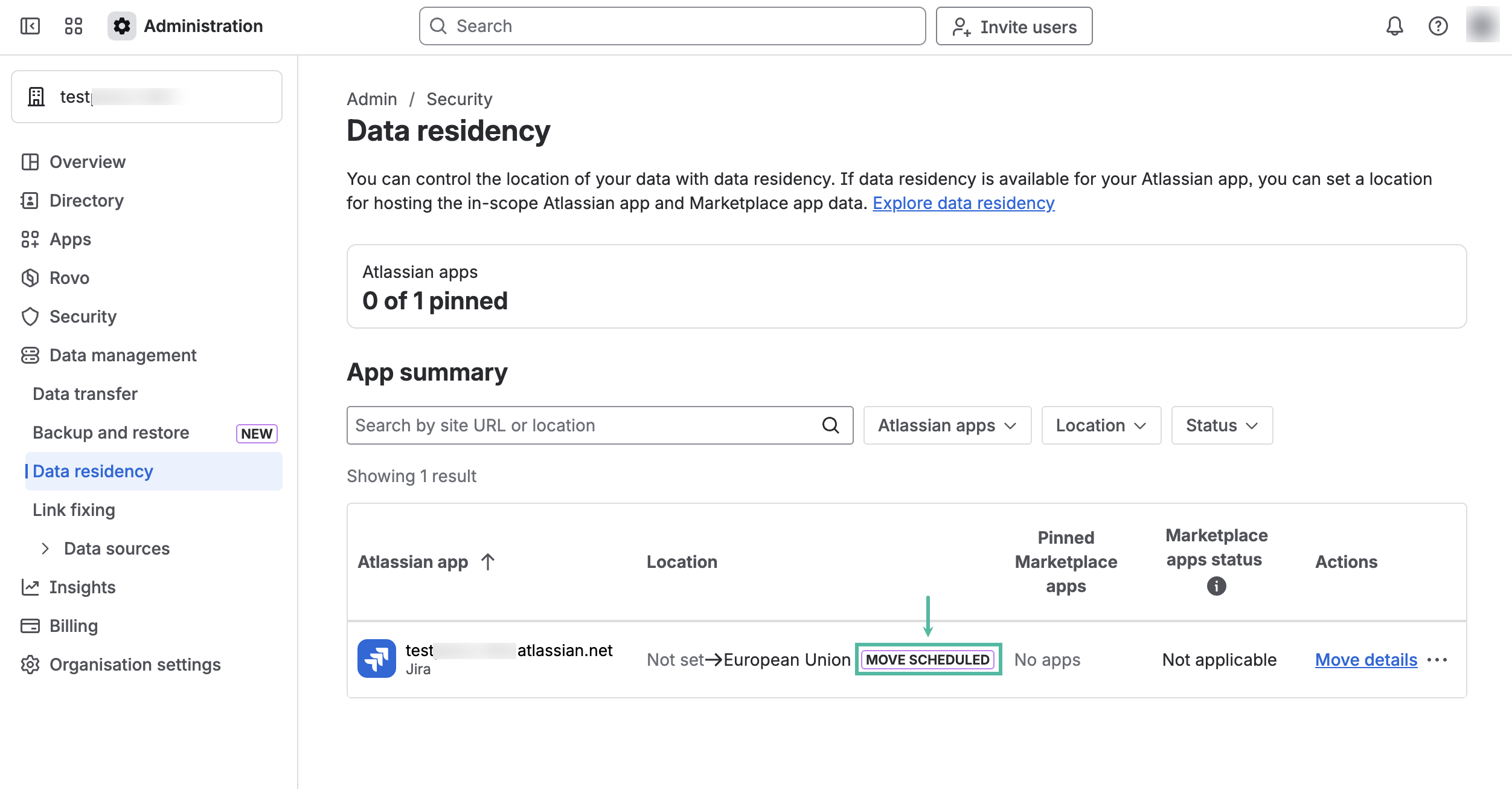
Right after that, the Atlassian app status changes from not set to move scheduled
You can cancel a data residency move while its status is move scheduled . After the status changes to move in progress , the move can no longer be canceled.
Moving Power BI Connector Data Residency
Once your Jira instance is pinned to the target data residency location, you can move the Power BI Connector for Jira data residency.
To proceed, follow these steps:
-
Being signed in to your Jira instance, select Switch sites or apps, and then select Administration.
-
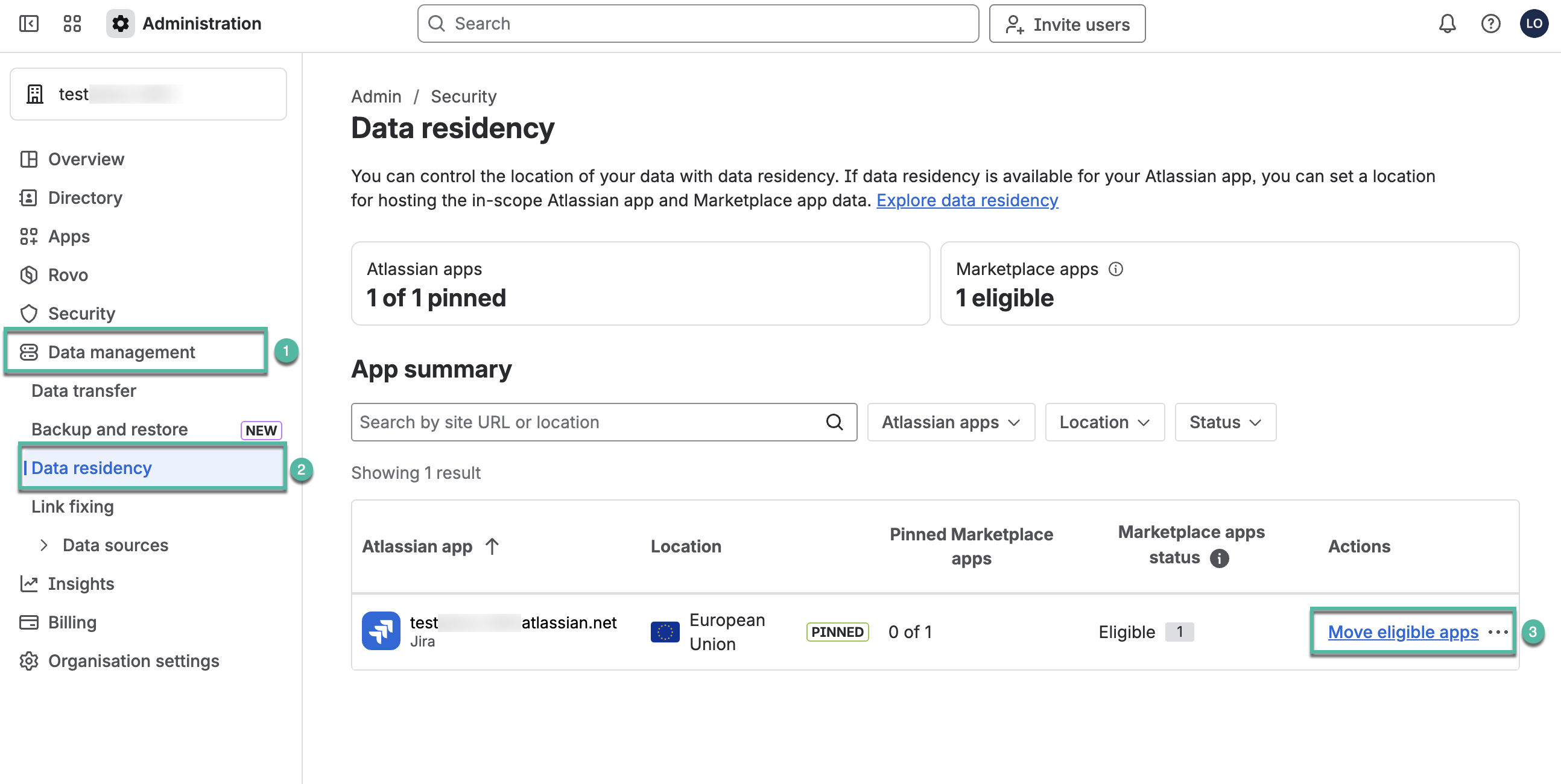
Select Data management, and then select Data residency.
-
In the Atlassian app table, find the corresponding Jira instance, and then select Move eligible apps.
-
Review the general information, and then select Next.
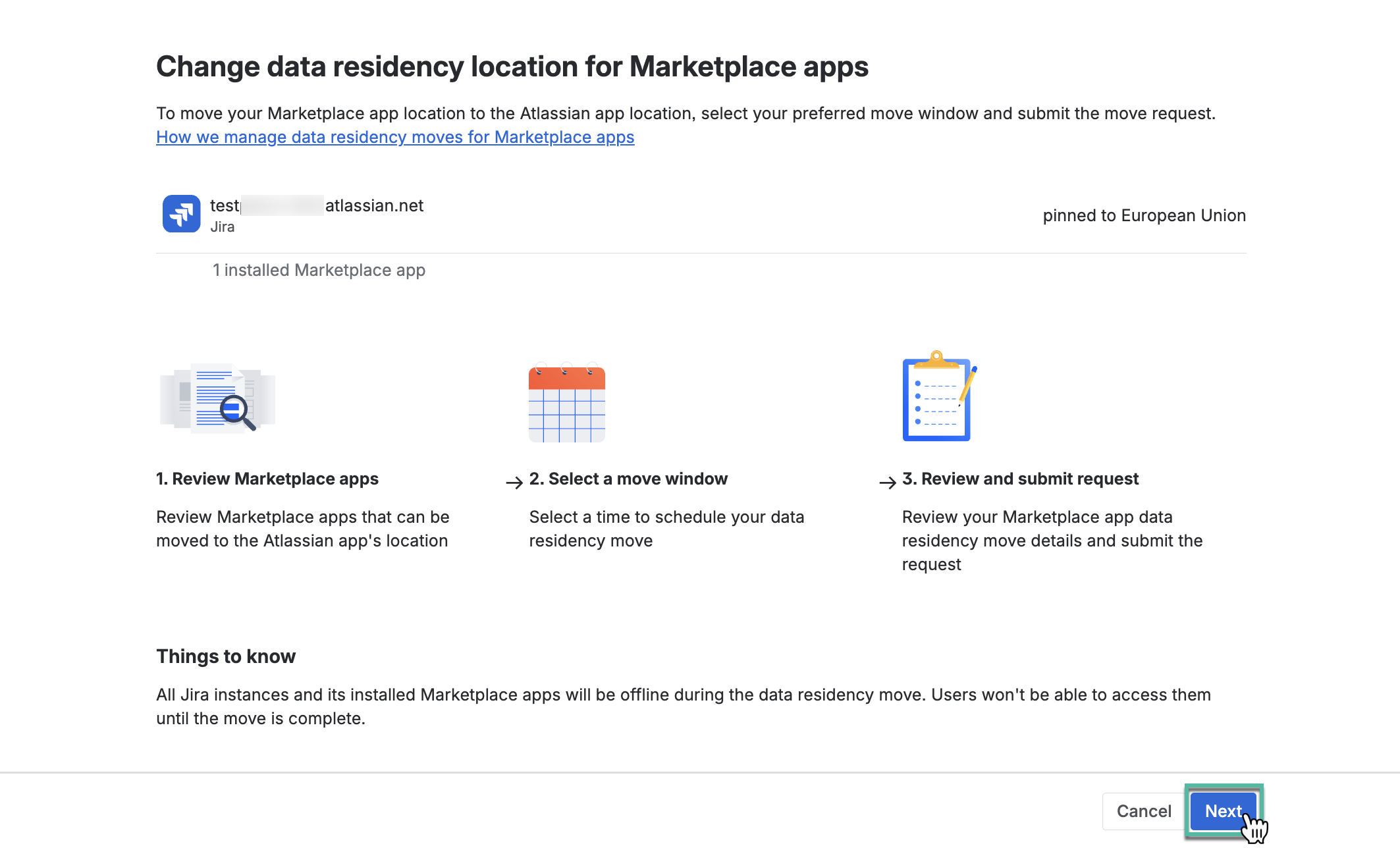
-
Review the information, and then select Next.
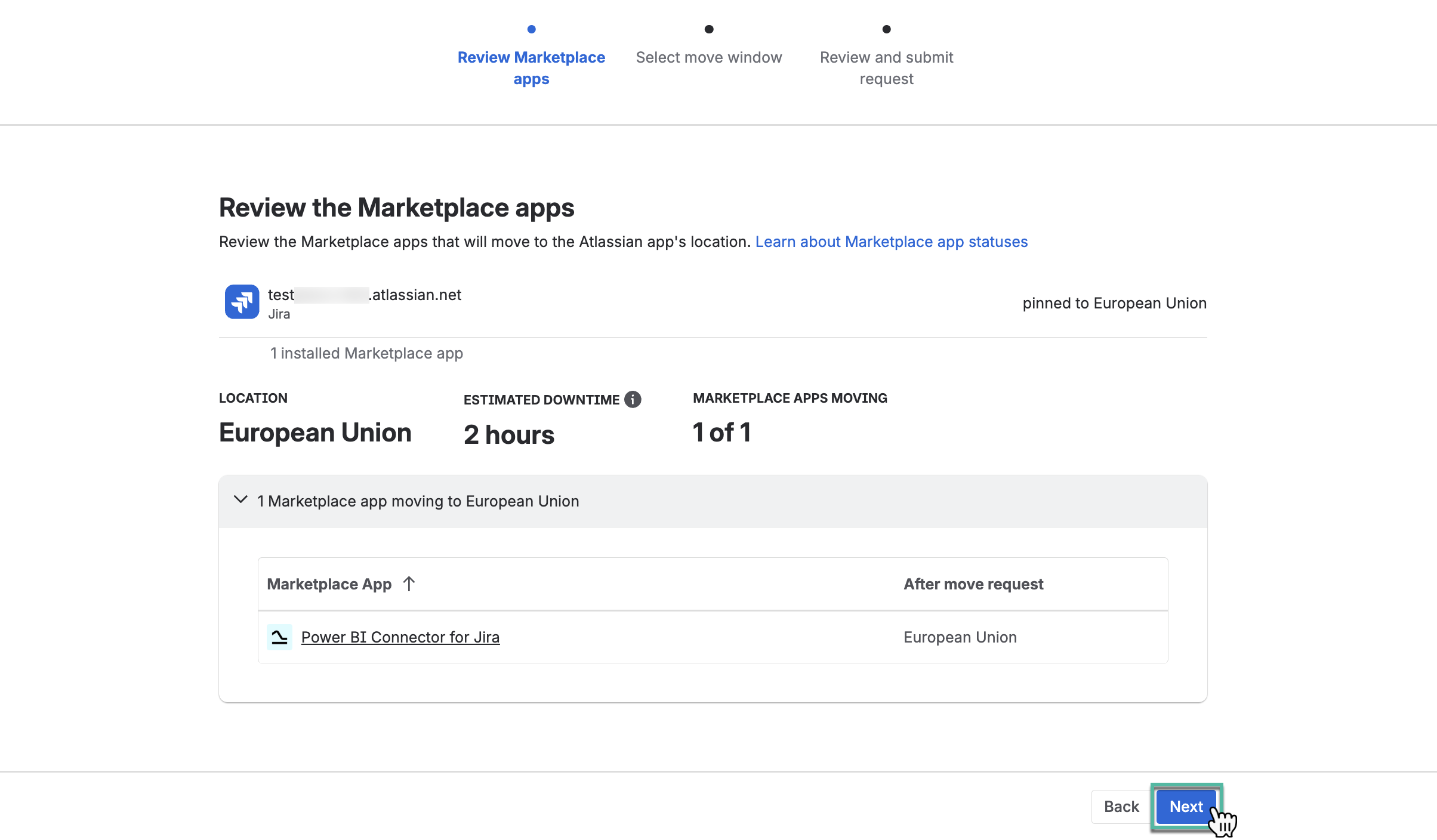
-
Select a move window, and then select Next.
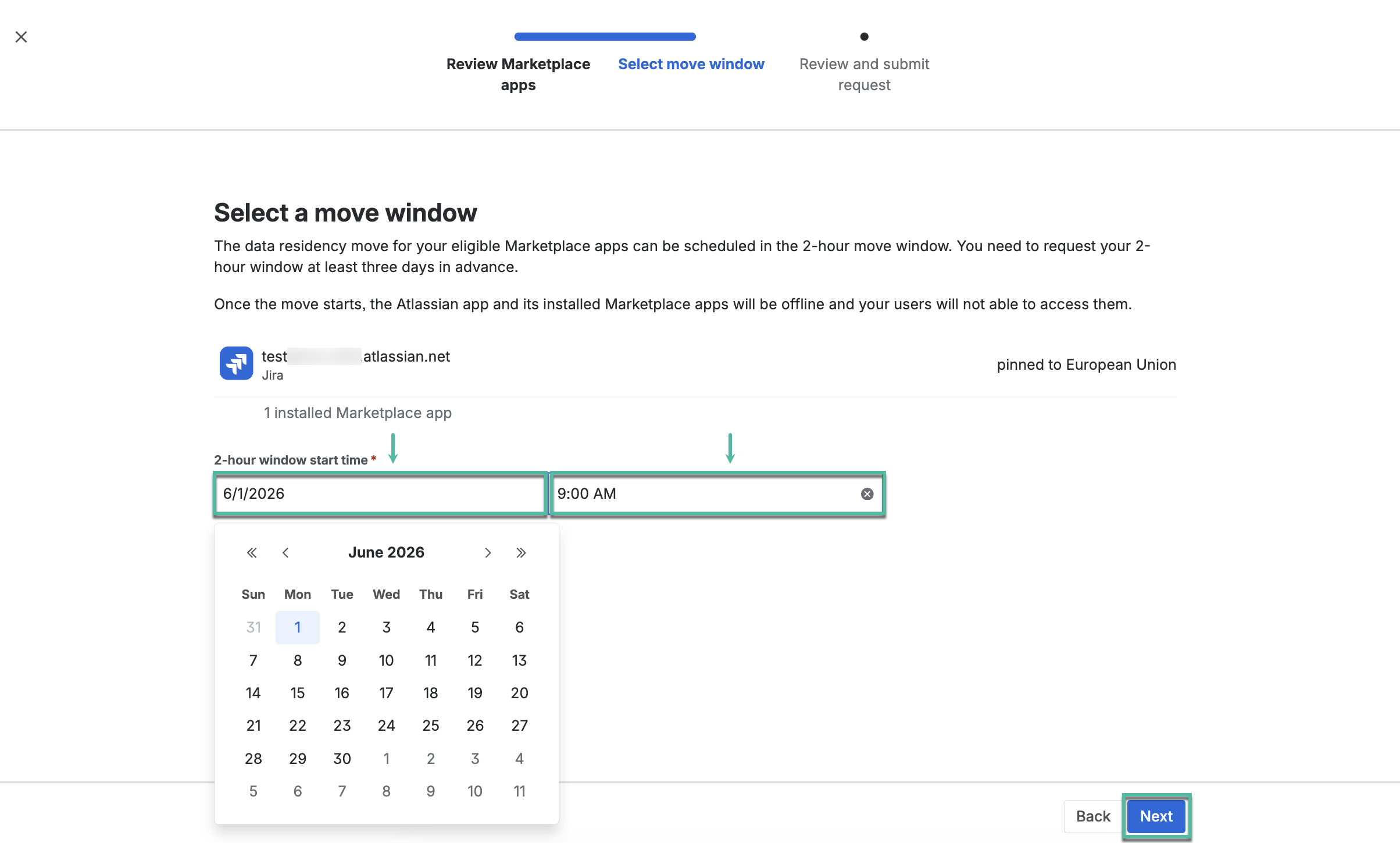
-
Review the information, and then select Submit request.
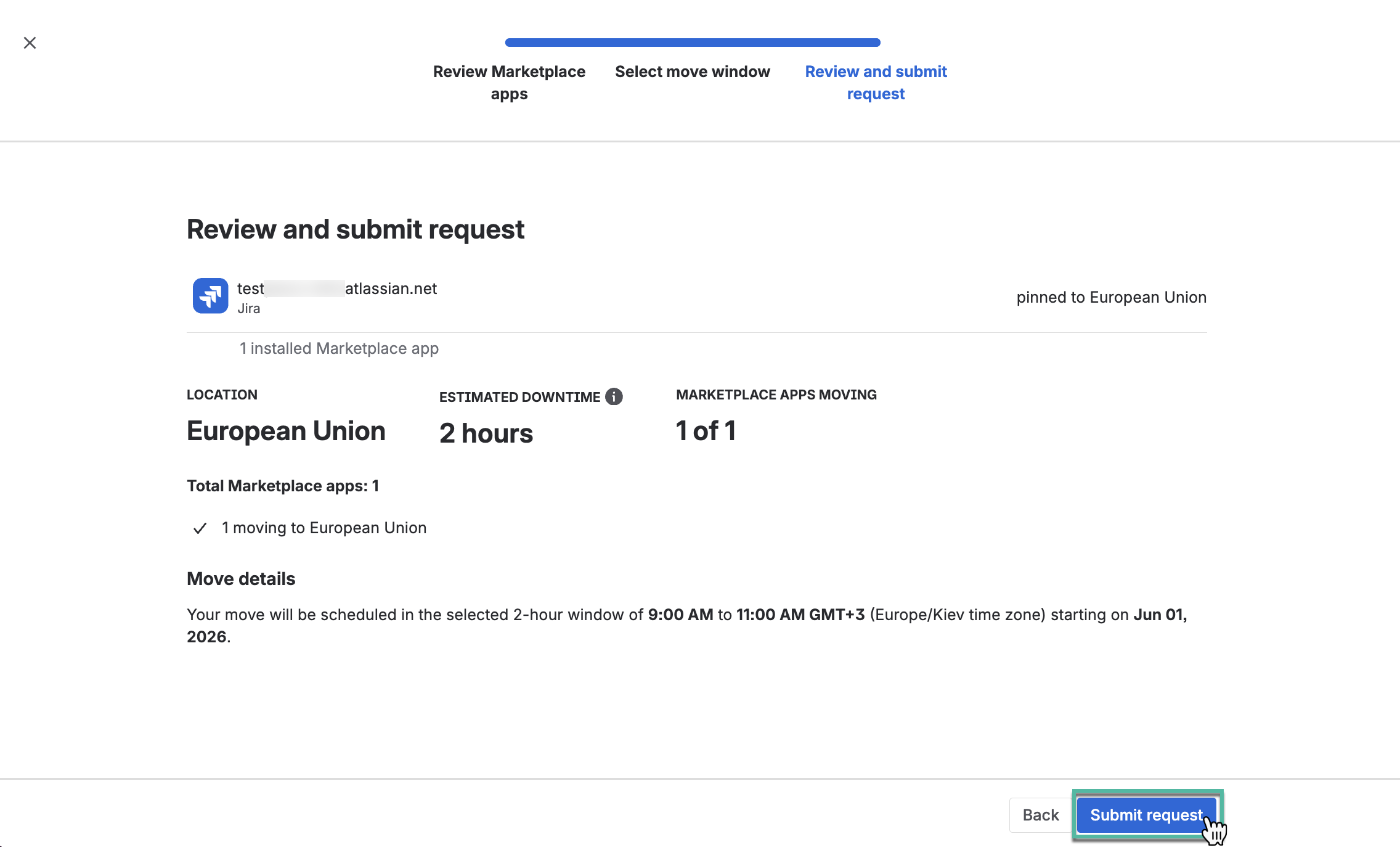
A scheduled data residency migration can be canceled before it begins.
Migration Notes
-
Due to Atlassian limitations, a data residency migration can be scheduled no sooner than 3 days after you submit the migration request.
-
Sometimes during data residency migration, it may occur a mistake, in this case you can reach out to our support.
-
-
After data residency migration, the data source URL domain changes to one where data has been migrated.
-
For example, EU → DE:
https://eu.powerbi.alphaservesp.com/api/export/power-bi/1559c5afbdc9bcb32ff3844490dee3ce→https://de.powerbi.alphaservesp.com/api/export/power-bi/1559c5afbdc9bcb32ff3844490dee3ce
-
-
If your dashboards and reports continue using the old region URL, data export requests are automatically redirected to the new region URL.
Your dashboards and reports shouldn't be affected by the migration and should continue to work as expected. Updating the data source URLs to the new region URL is optional, but we recommend doing so.
-
Export history for data sources is not transferred during the data residency migration. After the migration is completed, only newly generated export history records will appear.
Useful Links
🔗 Atlassian Official Documentation