
Simple Search creates a data source on your dashboard that Custom Charts and Issue Lists can pull from. You can configure Simple Search to pull from Jira spaces, use saved filters, or perform a custom JQL query.
If you have Structure installed on your instance, you can also use any structure as the source for a Simple Search.
Charts and issue lists added after creating a Simple Search will use that search as their default data source.
If you have charts or issue lists before creating a Simple Search, you can update their source to point to the new Simple Search if needed.
Adding a Simple Search
To add this gadget to a Jira dashboard:
-
Open the dashboard and select Edit.
-
Select Add gadget.
-
Scroll to the gadget and select Add.
You can also enter the name of the gadget in the search field to find it.
After you add a gadget, go to the Details tab to give it a Title and an optional Description.
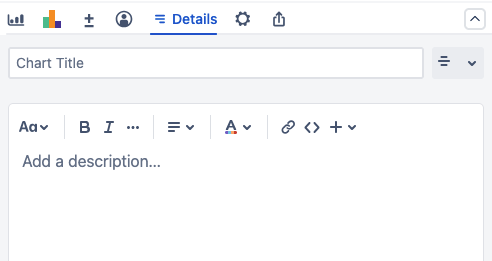
Configuring a Simple Search
Select a source to pull data from to use in your charts.
-
Projects: Pulls data from one or more selected Jira spaces.
-
Saved filters: Uses the selected custom filter to pull data.
-
Custom JQL: Pulls data using the provided JQL query.
Simple Search fields
Simple Search includes the following fields by default.
-
Project
-
Issue Type
-
Status
-
Assignee
-
Contains text…
Select the pencil icon to rename existing fields, or select the trashcan icon to remove a field. Fields in your search work as filters for the data displayed in charts and issue lists.
Adding additional fields
Select + Add another field to add other Jira fields to the search.
You can also select one of the quick options above the segments list:

-
Custom JQL: Select this button and then select Custom JQL Toggle or Custom JQL Text Field.
-
Custom JQL Toggle adds a segment that you can use for a custom JQL query. This adds a filter toggle to your Simple Search gadget.
-
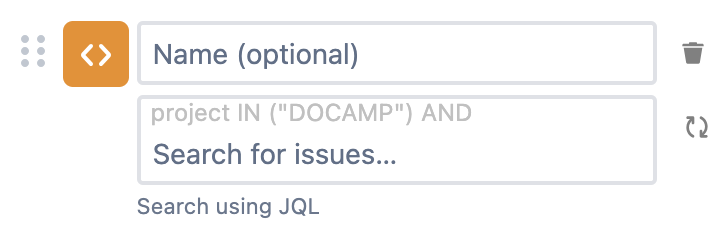
Custom JQL Text Field adds the following field to your Simple Search gadget.

-
-
Saved Filter: Select this button and then select Single Toggle or Multi Select.
-
Single Toggle adds a segment where you can select a filter.

-
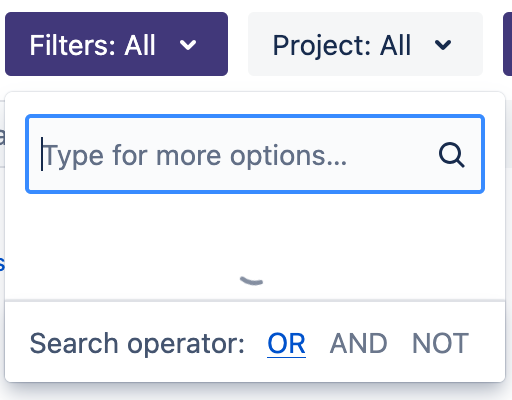
Multi Select adds the following menu to your search:
-
-
Structure: Select this button and then select Single Toggle or Multi Select.
-
Single Toggle adds a segment where you can select a Structure.

-
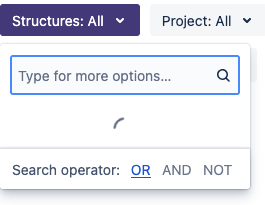
Multi Select adds the following menu to your search:
-
Display options
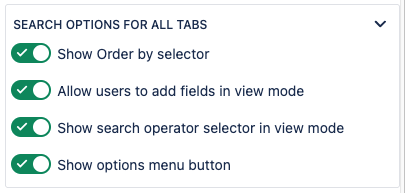
The following display options are available for Simple Search:
|
Option |
Description |
|---|---|
|
Show Order by selector |
Toggles the Order by menu located next to the search field. 
|
|
Allow users to add fields in view mode |
When enabled, users without edit access to your dashboard or Simple Search can still add Jira fields to the search as a filter. |
|
Show search operator selector in view mode |
Toggles the menu where users can set the search to use AND or OR as the active operator. 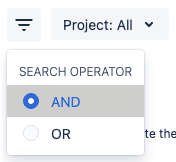
|
|
Show options menu button |
Toggles the :moreOptions: More options menu. 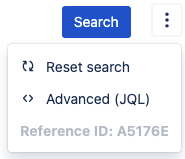
|
Live preview
View how your selected fields will appear in Simple Search with its live preview. When you add or remove fields to a search, you can see the values for those fields in the live preview.
Selecting values for any fields in the live preview and then saving the search’s configuration will set those values as the default for your Simple Search.
Live preview does not show you the results of your search. You need to add and connect a Custom Chart or Issue List to view this data.